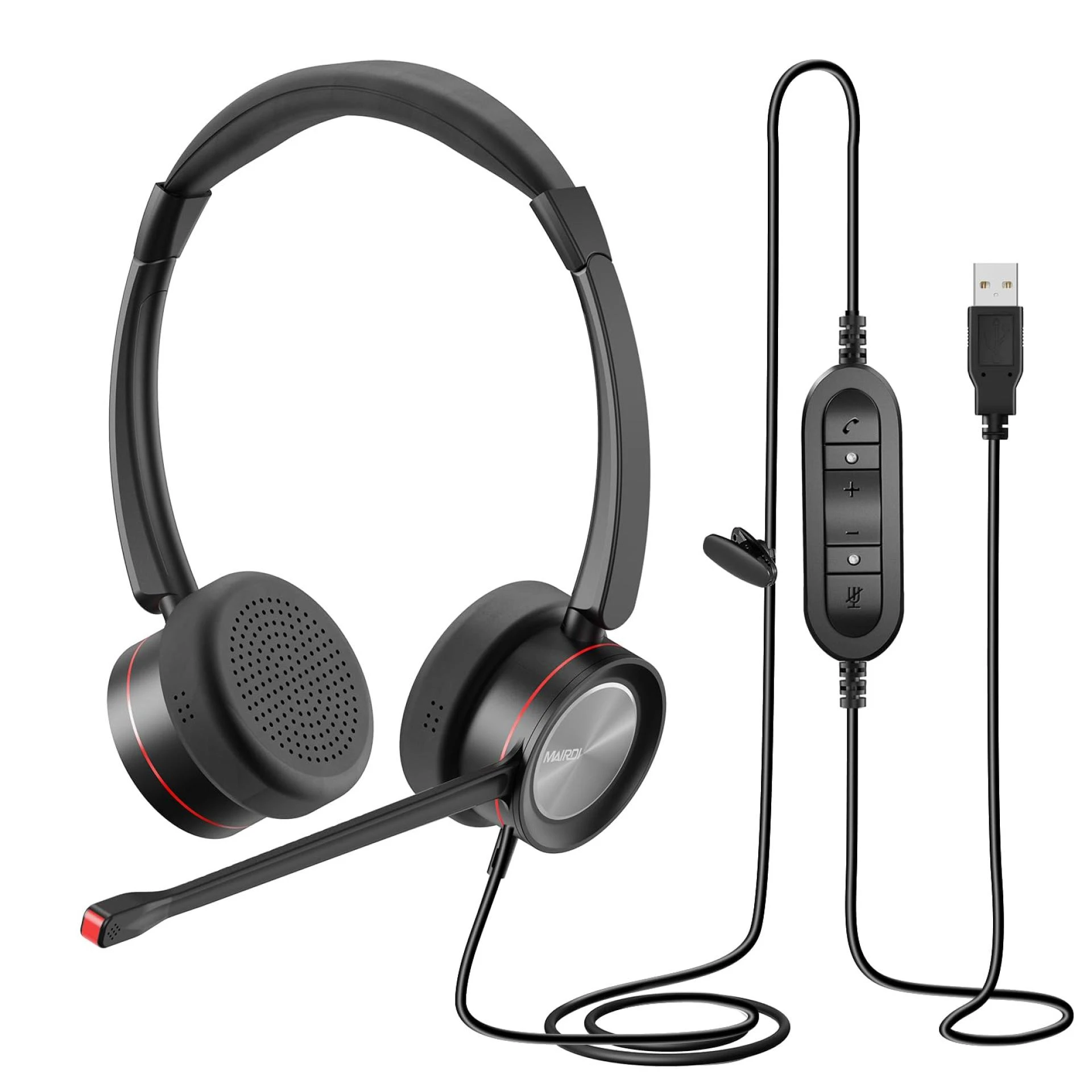

Using your phone’s built-in microphone with headphones that don’t have a built-in mic can enhance your audio experience while ensuring you still have the ability to communicate during calls or record audio. Here’s a step-by-step guide to help you utilize your phone mic with headphones effectively.
Check Your Headphones and Phone CompatibilityBefore diving into any setup, make sure that your headphones are compatible with your phone. Most modern smartphones use a 3.5mm headphone jack, a USB-C, or a Lightning connector. If your phone and headphones use different connectors, you may need an appropriate adapter.
Plug in Your HeadphonesSimply plug your headphones into the headphone jack or port of your phone. If you’re using an adapter, connect your headphones to the adapter first, then plug the adapter into your phone.
Adjust Phone SettingsDepending on your phone model and operating system, you may need to adjust settings to ensure the phone’s built-in mic is used. Here’s how to do it on popular operating systems:
Android
Go to Settings: Open the Settings app on your phone.Select Sound: Navigate to the Sound settings.Microphone Settings: Look for an option related to microphone or audio input. Some phones might label it as "Input" or "Audio Source."Choose Built-in Mic: Select the built-in microphone as the default input device.iOS
Open Control Center: Swipe down from the upper-right corner of the screen (iPhone X and later) or swipe up from the bottom of the screen (iPhone 8 and earlier).Select the Mic: Press and hold the audio box in the upper-right corner. Ensure that your phone is set to use its internal mic. Test the MicrophoneOnce you’ve adjusted your settings, it’s a good idea to test the microphone to ensure it’s working correctly. You can do this by:
Making a Call: Call a friend or use a test call service to see if they can hear you clearly.Voice Recording: Use a voice recording app to record a short message and play it back to check the audio quality. Using Apps for Better ControlThere are several apps available that give you more control over your phone’s audio input and output. These apps can be particularly useful if your phone’s settings are limited or if you want more customization.
Android Apps
Lesser AudioSwitch: This app allows you to force your phone to use its built-in mic while using external audio devices.SoundAbout: This app provides comprehensive control over audio routing, ensuring the right mic and output devices are used.iOS Apps
GarageBand: While primarily a music creation app, GarageBand allows you to choose your audio input source.Voice Memos: Apple's built-in app lets you record audio and choose the input source. Handling Common IssuesSometimes, you might encounter issues when trying to use a phone mic with headphones. Here are some troubleshooting tips:
No Sound: Ensure the headphones are properly plugged in. Try unplugging and replugging them.Poor Audio Quality: Make sure there are no obstructions or damage to your phone’s microphone. Clean the microphone opening with a soft brush or cloth.Settings Reset: Sometimes, restarting your phone or resetting settings can resolve the issue. Tips for Optimal UsePositioning: Hold your phone close to your mouth to ensure clear audio capture.Environment: Reduce background noise to improve audio quality. Using your phone mic in a quiet environment will yield the best results.Volume Control: Adjust the phone volume to ensure you can hear clearly through the headphones while not causing any echo or feedback.Conclusion
Using your phone’s built-in mic with headphones is a simple yet effective way to enhance your communication and recording experience. By following the steps outlined above, you can ensure seamless integration and optimal performance. Whether for calls, voice recordings, or other audio needs, leveraging your phone’s mic can provide the clarity and convenience you need.



























Sign in to leave a comment.