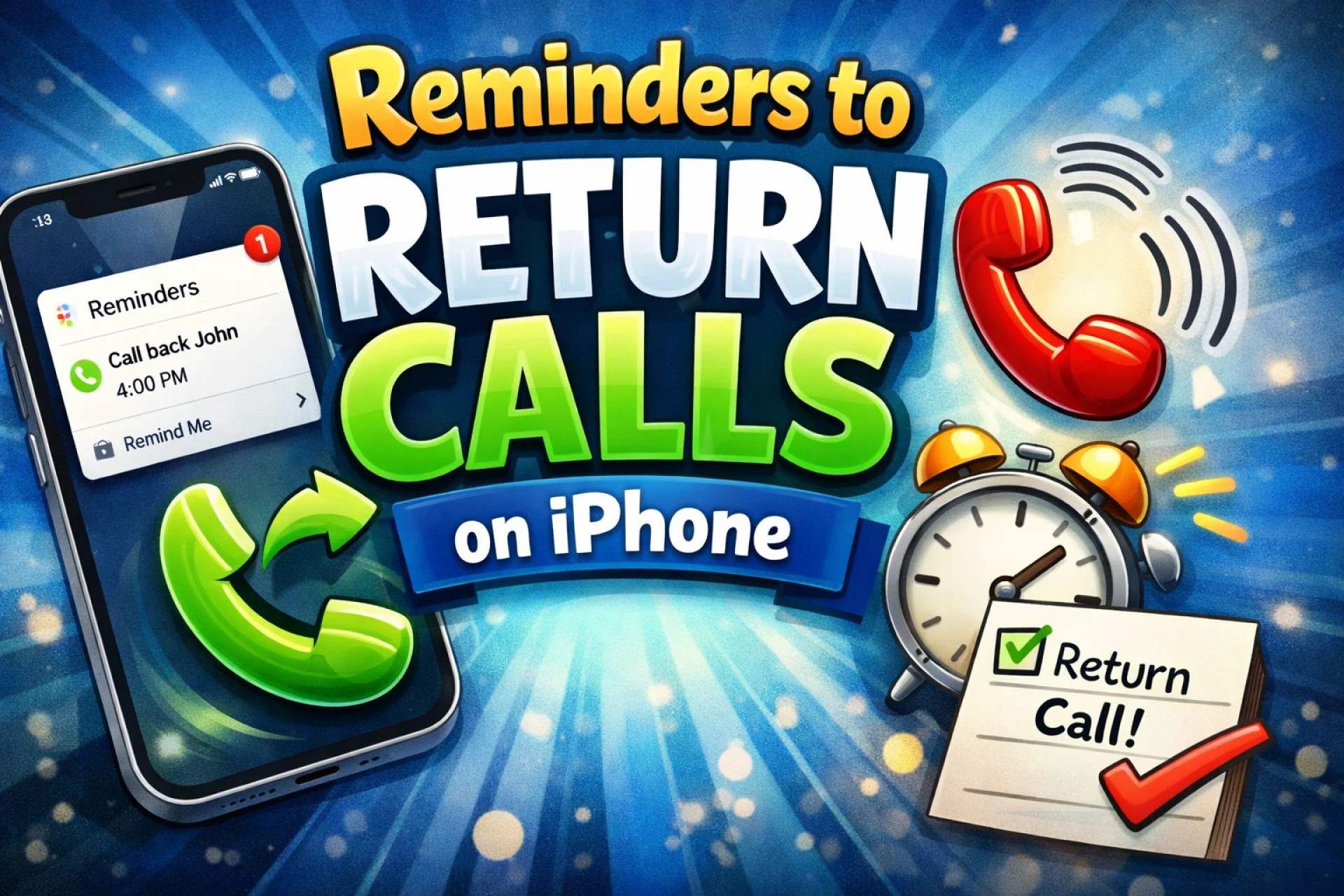

With the release of iOS 26, Apple has introduced a significant design overhaul known as "Liquid Glass." While the aesthetic changes are striking, the update also focuses heavily on "putting the phone back in iPhone" by streamlining how we handle daily communication. One of the most practical additions is the ability to set callback reminders directly within the Phone app.
We have all been there: a call comes in while you are in a meeting, driving, or simply occupied, and by the time you are free, the notification has buried itself under a mountain of texts and emails. In previous versions, you had to manually switch apps to set a reminder. Now, iOS 26 integrates this functionality into your recent calls list, ensuring that important follow-ups never slip through the cracks. This guide will walk you through how to use this feature to return calls faster than ever.
How to Set a Callback Reminder from Your Recent Calls
The most direct way to use this new feature is through the "Recents" tab in your Phone app. Apple has made the process incredibly intuitive by adding a dedicated gesture for call management.
- Open the Phone App: Launch the app and tap on the Recents tab at the bottom.
- Locate the Missed Call: Find the contact or number you need to call back.
- The Swipe Gesture: Swipe left on the call entry (just as you would to delete it).
- Tap the Clock Icon: You will now see a new blue clock icon alongside the standard delete option. Tap it.
- Choose Your Timeline: A menu will appear with preset options: Remind Me in 1 Hour, Tonight, or Tomorrow.
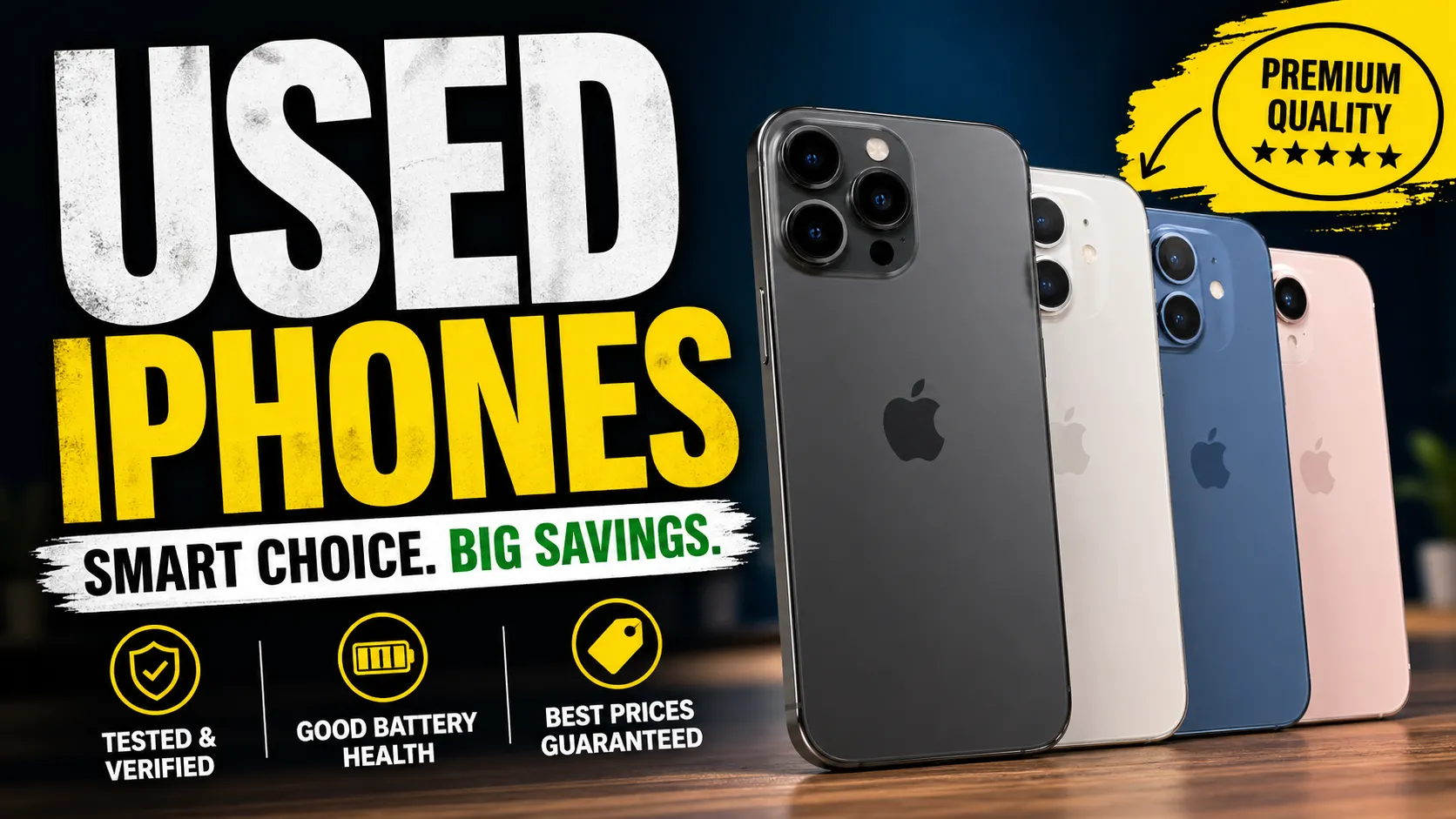
Selecting one of these will immediately schedule a reminder in your Reminders app, pre-populated with the contact’s name and phone number. If you are looking for a second hand iphone in india to test out these latest software features, choosing a reliable seller like EasyPhones ensures you get a device capable of running the latest Liquid Glass interface smoothly.
Customizing Your Reminders with the "Remind Me Later" Option
Sometimes a preset "one hour" or "tomorrow" doesn't fit a complex schedule. For those instances, iOS 26 offers a "Remind Me Later" button within the same swipe-menu.
When you tap Remind Me Later, the iPhone opens a mini-version of the Reminders editor. Here, you can set a specific time and date, add notes (such as the reason for the call), and even assign a priority level. This is particularly useful for business professionals who need to keep detailed logs of their client interactions. Because this is integrated with the Reminders app, the notification you receive later will include a one-tap "Call" button, allowing you to initiate the return call directly from the Lock Screen.
Using Apple Intelligence for Automatic Call Suggestions
Beyond manual entry, iOS 26 leverages "Apple Intelligence" to suggest reminders based on your activity. If you receive a voicemail or a text message saying, "Call me when you're free," the system can detect the intent and suggest a reminder automatically.
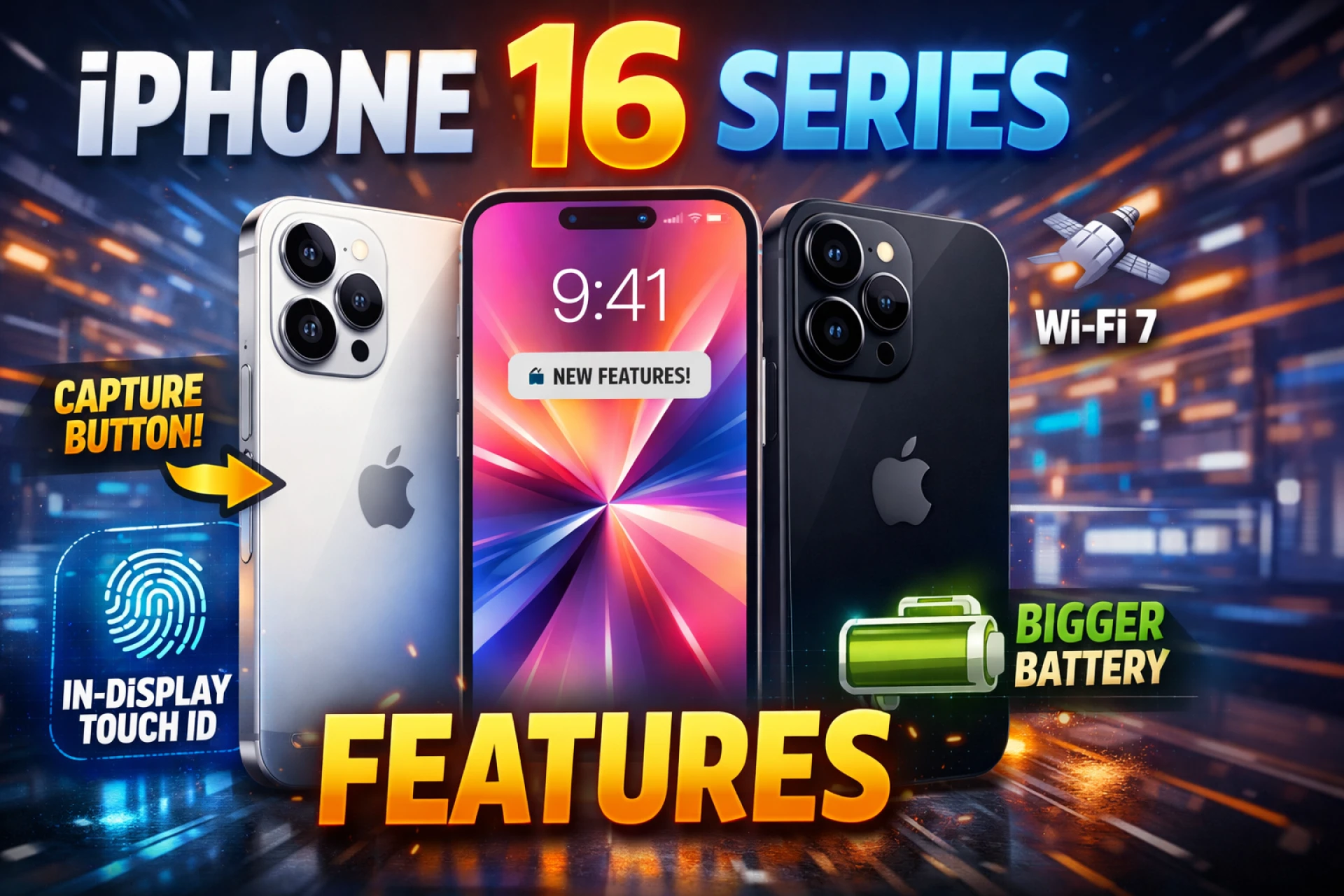
You will see these suggestions appear at the top of your Reminders app or as a subtle prompt in the Siri Suggestions widget. This proactive approach is a game-changer for anyone managing a high volume of communication. For those who want the best hardware to support these AI-driven features, the iphone 16 refurbished offers the perfect balance of performance and value, especially when sourced through trusted platforms like EasyPhones that specialize in high-quality, certified devices.
Managing Your Call Reminders in the Reminders App
Once a call reminder is set, it lives within the Reminders app alongside your grocery lists and work tasks. However, call reminders are unique because they are "actionable."
When the scheduled time arrives, the notification will pop up on your screen. Instead of just seeing a text alert, you will see a phone icon. Tapping this icon triggers the call immediately. If you are still busy when the alert goes off, you can use the new Urgent toggle (introduced in iOS 26.2) to ensure the reminder breaks through your Focus modes or Silent settings. This ensures that a high-priority client or family member always gets their callback.
Maximizing Productivity with the Right Hardware
Software features are only as good as the hardware running them. The Liquid Glass design and advanced AI processing of iOS 26 perform best on devices with modern processors. If you find your current phone struggling to keep up with the new animations or the automated suggestion engine, it might be time for an upgrade.
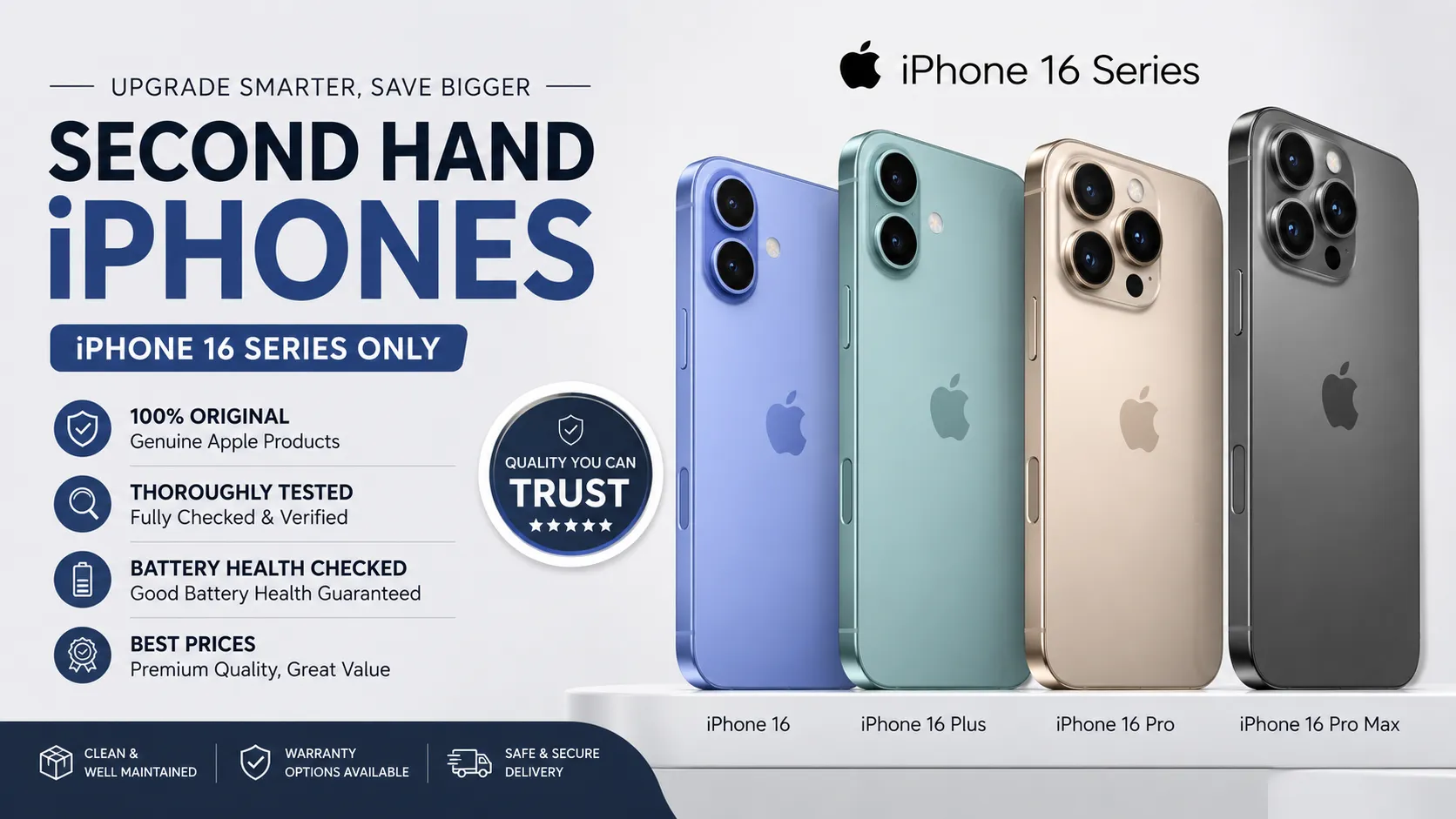
Purchasing an iphone 16 pro refurbished is an excellent way to access Pro-level features like the Action Button, which can be mapped to open the Reminders app instantly. EasyPhones provides a seamless experience for those looking to upgrade, offering devices that have been rigorously tested to perform like new.
Staying Organized in the Liquid Glass Era
The transition to iOS 26 represents a shift toward a more integrated, intelligent ecosystem. By mastering the callback reminder feature, you transform your iPhone from a simple communication tool into a sophisticated personal assistant. No longer do you have to rely on your memory or scribbled notes to stay on top of your call log.
Whether you are using the quick swipe gesture in the Phone app or relying on Apple Intelligence to suggest your next move, these tools are designed to save time and reduce stress. By choosing quality hardware from EasyPhones and staying updated on the latest iOS tutorials, you can ensure that your technology always works for you, rather than the other way around.

















Sign in to leave a comment.