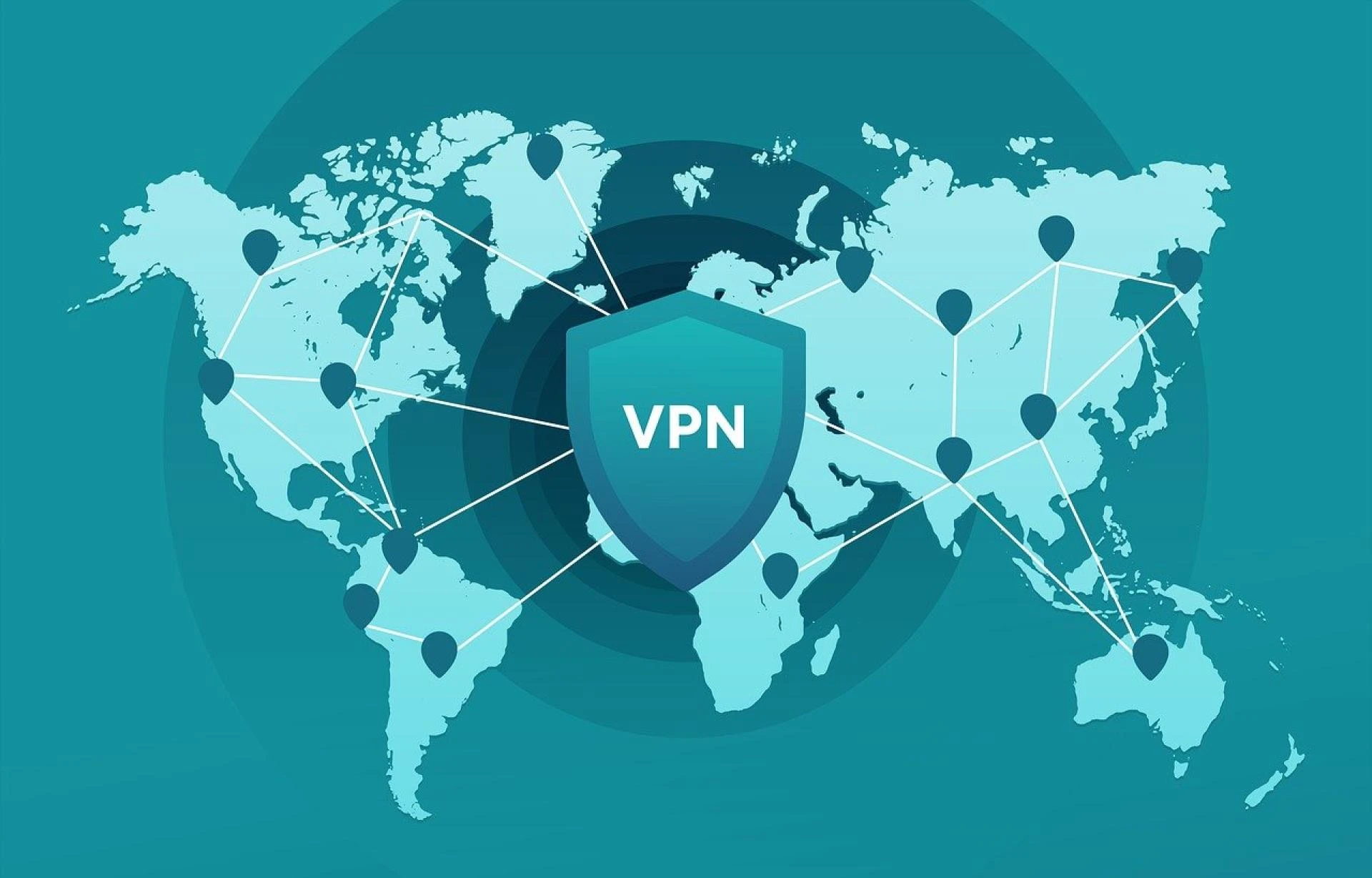

As a VPN beginner, you might sometimes wonder, “Is my VPN working?”. Actually, good
VPNs like LightningX VPN will work well on your phone or computer. But if you use some
unreliable free VPNs, it keeps disconnecting. You’ve come to the right place. This post explains five practical methods for you to test if a VPN is working. Keep reading and get what you want.
Is My VPN Working? How to Check It?
Before testing if a VPN is working, you should know how a VPN works.
How Does a VPN Work?
A functioning VPN switches your real IP address and encrypts your data and privacy. No one, including your ISP and the website server, can see your data like DNS requests and IP
address. Also, after changing your IP address, you can access geo-restricted content. For example, LightningX VPN uses robust VPN protocols like WireGuard, Vless, and
Shadowsocks based on advanced algorithms. It hides all your data, like IP address, browsing
history, and preferences. All your traffic will pass through its encryption tunnel, so your ISP
won’t see it and limit the bandwidth. It works on Windows, macOS, Android, iOS, tvOS, Android TV, and Linux. After downloading LightningX VPN, you can get a one-day free trial.
Method 1. Check If Your IP Address Is Changed
The quickest way to see if your VPN is working is to test if your real IP address has changed
by comparing the IP address of turning on and off a VPN. You can search “what’s my IP” on a
browser to look for your appeared IP address. Taking LightningX VPN as an example, it can give you more than 2,000+ servers in 50+
countries, meaning you can travel around the world but still access your home’s content. When you go to a foreign country, you can turn on LightningX VPN and then search for your
IP address from the browser to see if it is the same as your home country.
Method 2. See Where Your DNS Requests Routed Through
A VPN encrypts your connection and routes DNS requests through its secure tunnel, preventing your ISP from tracking your activity. To check for DNS leaks, visit a DNS leak test website. If the detected servers match your VPN
provider, your connection is secure. If they match your ISP, your VPN has a DNS leak.
Method 3. Check for WebRTC Leaks
WebRTC enables video calls, data transfers, and screen sharing but can expose your IP
address. A reliable VPN should prevent this. If your IP still leaks while using WebRTC, your
VPN isn't working properly. To check for leaks, use a WebRTC leak test tool to see if your real IP is visible.
Method 4. Test for Speed and Performance
Most VPNs may cause a slight speed drop, which is normal. However, if your VPN
significantly slows down your connection, it may not be working properly. If you experience
buffering, slow loading, or difficulty streaming, it’s time to troubleshoot your VPN. However, some VPNs are slow from the beginning. Then, you can choose other VPNs like
LightningX VPN. It has super-fast speed based on WireGuard. It doesn’t throttle any
bandwidth. This tool is ideal for streaming Netflix, YouTube, Hulu, Disney Plus, and playing
online games.
Method 5. See If Restricted Content Is Accessible
A VPN is mainly used for accessing geo-restricted content. So, if it can’t open the
geo-limited website that it should successfully unblock, it is not working.
Why Is My VPN Not Working? How to Fix It?
If your VPN is connected but still won’t work on your devices like Android, iPhone, or
computer, it might be because of these factors:
Poor Internet connection: All VPNs require a stable Internet connection. If the Wi-Fi signals
are weak, your VPN might not work. You can restart the modem or get close to the Wi-Fi
router. Slow server: Some servers are connected by many other users. Such will cause a “server jam”. Most VPNs’ slow servers appear red. You can switch to other servers. Weak encryption capability: All the features of a VPN are based on its encryption. Some
VPNs don’t have good encryption protocols to meet your needs. You can change a VPN. LightningX VPN is the best choice. Outdated VPN version: If the VPN is outdated, it might have bugs and won’t work. You can
update it in time.
FAQs About If Your VPN Is Working
Q: How to check if the VPN is connected to the iPhone?
First, check if the VPN icon appears at the top of the screen. If it does but still won’t work. You can reconnect to the VPN, restart your iPhone, or change to a better Wi-Fi network.
Q: How do I turn on VPN?
Open the VPN app and choose a desired server. Then, tap or click the connect button. You
can then go to the geo-restricted website to see if the VPN works.
Q: How to use a VPN for beginners?
After downloading a VPN, open it and sign up for an account. Then, subscribe to a plan. Finally, choose the desired server and tap or click the connect button. Now, the VPN is
turned on.
























Sign in to leave a comment.