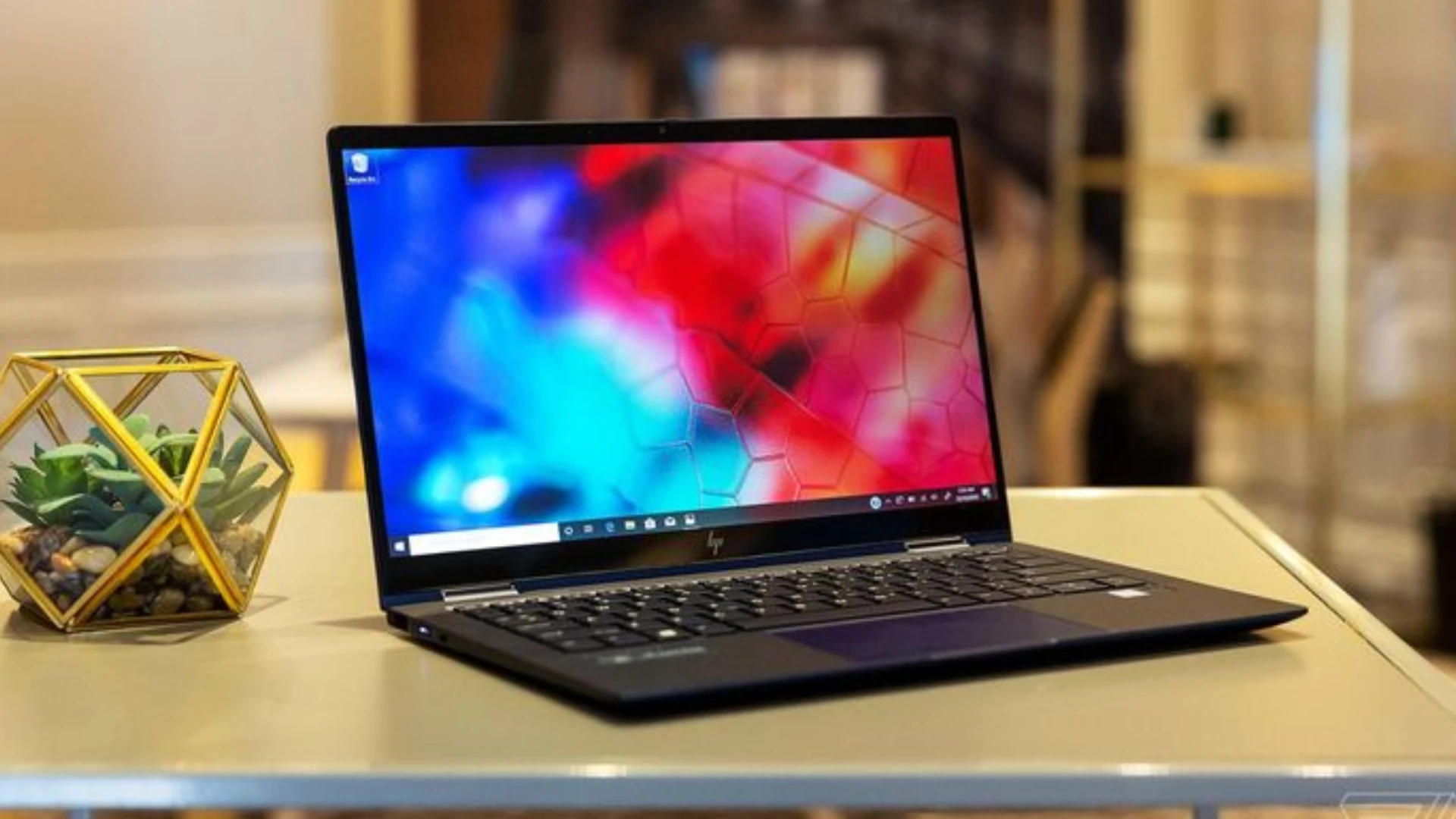

A slow laptop can turn even simple digital tasks into frustrating hurdles. Whether you're managing work deadlines, attending virtual meetings, or just browsing online, lagging performance disrupts your focus and wastes valuable time. In many cases, people consider expensive replacements without realizing that a professional laptop service can resolve the issue affordably and efficiently.
In this post, we’ll explore common reasons your laptop might be running slow — and more importantly, how to fix them. From startup programs to overheating issues, let’s break it all down.
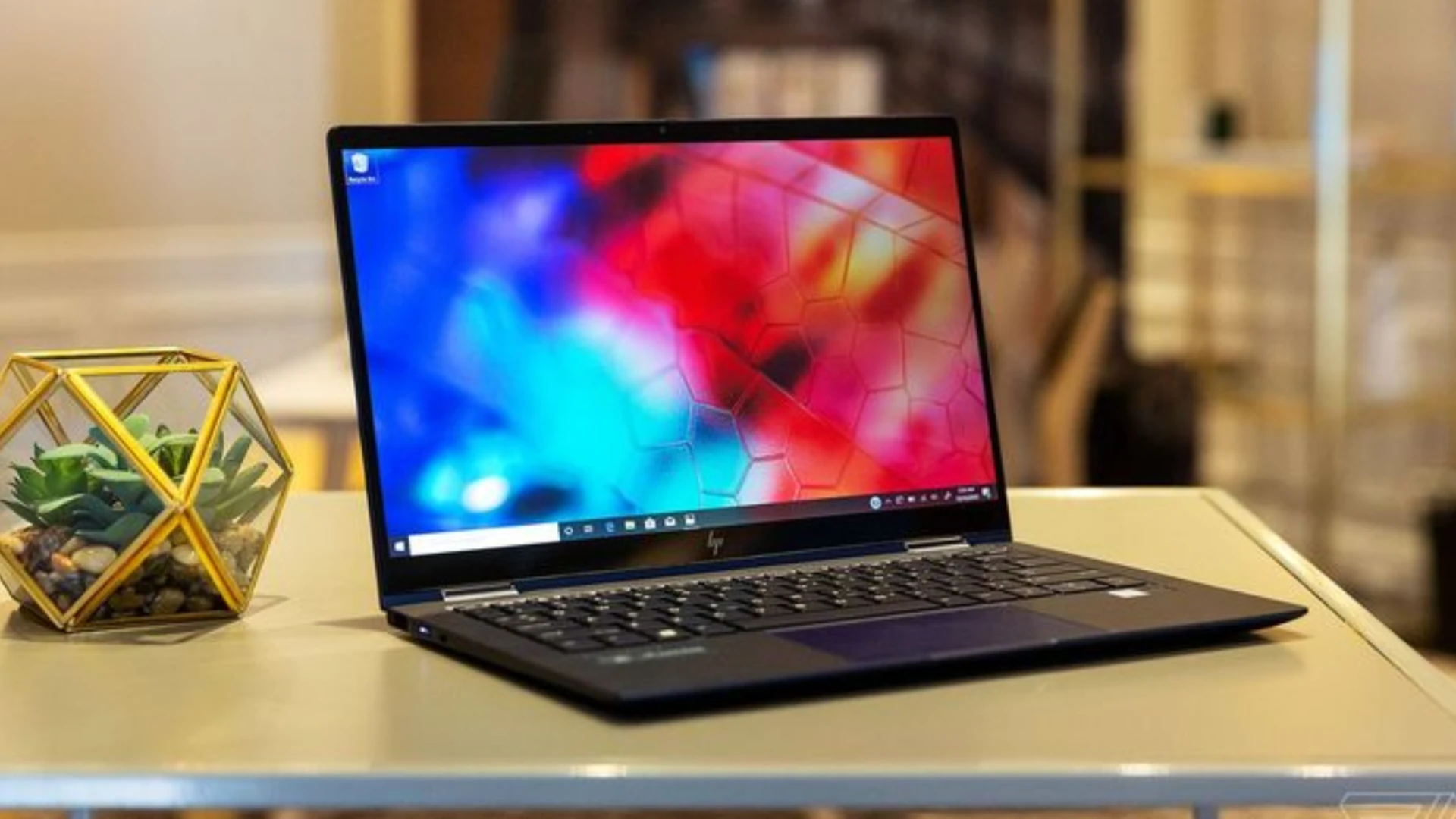
1. Common Reasons Why Your Laptop Is Slow
A. Software, Startup & Memory Issues
Apps that auto-start, limited RAM, too many browser tabs, and outdated software can drastically slow down your laptop. These issues consume memory and processing power unnecessarily. Disabling startup programs, closing unused tabs, upgrading RAM, and keeping your system updated can significantly boost speed and responsiveness.
B. Hardware & Security Problem
Old hard drives, overheating, and hidden malware are common culprits behind poor performance. Traditional HDDs are slower than SSDs, heat can throttle CPU speed, and viruses consume background resources. Upgrading to an SSD, keeping your laptop clean and cool, and running regular antivirus scans ensure smooth, secure performance.
2. How to Speed Up Your Laptop – Effective Solutions
A. Optimize Startup & Remove Clutter
Unnecessary apps running at startup can slow down your boot time and overall performance. Disable them using Task Manager or System Preferences. Also, uninstall unused programs and regularly delete temporary files, cache, and system logs to free up space and reduce background load.
B. Upgrade Hardware for Better Speed
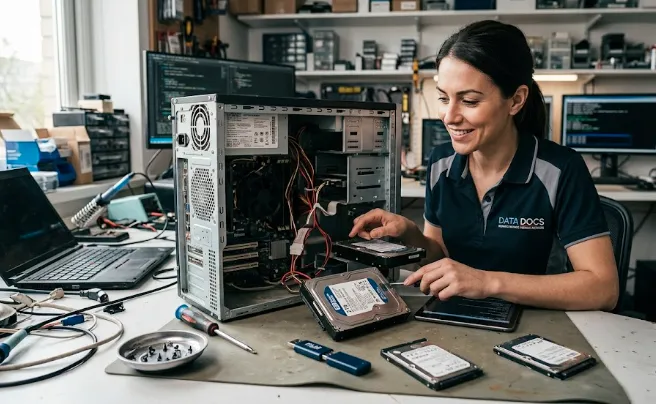
If your laptop struggles with multitasking or lags frequently, upgrading RAM or replacing the hard drive with a Solid State Drive (SSD) can make a huge difference. SSDs offer faster read/write speeds and improved boot times, while more RAM allows smoother multitasking and better app handling.
C. Stay Protected & Updated
Viruses and malware silently drain system resources. Run regular scans with trusted antivirus tools to keep your laptop secure. Also, ensure your operating system and drivers are up to date — updates often fix bugs, improve stability, and enhance compatibility with new software and hardware.
D. Manage Heat & Refresh System
Overheating leads to automatic performance throttling. Use a cooling pad and clean your internal fans to maintain airflow. If your laptop still lags despite all fixes, consider a clean reinstall of Windows — just be sure to back up important data before doing so.
Read more: Is Your Laptop Too Slow? Try These Quick Speed-Up Tips
























Sign in to leave a comment.