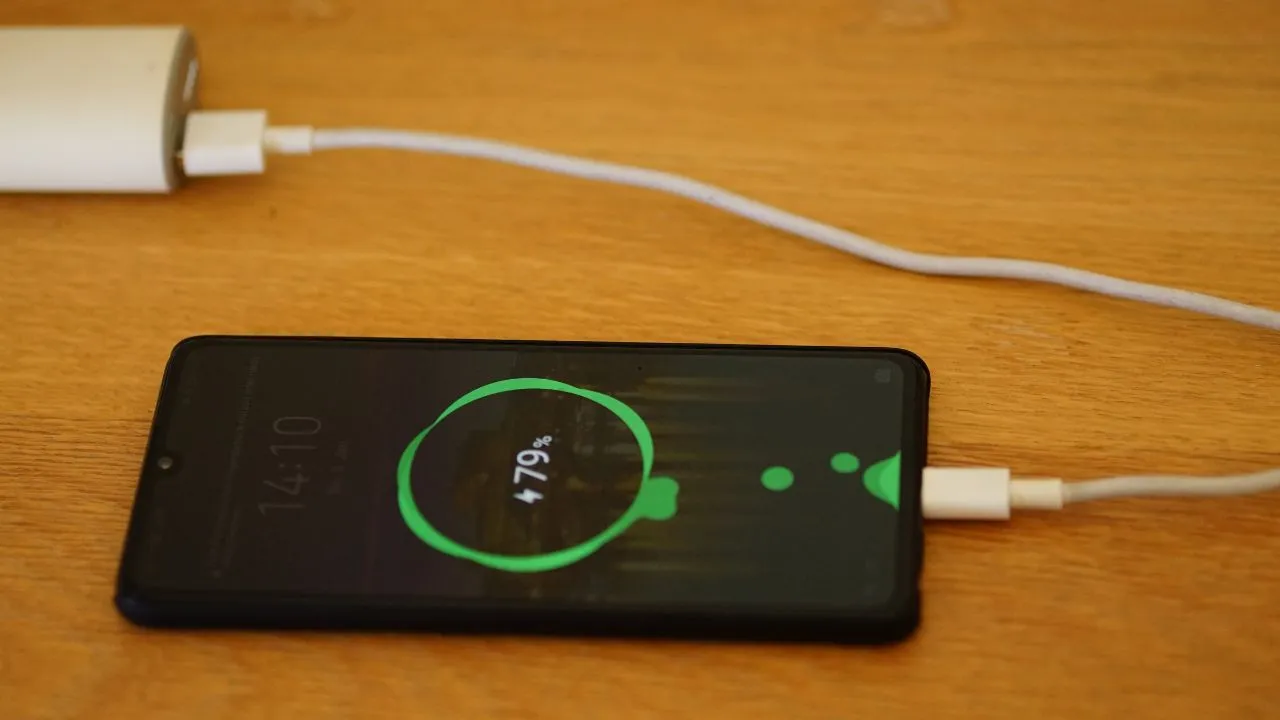

If your iPhone suddenly stops charging, it can feel frustrating—especially when you rely on it for work, payments, and daily communication. Before you assume the worst or rush to replace your device, there are several simple fixes you can try.
In this guide, we’ll walk you through 7 practical solutions to fix an iPhone that won’t charge—and help you understand when it’s time to get professional help.
1. Check Your Charging Cable and Adapter
One of the most common reasons an iPhone is not charging is a faulty cable or adapter.
What to do:
- Try a different Lightning cable
- Use an original or MFi-certified charger
- Avoid cheap or damaged accessories
If your phone starts charging with a new cable, you’ve found the issue.
2. Clean the Charging Port
Dust, lint, and debris often build up inside the charging port, preventing proper connection.
How to clean safely:
- Use a wooden toothpick or soft brush
- Gently remove debris
- Avoid metal objects (they can damage internal pins)
This simple step fixes a large percentage of charging problems.
3. Restart Your iPhone
Sometimes the issue is not hardware—it’s software.
A quick restart can reset background processes that may interfere with charging.
Steps:
- Turn your iPhone off
- Wait 10–15 seconds
- Turn it back on and plug it in again
4. Try a Different Power Source
If your phone is not charging, the issue may be with the power source rather than the device.
Test with:
- Wall outlet
- Laptop USB port
- Power bank
This helps isolate whether the problem is external or internal.
5. Check Battery Health
Over time, iPhone batteries degrade and lose their ability to hold a charge.
How to check:
- Go to Settings → Battery → Battery Health
- Look at the Maximum Capacity
If it’s below 80%, your battery may need replacement.
6. Look for Signs of Water or Moisture
Exposure to liquid can damage internal components and prevent charging.
Warning signs:
- Charging port looks wet or corroded
- Phone shows “liquid detected” warning
- Device heats up while charging
Even small amounts of moisture can cause long-term issues if not addressed.
7. Check for Loose or Intermittent Connection
If your iPhone charges only at certain angles or keeps disconnecting, this usually points to a hardware issue.
Common causes:
- Worn charging port
- Internal connector damage
- Debris deep inside the port
This is one of the clearest signs that professional repair may be needed for Phone is not charging.
When Should You Visit a Repair Shop?
If you’ve tried all the steps above and your iPhone still isn’t charging, the issue is likely internal.
Instead of replacing your phone, it’s often faster and more affordable to repair it.
For example, if you’re dealing with a faulty port or battery issue, professional charging port repair can quickly restore your device and save you the cost of buying a new one.
Why Repair Is Better Than Replacement
Many people assume a non-charging phone means it’s time for an upgrade—but that’s rarely true.
Benefits of repair:
- Much lower cost than a new phone
- Same-day service in many cases
- Keeps your data and setup intact
- Environmentally friendly option
In most cases, charging issues are fixable within minutes by a trained technician.
Tips to Prevent Charging Issues in the Future
Once your iPhone is working again, follow these simple habits to avoid future problems:
- Keep your charging port clean
- Use high-quality cables
- Avoid overcharging overnight
- Keep your phone away from moisture
- Don’t force the cable into the port
Final Thoughts
Phone is not charging issues are one of the most common smartphone problems—but they’re also one of the easiest to fix.
Start with simple solutions like cleaning the port or changing your cable. If the problem continues, don’t wait too long—minor issues can turn into bigger repairs over time.
A quick professional diagnosis can save your device and keep it running smoothly for years.




























Sign in to leave a comment.