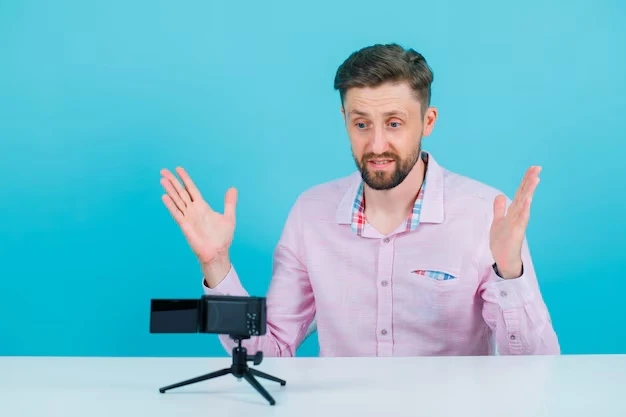

Screen recording software and screen capture tools have become indispensable. Whether you're a professional content creator, an educator, or a corporate trainer, the ability to record screens and webcams seamlessly can transform the way you communicate and share knowledge. This comprehensive guide explores the best practices, tools, and applications for screen recording, providing insights to help you maximize your potential.
What is Screen Recording Software?
Screen recording software is a versatile application that allows users to record their activities on their computer screens. From creating video tutorials to capturing live streams, these tools offer features like audio integration, webcam overlays, and editing capabilities. The use of screen capture tools has expanded dramatically, making it easier than ever to produce professional-quality content.
Top Features to Look for in Screen Recording Software
When selecting the right screen recording software, consider the following features:
- High-Quality Recording: Look for tools that support HD or 4K resolution to ensure crystal-clear visuals.
- Audio Syncing: The ability to integrate system audio and microphone input is essential for tutorials and presentations.
- Webcam Integration: Choose software that allows you to record screen and webcam simultaneously, making your videos more engaging.
- Editing Suite: Built-in editing tools for trimming, annotations, and effects can save time and enhance your content.
- Ease of Use: Intuitive interfaces and easy-to-navigate menus are crucial for both beginners and professionals.
Best Screen Recording Software in 2024
1. Camtasia
Camtasia stands out for its comprehensive suite of tools, allowing users to record screen and webcam effortlessly. Its user-friendly interface and advanced editing features make it a favorite among educators and marketers.
2. OBS Studio
An open-source powerhouse, OBS Studio offers high-performance video recording and live streaming. Its customization options and support for plugins make it a top choice for gamers and content creators.
3. Snagit
Snagit excels as a screen capture tool, ideal for quick screenshots and lightweight video recordings. Its annotation features are particularly useful for creating instructional content.
4. ScreenFlow
Designed for Mac users, ScreenFlow combines screen recording software with a robust editing suite. Its ability to capture multiple screens and integrate webcam footage ensures versatility.
5. Loom
Loom simplifies communication by enabling users to quickly record screens and webcam, and then share the recordings via a unique link. It's perfect for remote teams and asynchronous communication.
How to Use Screen Capture Tools Effectively
Step 1: Define Your Purpose
Whether you're creating a tutorial, recording a meeting, or capturing gameplay, clarity on your objective ensures you choose the right features.
Step 2: Configure Settings
Optimize your settings for resolution, frame rate, and audio quality. If you plan to record screen and webcam, ensure both are properly aligned.
Step 3: Record Strategically
Plan your recording to minimize mistakes. Use hotkeys for efficient pausing and resuming.
Step 4: Edit and Enhance
Leverage the built-in editing features of your software to add annotations, cut unnecessary parts, and enhance visuals.
Applications of Screen Recording Software
1. Education and Training
Educators use screen capture tools to create engaging lessons, tutorials, and course materials.
2. Marketing and Demos
Marketers showcase product features and conduct webinars using screen recordings.
3. Gaming and Streaming
Gamers rely on tools like OBS Studio to share gameplay and interact with their audiences.
4. Remote Collaboration
Remote teams use screen recordings to document processes, record meetings, and provide feedback.
Tips to Maximize the Use of Screen Capture Tools
- Invest in Good Hardware: A high-quality microphone and webcam can significantly enhance your recordings.
- Keep it Organized: Save and label your recordings systematically for easy access.
- Use Annotations: Highlight important points with arrows, text, and shapes.
- Experiment with Formats: Record in different resolutions and frame rates to find what works best for your audience.
The Future of Screen Recording
As technology evolves, screen recording software continues to innovate. With the rise of AI and automation, we can expect features like automatic transcription, real-time editing, and enhanced compression to become standard. These advancements will make screen capture tools even more accessible and powerful.






























Sign in to leave a comment.