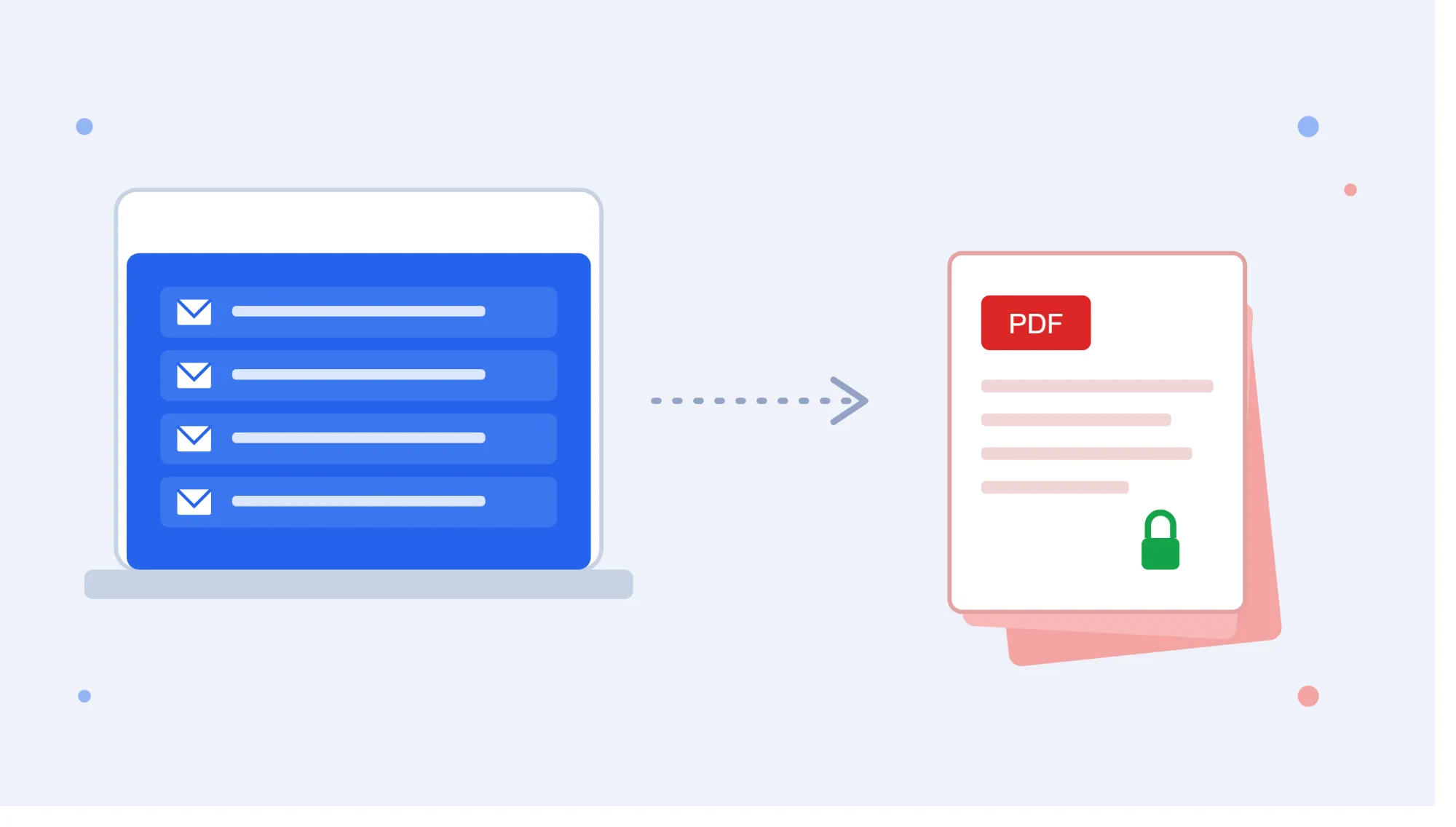

Most people don't think about their inbox until something goes wrong — a suspended account, a lost password, a client asking for a document you swear you saved somewhere. By then it's too late to wish you'd kept a local copy. The fix is simple in theory: pull the emails that matter out of the cloud and store them as files you actually control. PDF happens to be the format best suited for that job.
Below is a rundown of why that matters, how to do it by hand, and when it makes sense to stop doing it by hand.
The Case for Archiving Email as PDF
Cloud mail is convenient right up until it isn't. Accounts get locked, storage fills up, and search inside a mailbox is never as reliable as flipping through files you've organized yourself. Saving important threads as PDF sidesteps all of that:
- It's platform-agnostic. A PDF opens the same on a phone, a laptop, or a shared office computer — no dependency on being logged into a specific account.
- It holds up over time. Unlike a webpage that can be edited or removed, a saved PDF is a fixed snapshot of exactly what was sent and received.
- It supports basic security. Adding a password to sensitive files is standard practice, and PDF readers make this straightforward.
- It clears out clutter. Old threads sitting in your account count against your storage quota; moving them to files and deleting the originals reclaims that space.
None of this is groundbreaking, but it's the kind of housekeeping that saves real headaches later.
Doing It Yourself: Step-by-Step for Every Device
Google doesn't require any add-on to save a single message — the print dialog handles it natively.
From a desktop browser:
- Sign in to Gmail as usual.
- Open the email in question.
- Click the print icon at the top-right of the message.
- Under Destination, switch to "Save as PDF."
- Choose a save folder and confirm.
From the Gmail app on Android:
- Open the app and tap into the email.
- Tap the three vertical dots.
- Choose Print, then set the destination to "Save as PDF."
- Save the file to your device.
From the Gmail app on iPhone:
- Open the message inside the app.
- Tap the three-dot menu, then Print.
- Select Save as PDF and choose a location.
- Confirm with Save.
Each version takes roughly the same handful of taps, and none of them require installing anything extra.
The Catch With the Free Method
Here's where the built-in option runs into trouble: it saves the email body only. Any file attached to that message — a PDF invoice, a signed form, a spreadsheet — has to be pulled down on its own and kept track of separately. Multiply that across dozens or hundreds of emails and the "quick" method stops being quick at all.
There's also no batching. Google's print tool processes one thread at a time by design, so anyone trying to Export Gmail Emails to PDF across an entire mailbox — for a legal record, an audit, or just a full backup before switching jobs — is looking at a very long afternoon of repetitive clicking.
Scaling Up With Backup Software
Once volume becomes the bottleneck, the practical move is handing the job to software built specifically for bulk export. Rather than manually opening and printing message after message, these tools connect to your account, apply whatever filters you set, and generate a complete set of PDFs — attachments intact — in one pass.
The SysTools Gmail Backup Tool fits this need well. A few things that set it apart from doing this manually:
- Attachments are pulled into the same PDF as the message automatically, so nothing needs to be matched up separately afterward.
- You can narrow the export by date range instead of processing an entire mailbox.
- Folder and label structure from Gmail carries over into how the output files are organized.
- An incremental backup mode means future runs only capture what's new, rather than starting from scratch.
- It's compatible with both Windows and Mac, so the operating system isn't a barrier.
The setup is straightforward: install the software, select PDF as your output type, authenticate through Google, apply any filters, choose where files should be saved, and run the export. What would otherwise be a multi-hour manual task usually finishes in a fraction of that time.
Quick Answers
Can I save a Gmail message as PDF without installing anything? Yes, the browser's print-to-PDF option works for individual emails at no cost.
Are attachments included automatically when I print an email? No — only the message text is captured; attachments must be saved separately.
Is bulk export software worth it for a small mailbox? For a handful of emails, the manual method is fine. It becomes worthwhile once you're dealing with dozens or hundreds of messages regularly.
Does exporting affect the original emails in Gmail? No, exporting creates a copy; the messages remain in your account unless you delete them separately.
Can backups be scheduled to run automatically? Many backup tools support recurring or incremental runs, so new emails get captured without manual re-exporting each time.
Final Thought
Saving the occasional email is a non-issue — Gmail's print function handles that fine. The moment attachments and volume enter the equation, though, a dedicated archiving tool turns a tedious chore into a process you configure once and rely on going forward.


























Sign in to leave a comment.