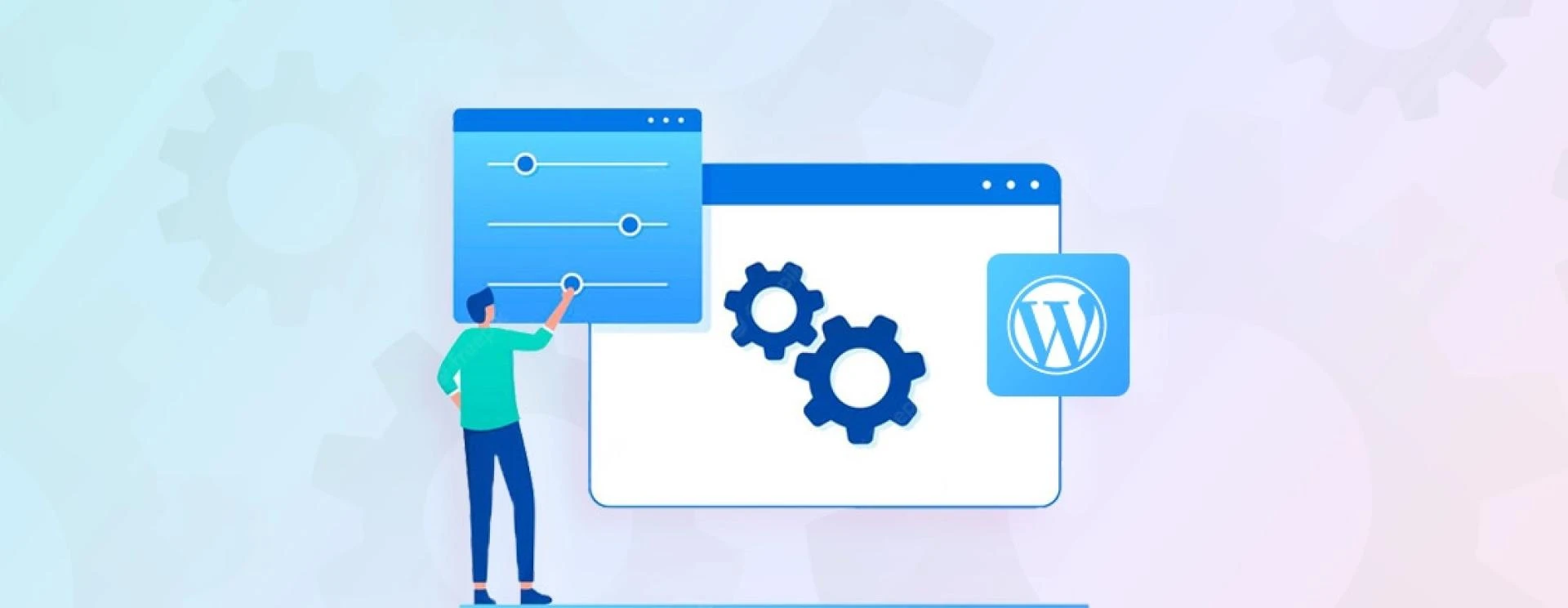

So, you've finally taken the plunge and built your website using WordPress. Congratulations! You're now part of the massive and vibrant online community that powers over 43.2% of all websites. But have you truly explored all the fantastic features and settings WordPress offers? If not, don't worry! In this article, we'll take a deep dive into the world of WordPress settings and uncover how they can help unleash the full potential of your website.
Let's start by visiting the General Settings. Here, you can customize your site title and tagline, which is crucial in telling visitors about your website. Additionally, you can specify your site's URL, email address, and time zone, making it easier for users to connect with you.
The next stop on our settings exploration is the Reading Settings. This is where you can decide how your website's front page displays content. Do you want it to showcase your latest blog posts or a static page? The choice is yours. You can also determine how many posts to show per page and whether to have an RSS feed summary or full text.
Now, let's venture into the Writing Settings. Here, you can unleash your creativity by selecting the default category for your posts, the post format, and even the size of the post box in the editor. Don't forget to check the box to convert emoticons into emojis automatically – the little things can make a big difference in engaging your audience.
Moving on to the Discussion Settings, you can take control of the conversation on your website. You can choose whether to allow comments on your posts, manage comment moderation, and set up comment notifications. Engaging with your audience through comments is a fantastic way to build a community around your website.
Speaking of engagement, the Media Settings play a significant role in ensuring your website looks polished and professional. By selecting the correct image dimensions, you can avoid that dreaded pixelation, and by organizing your uploads into folders based on month and year, you'll keep everything neatly organized.
Now, let's dig into the Permalink Settings. This is where you can customize the structure of your URLs, making them more user-friendly and search engine optimized. Instead of generic URLs like "yourwebsite.com/?p=123," you can have descriptive URLs like "yourwebsite.com/post-title." Trust me; search engines and visitors alike will appreciate the clarity and relevance.
But what about your website's appearance? Fear not; the Theme Settings come to the rescue. Here, you can browse thousands of beautiful and functional themes and install and activate them with just a few clicks. You can customize your chosen theme further by altering colours, fonts, header images, and background images. Remember, a visually appealing website will make visitors want to stay and explore.
Last but not least, let's explore the Plugin Settings. Plugins are what make WordPress genuinely magical. The world of plugins is vast, from enhancing your website's speed and security to adding contact forms and social media sharing buttons. You can configure and personalize each plugin to optimize its performance and align it with your website's goals by going through the Plugin Settings.
In conclusion, WordPress settings are like a treasure trove waiting to be discovered. You can truly unleash its full potential by exploring and tweaking each setting to suit your website's unique needs. Whether it's customizing your site title, configuring comment settings, or even selecting the perfect theme, every adjustment brings you one step closer to creating a website that attracts visitors and keeps them coming back for more. So, what are you waiting for? Dive into those settings and let your website shine!




























Sign in to leave a comment.