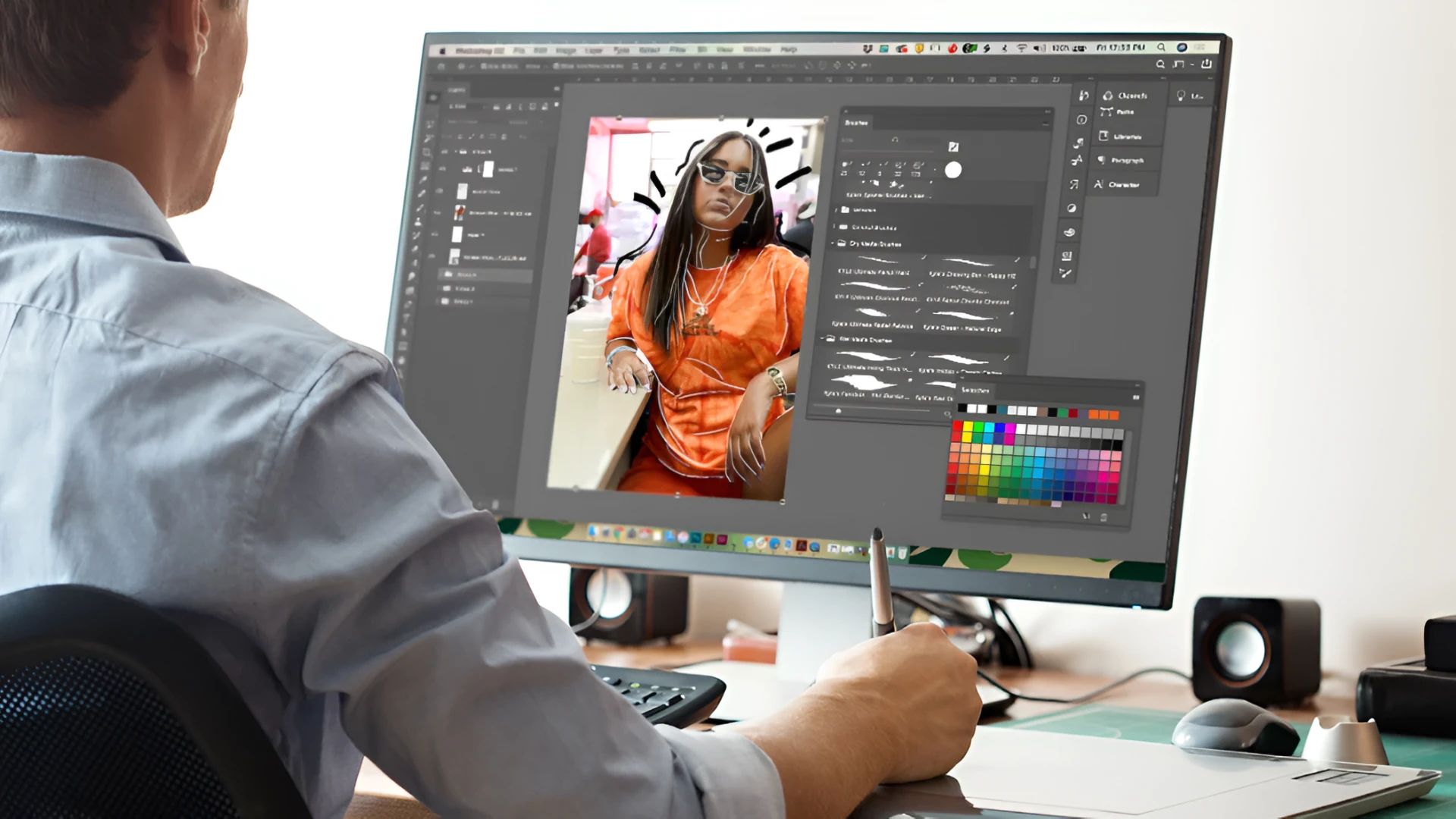
Let’s assume: You spend three hours colour-grading a wedding shoot. Then the same client asks if you can cut a 90-second highlight reel from the behind-the-scenes footage. You say yes. And suddenly your monitor, which was perfectly fine for stills, starts showing its limits.
This happens to more creators than you'd think. Photography and videography used to be separate careers. Now they overlap constantly. And the monitor that works well for one doesn't always work well for both.
The good news? A single display can handle both jobs well. But only if you know which specs to actually look for before buying.
Colour Space Coverage: Where Photo and Video Split
This is the biggest technical gap between the two workflows, and it's worth understanding clearly. Photo editing, especially for print, leans on Adobe RGB.
Choosing the right monitor for photo editing means finding a display that covers more of the colour spectrum than standard screens, particularly in blues and greens, where print accuracy lives. A well-specced panel protects the colour integrity of every file you send to a print lab or gallery. The difference between a calibrated wide-gamut display and a standard office screen shows up most in skin tones, deep greens, and saturated blues - exactly the colours that shift when printed. That's why colour gamut coverage is the first spec worth checking before anything else.
Video editing runs on different standards. Professional video delivery uses DCI-P3 as its colour space. Web video still defaults to sRGB. HDR content starts pushing into Rec. 2020 territory, though very few consumer monitors cover that fully anyway.
Here's where it gets practical. You don't need a display that covers every colour space perfectly. What you need is a monitor that covers both Adobe RGB and DCI-P3 at a high level, and lets you switch between colour modes cleanly.
Look for at least 95% DCI-P3 and 90% Adobe RGB coverage. More importantly, check whether the monitor lets you switch colour presets via a hardware button or a simple menu - not through a third-party software tool that adds steps to your day.
Toggling modes via software tends to be clunky. Photographers working across both media find that hardware preset switching is the detail that separates a good dual-workflow monitor from a frustrating one.
Refresh Rate: Invisible for Photos, Noticeable for Video
For pure photo work, refresh rate doesn't matter much. You're looking at still images. 60Hz is fine. Most photographers don't give it a second thought.
- Video changes this. Scrubbing through a timeline, previewing playback, reviewing slow-motion clips - all of it feels noticeably better on a 120Hz panel. Not dramatically better. But noticeably smoother. The difference shows up most when your client is in the room watching you edit, and the preview window stutters on a 60Hz display.
- Real-world usage among hybrid creators shows a consistent pattern: once people switch to 120Hz, they don't want to go back even for photo work. The interface just responds faster. Zooming into images, scrolling through a Lightroom grid, and dragging panels around all feel more immediate.
- The trade-off used to be colour accuracy. Faster refresh rates traditionally meant looser panel performance. That's changed. There are now 27-inch and 32-inch IPS monitors at 120Hz with genuine Delta E under 2 accuracy and proper gamut coverage. That combination wasn't available at a reasonable price point two years ago. It is now.
So, for a monitor for photo editing that also handles video, 120Hz should be on your checklist. Not optional.
Panel Technology: The Honest Case for IPS Over OLED
OLED is everywhere right now. The contrast is genuinely spectacular. Blacks are actually black, not dark grey. For watching finished video content, OLED screens look stunning.
For editing both photos and video all day? The situation is more complicated.
Two issues affect OLED panels in professional editing workflows. The first is Automatic Brightness Limiting (ABL). When an OLED display shows a lot of bright content for a long stretch, which happens constantly when editing bright landscapes or well-exposed portraits, it reduces overall brightness to protect the panel. That means your brightness is shifting based on what's on screen. That's a real problem when you're making exposure decisions on photos or checking highlight detail in video.
The second issue is burn-in. Lightroom's side panels, Premiere's timeline, Photoshop's toolbar. These elements sit in the same spot for hours every day. On OLED panels, that's a genuine long-term concern, not a theoretical one.
IPS panels don't carry either of these problems.
- Colour accuracy is excellent
- Brightness stays stable through long sessions
- Display holds up for years of daily professional use.
For hybrid photo and video work, IPS is the more practical choice for most creators. Admittedly, if your video work is mostly cinematic colour grading and you edit in focused short sessions, OLED has a genuine case. But for photographers adding video to an already full workflow, IPS is steadier and more reliable.
Resolution and Screen Size: Getting the Balance Right
4K is the baseline worth targeting in 2026 for anyone doing serious photo work. You need the pixel density to evaluate edge sharpness, fine noise patterns, and skin texture without constantly zooming in. It also lines up with where most professional video delivery sits, editing a 4K timeline on a 4K display at full scale is genuinely useful for checking motion and detail.
Screen size is a real decision.
- A 27-inch 4K panel gives excellent pixel density, everything looks sharp, text stays crisp, and fine detail is visible at normal zoom levels.
- A 32-inch 4K display gives more workspace, which many video editors prefer when running a timeline alongside a preview window.
Pattern observation suggests photographers lean toward 27-inch for image sharpness, while video editors tend to prefer 32-inch for breathing room. Hybrid creators are genuinely split. If you don't have a strong preference, the 27-inch tends to serve photo work better, and adding a second smaller display for palettes and timelines often outperforms a single large screen for video editing.
Connectivity: The Practical Detail That Saves Time
One USB-C cable handles video signal, data transfer, and laptop charging at once. That's not a premium feature in 2026; it's a basic workflow improvement that reduces desk clutter and simplifies moving between locations.
For the display connection itself, DisplayPort remains more reliable than HDMI for 4K at 120Hz. As noted, DisplayPort 1.4 supports 4K at 120Hz with HDR. HDMI 2.0, still common on many mid-range monitors, tops out at 4K 60Hz. That's a gap that matters if refresh rate is on your list.
Check the ports before buying. It's the kind of thing that looks fine in a spec sheet and only becomes a problem the day you try to connect everything.
The One Question Worth Asking Before You Buy
Every spec discussed above earns its place on the checklist. But the decision simplifies if you ask one honest question first: Is video becoming a consistent part of the workflow, or is it occasional?
If it's occasional, a strong monitor for photo editing with decent DCI-P3 coverage handles video work without any major compromise. If video is becoming equal to photo in terms of hours spent, then refresh rate and hardware colour mode switching move from nice-to-haves to requirements. The monitor doesn't need to be perfect for both jobs. It needs to be good enough at both that it never makes either one harder.




















Sign in to leave a comment.