
You open your emoji keyboard to send a quick reaction and suddenly you're scrolling through a wall of stickers you added months ago and never use. Sound familiar? Most iPhone users don't realize how fast the sticker collection grows until it becomes a genuine headache to navigate.
Knowing how to delete stickers on iPhone sounds like it should take two seconds. But Apple buries the option in a place most people never think to look, and that's exactly why so many users just live with the clutter instead of clearing it out.
Why Your Sticker Drawer Gets Out of Control
Every app that supports iMessage stickers can quietly add its own pack to your keyboard. Games, shopping apps, social platforms — they all get a slot in your sticker tray without much fanfare. Over time, you end up with dozens of packs from apps you barely open anymore.
The bigger issue is that this clutter slows down your actual texting experience. You spend more time hunting for the right sticker than just sending the message. That friction adds up, and it makes something that should be fun feel annoying instead.
The Reframe That Changes Everything
Here's what most people miss: deleting stickers on iPhone isn't about removing creativity from your keyboard. It's about curating it. The goal isn't a bare-bones sticker drawer — it's a lean, useful one where every pack earns its spot.
Think of it like cleaning out a junk drawer. You're not getting rid of the drawer. You're just making sure that when you reach in, you find exactly what you need without digging through noise.
How to Delete Stickers on iPhone Without Losing the Ones You Love
This is where it gets practical. Follow these steps and your sticker keyboard will feel like a completely different tool within minutes.
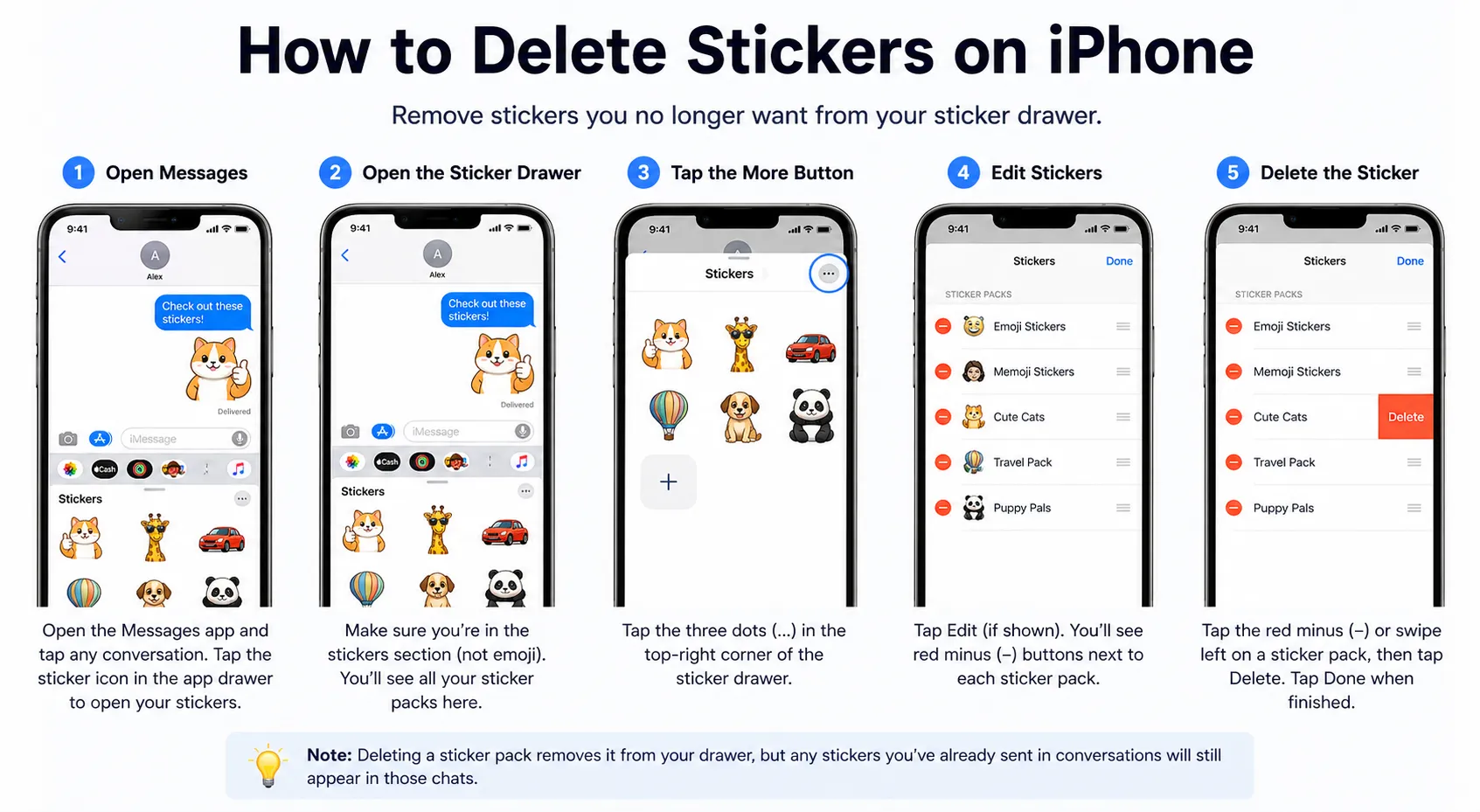
- Open the Messages app and start a new message or open an existing thread.
- Tap the App Store icon next to the text field to open the iMessage app drawer.
- Press and hold any sticker pack until a small menu appears, then tap Edit.
- You'll see all your installed sticker packs with a red minus button next to each one.
- Tap the minus button next to any pack you want to remove, then confirm the deletion.
- Rearrange the packs you're keeping by dragging them into your preferred order.
That's the full process for how to delete stickers on iPhone, and it takes under two minutes once you know where to look. The key step most people skip is that press-and-hold. Without it, you never see the edit option.
What to Do When Stickers Come Back After Deleting
Some sticker packs are tied directly to apps installed on your phone. If you delete the sticker pack but not the app, the pack may reappear the next time you open Messages. The fix is straightforward: if you don't use the app itself, delete the app entirely. That removes the sticker pack permanently.
For packs that came from the iMessage App Store specifically, they stay deleted unless you manually reinstall them. So once you clean house, it stays clean, as long as you're a little more selective about what you add going forward.
A Smarter Home Screen Is Just the Beginning
Clearing up sticker clutter is a small move, but it reflects a bigger mindset: your devices should work for you, not against you. When every corner of your phone is organized and intentional, using it actually feels good again.
If you're the kind of person who likes keeping their tech tidy and useful, Home Tech Nerves is a solid resource to bookmark. The site covers everything from iPhone tips to Smart Devices by Home Tech Nerves that make everyday life a little more seamless. And the next time a friend complains about a cluttered keyboard, you'll know exactly what to tell them.

























Sign in to leave a comment.