

An all-in-one background remover is often marketed as a one-click solution. Designers know better. In real projects, these tools are rarely used in isolation—and never without judgment.
This article explains how designers actually use all-in-one background removers in everyday work. Not in ideal demos. But in messy timelines, client feedback loops, tight deadlines, and real production constraints.
Quick Summary
- Designers use AI background removers as a starting point, not a final step
- Speed matters early; precision matters near delivery
- Hybrid workflows (AI + manual) are the most common
- Knowing limits saves more time than automation alone
Designers use an all-in-one background remover primarily to speed up early-stage work, drafts, and bulk visuals. For final assets, they usually refine results manually to control edges, transparency, and visual consistency. The tool supports the workflow—but does not replace design judgment.
What Is an All-in-One Background Remover (From a Designer’s View)?
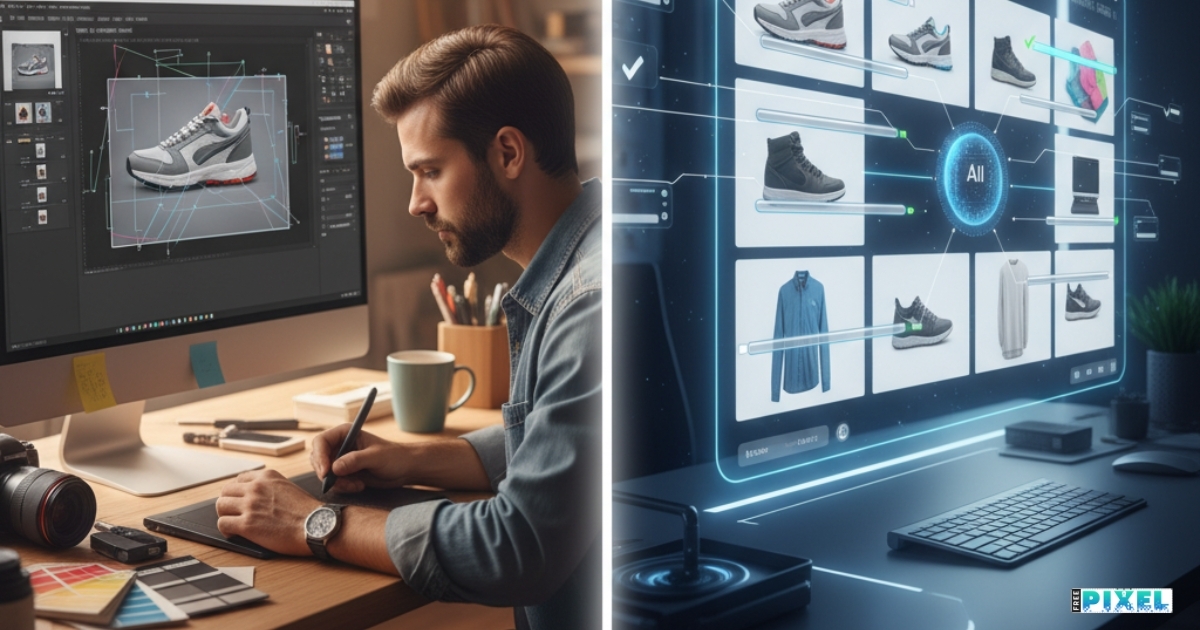
From a designer’s perspective, an all-in-one background remover is not a magic button. It is a time-saving layerinside a larger workflow.
Technically, these tools use AI image segmentation to separate subjects from backgrounds. Practically, designers use them to:
- Skip repetitive setup work
- Accelerate rough layouts
- Reduce manual masking time
The value is not perfection. It’s momentum.
Why Designers Don’t Treat AI Removal as “Final”
Designers care about details that AI often misses:
- Edge sharpness
- Hair transitions
- Natural shadows
- Visual balance
A background might be “removed,” but the image can still feel wrong.
That’s why designers rarely export AI results and stop there.
Where Designers Use Background Removers Most
1. Early drafts and mockups
Designers often start with AI removal to:
- Test layouts
- Explore compositions
- Share quick concepts with clients
At this stage, speed matters more than polish.
2. Bulk design assets
For projects like:
- E-commerce visuals
- Social media sets
- Marketing banners
AI background removal helps designers stay consistent across large volumes.
Manual fixes are applied only where issues are visible.
3. Client previews and iterations
Designers use AI removal to:
- Respond faster to feedback
- Make quick visual changes
- Avoid redoing full masks repeatedly
It keeps iteration cycles short.
Where Designers Avoid AI-Only Results
Complex edges
AI still struggles with:
- Hair and fur
- Fine outlines
- Overlapping elements
Designers manually refine these areas to avoid “cut-out” looks.
Transparent or reflective objects
Glass, plastic, and reflections often confuse AI models. Designers rely on:
- Manual masks
- Layer blending
- Opacity control
These details matter in professional design work.
Brand-critical visuals
For:
- Homepage heroes
- Print materials
- High-end ads
Designers prioritize control and consistency over speed.
The Most Common Designer Workflow (Hybrid)
This is how designers actually work in practice.
A typical hybrid workflow
- Remove background using an all-in-one background remover
- Inspect edges at high zoom
- Fix visible problem areas manually
- Adjust shadows or blending
- Export in PNG
- Place into the final design
This approach balances speed with quality.
AI vs Manual: How Designers Decide
| Design Stage | Preferred Method |
|---|---|
| Concept & drafts | AI background removal |
| Bulk production | AI + selective fixes |
| Final delivery | Manual refinement |
| Print assets | Manual-first |
Designers switch methods based on stage, not preference.
Real Designer Scenarios
Freelance designer
Uses AI removal for proposals and drafts. Applies manual edits after client approval.
In-house design team
Uses AI for campaign assets at scale. Manual work is reserved for brand-facing visuals.
Agency workflow
AI accelerates early exploration. Manual editing ensures final consistency.
Same tool. Different decisions.
Common Mistakes Designers Avoid
- Treating AI output as finished work
- Ignoring edge quality at full zoom
- Exporting JPG instead of PNG
- Relying on AI for low-quality source images
- Skipping visual consistency checks
Experience teaches where automation helps—and where it hurts.
Tips Designers Actually Follow
- Always zoom in before exporting
- Keep original images high resolution
- Use AI removal early, not at the end
- Standardize workflows across teams
- Document when manual fixes are required
These habits matter more than the tool choice.
Conclusion
Designers don’t use an all-in-one background remover because it’s perfect. They use it because it’s useful.
It speeds up early work, reduces repetitive effort, and helps teams move faster. But the final quality still depends on human decisions—where to refine, where to correct, and where to slow down.
The real skill is not knowing how to remove a background.
It’s knowing when AI is enough—and when design judgment must step in.
If this article reflects your experience, feel free to share it, leave a comment, or explore more posts about real-world design workflows.
If you’re curious how AI background removal fits into real design workflows, tools like FreePixel can be useful reference points to compare approaches.
FAQ: All-in-One Background Remover for Designers
Do professional designers really use AI background removers?
Yes. Mostly for speed and drafts, not final precision.
Can AI background removal replace manual masking?
No. It reduces workload but doesn’t replace design judgment.
Is AI removal acceptable for client work?
Yes, when refined properly and used in the right context.
What file format do designers prefer?
PNG is preferred for transparency and flexibility.































Sign in to leave a comment.