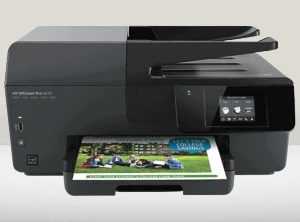

The Canon TS3522 printer is a popular choice for its reliability and user-friendly features. However, like any tech device, it’s not immune to connectivity issues. If you’re struggling to connect your TS3522 to WiFi or print, don’t worry—you’re not alone, and most issues can be resolved with straightforward troubleshooting steps.
In this comprehensive guide, we’ll explore the common reasons for connectivity issues, how to troubleshoot them, and preventive measures to ensure a smooth printing experience.
Why Won’t My TS3522 Connect to WiFi?
Before diving into troubleshooting, it’s important to understand the potential causes. Here are some common reasons why your Canon TS3522 printer might fail to connect to WiFi:
- Network Configuration Issues
- Incorrect WiFi credentials (SSID or password).
- Printer and router operating on different network bands (2.4 GHz vs. 5 GHz).
- Printer Settings
- Misconfigured network settings on the printer.
- Wireless setup not completed.
- Router Problems
- Weak or unstable WiFi signal.
- Router settings, such as MAC address filtering or firewall restrictions.
- Software or Firmware Issues
- Outdated printer firmware or drivers.
- Physical Obstructions
- Distance or interference between the printer and the router.
How to Troubleshoot Canon TS3522 WiFi Connection Issues
Follow these steps to identify and resolve WiFi connectivity problems:
1. Restart Your Devices
- Turn off your printer, router, and computer.
- Wait for a minute, then restart them one by one.
- This helps clear temporary glitches in the devices.
2. Verify Network Credentials
Ensure you are entering the correct WiFi SSID and password. These are case-sensitive. If you’ve changed your WiFi password recently, update it on the printer.
3. Check Printer Compatibility with WiFi Band
The Canon TS3522 typically connects to a 2.4 GHz WiFi band. If your router broadcasts on both 2.4 GHz and 5 GHz, ensure the printer is connecting to the 2.4 GHz network.
4. Reconnect the Printer to WiFi
Use the WPS Push Button Method or the Standard Wireless Setup depending on your router’s capabilities.
WPS Push Button Method
- Ensure your router has a WPS button.
- Turn on your Canon TS3522 printer.
- Press and hold the WiFi button on the printer until the Power lamp flashes.
- Press the WPS button on your router within two minutes.
- Once connected, the WiFi lamp on the printer will light up steadily.
Standard Wireless Setup
- Install the Canon PRINT Inkjet/SELPHY app on your smartphone or computer.
- Open the app and follow the on-screen instructions to connect your printer to WiFi.
- Select your WiFi network and enter the password.
5. Update Printer Firmware
Outdated firmware can cause compatibility issues. Update your printer firmware using the Canon PRINT app or from Canon's official website.
Steps to Update Firmware
- Visit the Canon Support website.
- Enter "TS3522" in the search bar and download the latest firmware.
- Follow the installation instructions to update the printer.
6. Check Router Settings
If the issue persists, examine your router’s settings:
- Disable MAC Address Filtering: Ensure the printer’s MAC address is not blocked.
- Reduce Firewall Restrictions: Temporarily lower the firewall settings to allow the printer to connect.
- Increase Signal Strength: Place the router and printer closer together to improve connectivity.
7. Reinstall Printer Drivers
Corrupted or outdated drivers can prevent proper communication between your printer and computer.
Steps to Reinstall Drivers
- Uninstall the current printer drivers from your computer.
- Visit Canon’s official website and download the latest drivers for the TS3522.
- Install the drivers and reconnect the printer to WiFi.
8. Reset Network Settings on the Printer
If all else fails, resetting the network settings on your printer can help resolve configuration errors.
Steps to Reset Network Settings
- Turn on the printer.
- Press and hold the Stop button until the alarm lamp flashes 21 times.
- Release the button, and the printer’s network settings will be restored to default.
- Reconfigure the wireless setup.
Troubleshooting Printing Issues
Once your printer is connected to WiFi, you may still encounter printing problems. Here’s how to resolve them:
1. Check Printer Status
- Ensure the printer is powered on and connected to the correct WiFi network.
- Verify that the printer is set as the default printing device in your system settings.
2. Clear Print Queue
- Open the Devices and Printers section on your computer.
- Right-click your Canon TS3522 printer and select See what’s printing.
- Cancel any pending print jobs and try printing again.
3. Align Print Heads and Check Ink Levels
Misaligned print heads or low ink can affect print quality. Perform a print head alignment and check the ink levels using the printer’s control panel or the Canon PRINT app.
4. Perform a Test Print
A test print can help diagnose hardware issues:
- Load plain paper into the printer.
- Hold down the Resume/Cancel button until the alarm lamp flashes twice.
- Release the button to initiate a test print.
Preventive Tips for Seamless Printing
- Regularly Update Software
- Keep your printer firmware, drivers, and associated apps up to date.
- Use a Stable Network
- Avoid frequent changes to WiFi credentials.
- Ensure minimal interference between devices.
- Perform Routine Maintenance
- Clean the print heads and check for paper jams periodically.
- Backup Network Settings
- Document your WiFi credentials and printer setup details for easy reconfiguration.
- Enable Automatic Updates
- If your printer supports it, enable automatic updates for drivers and firmware.
When to Seek Professional Help
If none of the troubleshooting steps work, you may need expert assistance. Contact Canon support or a certified technician to diagnose and repair hardware issues.
Conclusion
Connecting your Canon TS3522 printer to WiFi and resolving printing issues doesn’t have to be daunting. By systematically troubleshooting and maintaining your printer, you can enjoy a seamless printing experience.
Whether you’re a student printing assignments or a professional managing work documents, the tips in this guide will help you get the most out of your Canon TS3522 printer.



























Sign in to leave a comment.