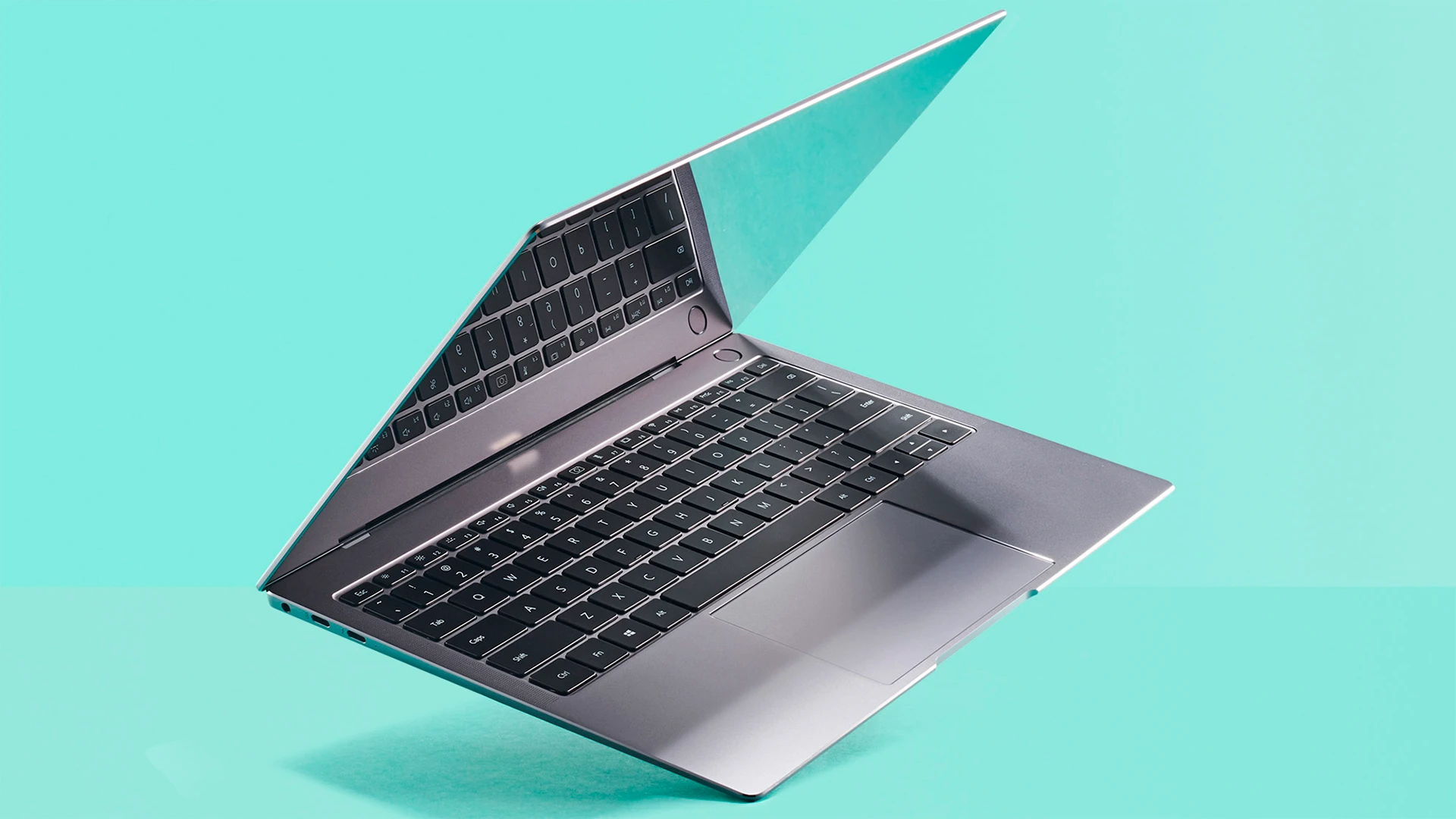

Thin laptops are great travel partners. They slip into a backpack, wake fast, and look sharp on any desk. But that slim body has less room for airflow, so heat builds up during long work or gaming sessions.
You may feel it first on your wrists or through the keyboard. The good news is you can keep temps in check with a few easy habits and low-cost tools. You don’t need special skills, just attention to space, power, and dust. As with a small kitchen, neat setup and good timing matter more than fancy gear.
Below are some simple ways to help your thin laptop breathe better, stay fast, and last longer, whether you’re editing photos, on back-to-back calls, or writing late into the night.
1. Give It Space to Breathe
Air needs a clear path in and out of the vents, so positioning matters. Place a thin laptop on a hard, flat surface, such as wood, metal, or a desk mat, to ensure proper air circulation.
Avoid resting them on beds, couches, or thick pads, since soft fabric blocks the vents and traps heat. Even small adjustments can make a difference, for example, sliding two pencils or a slim stand under the back edge to lift the machine slightly. That bit of elevation creates more airflow underneath and helps fans pull in cooler air.
It’s just as important to keep the space behind the exhaust vent open so warm air can escape without resistance.
2. Use a Cooling Pad or Stand
A cooling pad adds extra airflow to the bottom of the laptop. It doesn’t have to be loud or flashy. The goal is steady air under the chassis so the built-in fans don’t work as hard.
- Choose a pad with quiet fans that line up with your vents.
- A passive stand without fans can still help by tilting the laptop.
- USB-powered pads draw little power and are easy to carry.
If you don’t want a pad, a simple stand that lifts the rear can drop temps a few degrees by improving airflow. Bonus: a stand also raises the screen, which helps your neck during long use.
3. Clean Vents and Keep the Desk Dust-Light
Dust is the silent heat trap. It gathers in the intake vents and on fan blades. Every few weeks, power down the laptop and use short bursts of compressed air at an angle to nudge dust out of the vents.
Wipe the desk so dust doesn’t return right away. If you’re comfortable opening the bottom panel, a deeper clean once or twice a year helps a lot. A tidy desk is not perfectionism; it’s free cooling.
4. Tweak Power and Performance Settings
Modern systems let you trade a little speed for cooler temps and longer life. During basic tasks, you rarely need full power.
A small cap on performance stops spikes that kick fans into high gear. If you start a heavy job, export, build a big code build, switch to “performance” for that period, then switch back. It’s like shifting gears on a bike to match the hill you’re on.
- Use “balanced” or “battery saver” when writing, browsing, or on calls.
- Cap the CPU at a lower maximum when you don’t need peak speed.
- Set the screen to dim a bit sooner; displays create heat, too.
5. Close Heavy Apps and Tame Browser Tabs
Some apps eat CPU even when they’re in the background. Quit tools you are not using and pause cloud sync during a long call. Browsers can be sneaky; many tabs each running scripts will warm the system.
Use a tab sleeper add-on or create a “focus window” with only what you need for the next hour. These small habits keep fans quiet and extend battery life.
6. Track Temps and Build a Routine
Free utilities can show CPU and GPU temperatures. You don’t have to watch them all day, just check during long sessions. If temps spike, ask why: blocked vents, a runaway app, or a hot room? Over time, you’ll learn your laptop’s patterns and what fixes help most.
A short detour: gardeners read the leaves to know when a plant needs water. Laptop temps are those “leaves.” Read them now and then, and you’ll keep the system healthy.
Conclusion
Keeping a thin laptop cool is mostly about simple care, not special tools. Give the machine space, add airflow with a pad or stand, and keep dust from building its tiny blanket over the vents. Use power modes that fit the task instead of running hot all day.
Close the apps you don’t need and tame those extra tabs. Charge with some thought so the battery and CPU don’t cook together under a blanket. And learn your system’s usual temperature range so you can act early when something feels off.
None of these steps takes long; together they make a big difference. Your laptop will run quieter, stay faster, and remain comfortable.






























Sign in to leave a comment.