
In today’s fast-paced business environment, managing tasks, projects, and team collaboration effectively is essential. This is where ClickUp, a versatile project management platform, comes into play. Whether you are a startup or a large organization, optimizing your ClickUp workspace management with expert guidance from Upficient can drastically improve productivity, reduce miscommunication, and streamline workflows.
In this guide, we’ll explore how to manage your ClickUp workspace effectively, including strategies for onboarding, structuring your workspace, and leveraging automation to save time.
What is ClickUp Workspace Management?
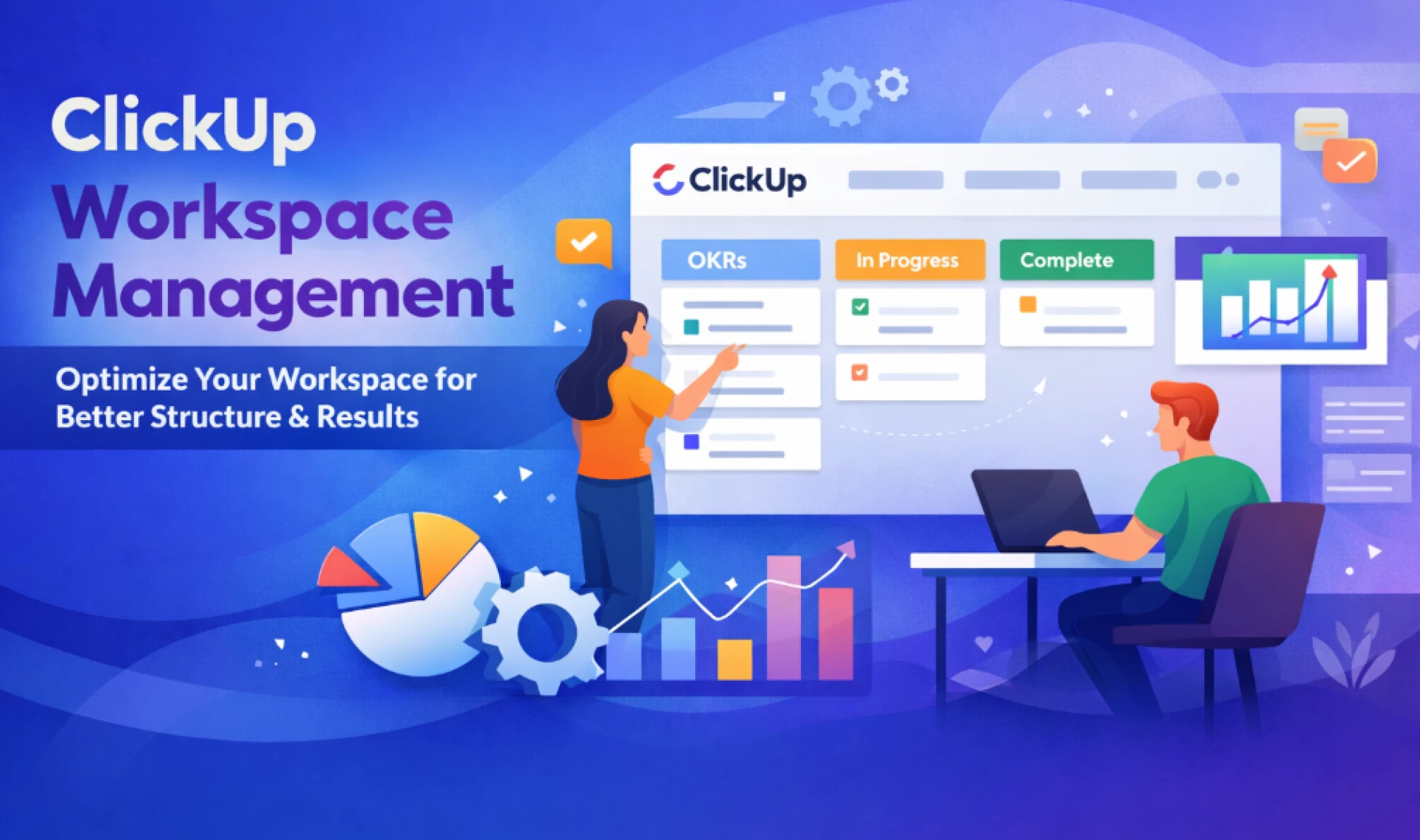
ClickUp workspace management refers to organizing, structuring, and maintaining your ClickUp environment to optimize productivity. A workspace in ClickUp is the central hub where your projects, tasks, documents, and communication converge. Proper workspace management ensures that your team can easily find tasks, collaborate efficiently, and track progress across multiple projects.
With Upficient’s ClickUp expertise, businesses can ensure that every Space, Folder, and List is tailored to their workflow for maximum efficiency.
Key components of ClickUp workspace management include:
- Spaces: High-level categories that separate departments, teams, or major projects.
- Folders: Organize tasks within a Space into logical groups.
- Lists: Lists contain tasks and subtasks, making it easier to manage detailed work.
- Tasks and Subtasks: The core units of action that keep your projects moving.
- Docs and Templates: Help standardize processes and document knowledge across your team.
Why ClickUp Workspace Management Matters
- Boosts Productivity: When your workspace is organized, team members spend less time searching for tasks or information.
- Reduces Miscommunication: Clearly defined spaces, folders, and lists reduce confusion about responsibilities.
- Facilitates Transparency: ClickUp allows you to track project progress in real-time, improving accountability.
- Scales with Your Team: A well-structured workspace can grow with your organization without becoming chaotic.
With Upficient’s ClickUp workspace management services, organizations gain structured setups designed to scale as teams expand.
Steps to Set Up an Efficient ClickUp Workspace
- Define Your Workspace Structure:
Start by mapping out the teams, projects, and workflows you need to manage. Decide how many Spaces you need—for example, Marketing, Sales, HR, and Product Development. Upficient consultants can help design this structure for maximum efficiency. - Create Spaces and Folders:
- Spaces: Use Spaces for broad categories like departments or major projects.
- Folders: Within each Space, create Folders to group related projects or campaigns. For example, under Marketing, you could have Folders for Social Media, Content Creation, and Paid Ads.
- Organize Lists and Tasks:
Lists should represent projects or initiatives, while tasks are individual actions required to complete the project. Add due dates, assignees, and priorities to ensure clarity. Use subtasks for detailed actions that support the main task. Upficient recommends naming conventions and color-coded priorities to simplify tracking. - Leverage Templates and Docs:
ClickUp allows you to create task and document templates to save time. Recurring projects like “Weekly Marketing Campaign” can use a pre-made task template with all subtasks already defined. Upficient’s templates also ensure consistency across teams. - Set Permissions and Roles:
Assign appropriate access levels to team members based on their role. ClickUp allows you to control who can view, comment, or edit tasks within a Space or Folder. Upficient’s role-based configurations help maintain data security while fostering collaboration. - Integrate Automation:
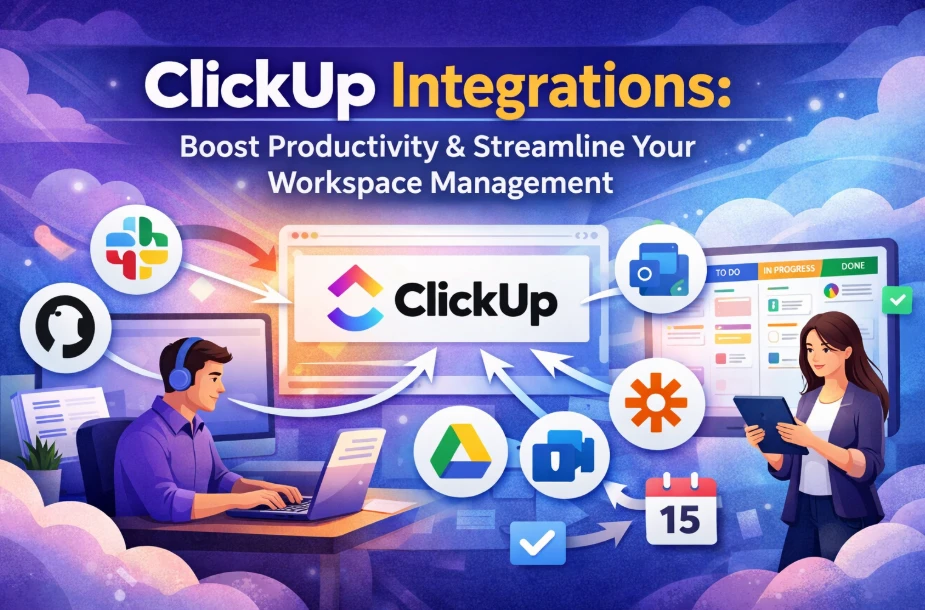
ClickUp’s automation features can handle repetitive tasks, such as moving a task to a new list when its status changes or sending reminders to team members. Upficient’s automation setup can reduce manual work and increase efficiency.
ClickUp Onboarding: Setting Up Your Team for Success
Proper onboarding is crucial to ensure your team uses ClickUp effectively. Here are key steps:
- Training Sessions: Conduct live sessions to familiarize your team with ClickUp features, navigation, and best practices. Upficient provides tailored onboarding programs for teams of all sizes.
- Documentation: Provide internal guides or ClickUp Docs detailing workspace structure, naming conventions, and task management protocols.
- Role-Based Onboarding: Tailor the onboarding experience based on team roles. Managers may need advanced training on reporting and dashboards, while team members focus on task management.
- Gradual Implementation: Start with one Space or department to avoid overwhelming users. Gradually expand ClickUp usage to other teams once adoption is smooth.
- Feedback Loop: Encourage your team to provide feedback on the workspace structure and usability. Iterate to improve workflows with Upficient’s continuous improvement support.
Best Practices for ClickUp Workspace Management
- Consistent Naming Conventions: Maintain consistency in task names, folder titles, and Spaces to reduce confusion.
- Regular Workspace Audits: Periodically review your workspace to remove outdated tasks, merge duplicate lists, and optimize folders.
- Use Custom Statuses: Tailor task statuses to match your team’s workflow rather than relying solely on default options.
- Leverage Dashboards: Dashboards provide a visual overview of project progress, helping managers make informed decisions.
- Encourage Collaboration: Use ClickUp’s comment, mention, and chat features to keep communication in context.
Upficient’s experts ensure these best practices are applied across your workspace for maximum team efficiency.
Common Challenges and Solutions
- Challenge: Teams struggle with cluttered workspaces.
Solution: Archive old projects, organize folders logically, and enforce task deadlines. - Challenge: Low adoption of ClickUp by team members.
Solution: Provide comprehensive onboarding, training, and emphasize the benefits of using ClickUp daily. - Challenge: Tracking cross-department projects.
Solution: Utilize ClickUp’s dependency and linked task features to ensure seamless coordination.
With Upficient’s ClickUp services, these challenges are addressed proactively for smooth operations.
FAQs About ClickUp Workspace Management
Q1: What is the difference between a Space and a Folder in ClickUp?
A: A Space is a high-level container for major projects or departments, while a Folder organizes related lists and tasks within a Space.
Q2: How can I make ClickUp onboarding easier for new team members?
A: Use training sessions, role-based guides, templates, and gradual implementation. Upficient also offers personalized onboarding support.
Q3: Can ClickUp handle remote teams effectively?
A: Yes, ClickUp is cloud-based and supports collaboration across time zones with real-time updates, comments, and notifications.
Q4: How often should I review my ClickUp workspace?
A: Conduct regular audits at least quarterly to remove outdated tasks, update templates, and optimize workflows.
Q5: Is automation essential for ClickUp workspace management?
A: While not mandatory, automation saves time, reduces errors, and ensures consistency across repetitive tasks. Upficient helps implement automation for maximum efficiency.
Conclusion
Effective ClickUp workspace management is more than just creating tasks—it’s about structuring your workspace to promote clarity, collaboration, and efficiency. By implementing organized Spaces, Folders, Lists, and leveraging templates, automation, and proper onboarding, your team can maximize productivity and focus on delivering results.
Whether you’re new to ClickUp or looking to optimize an existing workspace, partnering with Upficient ensures your team works smarter, not harder.



















Sign in to leave a comment.