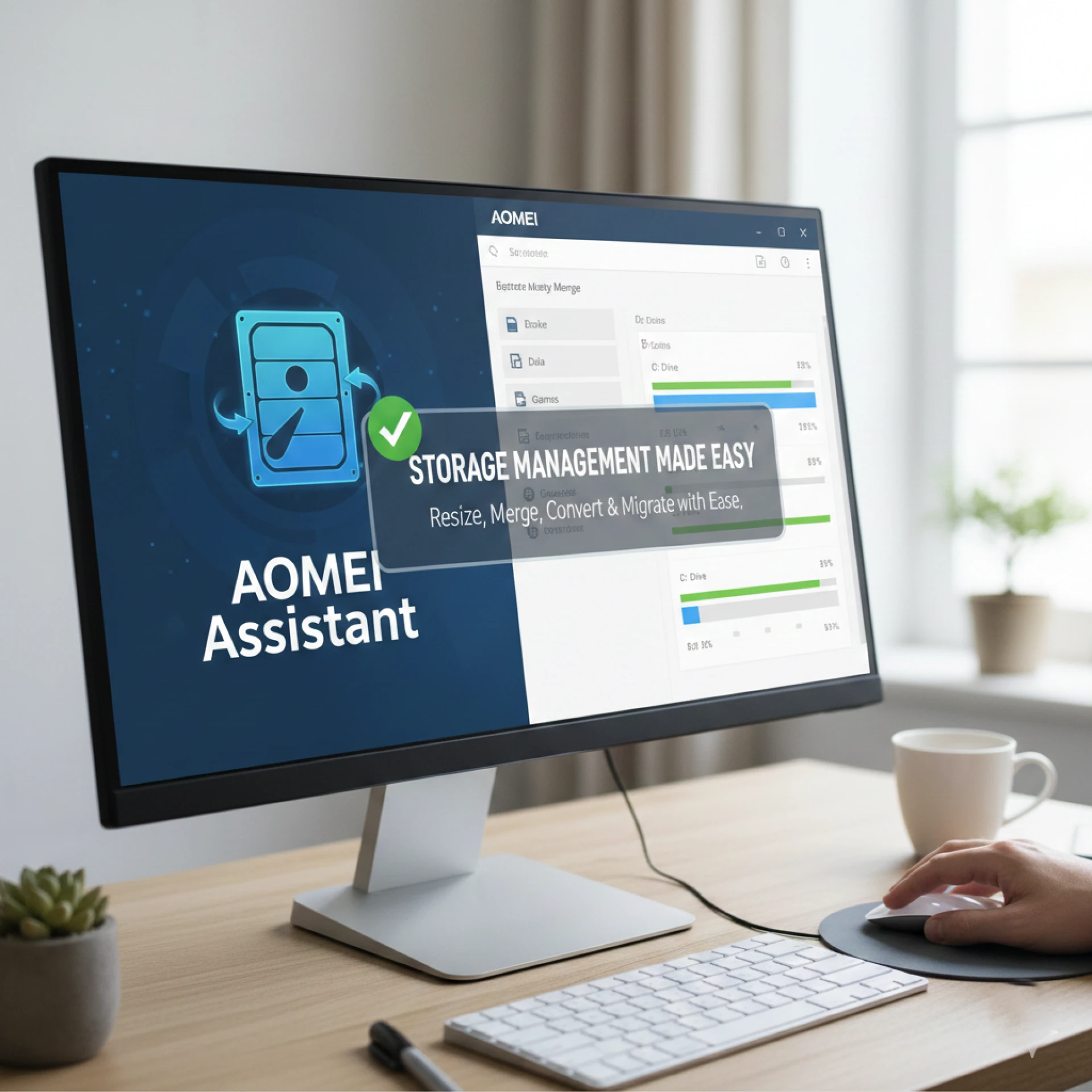

Managing disk space is one of those tasks most computer users don’t think about until something goes wrong. A drive runs out of space, Windows refuses to install updates, or a system slows down because partitions were never planned properly. That’s where reliable partition management tools come in. Among the many options available today, AOMEI Partition software has earned a solid reputation for being powerful, user-friendly, and accessible to both beginners and advanced users.
In this in-depth guide, we’ll explore what AOMEI Partition is, what it can do, who it’s best suited for, and why it has become a popular choice for Windows disk management. Whether you’re trying to resize a partition, clone a disk, or prepare a new drive, this article will help you understand how AOMEI Partition fits into the picture.
What Is AOMEI Partition?
At its core, AOMEI Partition is a Windows-based disk and partition management solution designed to give users more control over their storage devices. Windows’ built-in Disk Management tool can handle basic tasks, but it often falls short when more advanced operations are required.
AOMEI Partition software fills that gap by offering a wider range of features through an intuitive graphical interface. It allows users to manage hard drives, SSDs, USB drives, and even large-capacity disks with minimal risk and effort.
Why Partition Management Matters
Partition management isn’t just for IT professionals. Everyday users encounter situations like:
- Running out of space on the C: drive
- Installing a second operating system
- Migrating Windows to a new SSD
- Recovering from partition mistakes
In these cases, using a dedicated tool like AOMEI Partition can save time, reduce errors, and protect important data.
Key Features of AOMEI Partition
One of the main reasons users turn to AOMEI Partition is its rich feature set. It goes far beyond simple partition resizing.
Resize, Move, and Merge Partitions
Perhaps the most commonly used feature is the ability to resize partitions without losing data. With AOMEI Partition, you can:
- Extend a system partition when it’s running out of space
- Shrink a partition to create unallocated space
- Move partitions to reorganize disk layout
- Merge two adjacent partitions into one
These tasks are handled through visual sliders, making the process far less intimidating than command-line tools.
Create, Delete, and Format Partitions
When setting up a new drive or reorganizing storage, AOMEI Partition allows you to:
- Create new partitions in unallocated space
- Delete unused or unnecessary partitions
- Format partitions in NTFS, FAT32, exFAT, and other file systems
This is especially useful when preparing disks for specific purposes like backups or external storage.
Disk Cloning and System Migration
One standout area where AOMEI Partition shines is disk cloning.
Clone Entire Disks or Individual Partitions
If you’re upgrading from an HDD to an SSD, AOMEI Partition can clone your existing disk directly to the new drive. This includes:
- Operating system files
- Installed applications
- Personal data
The cloning process ensures the new disk is bootable, saving you from reinstalling Windows from scratch.
Migrate OS Without Reinstalling Windows
For many users, reinstalling Windows is time-consuming and stressful. AOMEI Partition offers OS migration features that let you move only the system partition to another drive, leaving other data untouched.
This is particularly useful for laptops or desktops with limited internal storage.
Advanced Partition Operations
Beyond the basics, AOMEI Partition includes advanced tools that appeal to power users.
Convert Disk and Partition Types
With a few clicks, you can:
- Convert MBR disks to GPT (and vice versa)
- Change file systems without formatting (in supported scenarios)
- Convert dynamic disks to basic disks
These options are critical when working with modern systems that require GPT for UEFI booting.
Align Partitions for SSD Performance
SSD performance can suffer if partitions are not properly aligned. AOMEI Partition includes alignment tools that optimize partitions for faster read/write speeds and longer SSD lifespan.
User Interface and Ease of Use
A major advantage of AOMEI Partition is its clean and intuitive interface.
Designed for Beginners and Experts Alike
The software uses a step-by-step approach that guides users through each operation. Changes are previewed before being applied, reducing the risk of mistakes.
For advanced users, detailed settings are available without cluttering the main interface.
Operation Preview and Undo Safety
One of the most reassuring features is the ability to queue operations. Nothing is applied until you click “Apply,” allowing you to review changes and cancel if needed.
Free vs Paid Versions: What’s the Difference?
AOMEI Partition is available in both free and paid editions, catering to different needs.
What the Free Version Offers
The free version is surprisingly capable and includes:
- Basic partition creation and resizing
- Disk and partition formatting
- Simple cloning features (with limitations)
For casual users, this may be more than enough.
Benefits of the Professional Version
The paid edition unlocks advanced features such as:
- OS migration to SSD or HDD
- Advanced disk conversion tools
- Partition recovery options
- Commercial use licensing
If you manage multiple systems or rely heavily on disk operations, upgrading can be worthwhile.
Common Use Cases for AOMEI Partition
Understanding real-world scenarios helps highlight the value of AOMEI Partition.
Fixing Low Disk Space Issues
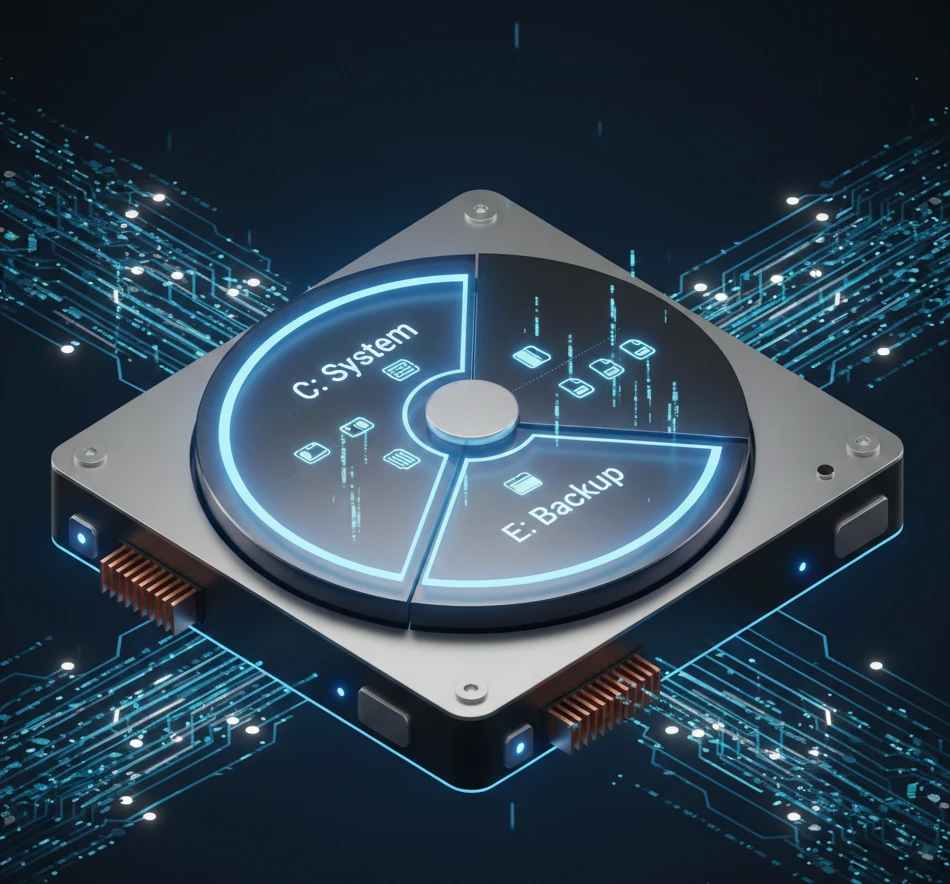
When the system drive is full, performance suffers. AOMEI Partition allows you to extend the C: drive by reallocating unused space from other partitions without reinstalling Windows.
Preparing Drives for Backup and Recovery
Partitioning plays a key role in backup strategies. Using AOMEI Partition, you can separate system files from personal data, making backups more organized and efficient.
Managing External Drives and USBs
The software also works well with external drives, helping users format, partition, and optimize removable storage devices.
Is AOMEI Partition Safe and Reliable?
Safety is a major concern when working with disk-level tools.
Data Protection Measures
AOMEI Partition uses non-destructive operations wherever possible. While no tool can eliminate all risk, the software is designed to minimize data loss during standard tasks.
That said, backing up important data before making changes is always recommended.
Industry Reputation
Over the years, AOMEI Partition has built trust among home users, IT professionals, and small businesses. Regular updates and broad hardware compatibility further strengthen its reliability.
Tips for Using AOMEI Partition Effectively
To get the most out of the software, keep these tips in mind:
- Always back up critical files before major changes
- Apply changes in one batch to reduce system restarts
- Use SSD alignment features when working with solid-state drives
- Read operation summaries carefully before clicking “Apply”
These small habits can prevent costly mistakes.
Conclusion: Is AOMEI Partition Worth Using?
In today’s storage-heavy computing environment, having the right tools makes a real difference. AOMEI Partition stands out as a practical, well-rounded solution for Windows users who want more control over their disks without diving into complex commands.
From basic resizing to advanced disk conversions and system migration, it offers features that cover a wide range of needs. Its balance of power, usability, and safety makes it suitable for beginners and experienced users alike.
If you regularly manage storage, upgrade hardware, or simply want peace of mind when dealing with partitions, AOMEI Partition is a tool worth considering.
Frequently Asked Questions (FAQ)
1. Is AOMEI Partition free to use?
Yes, AOMEI Partition offers a free version with essential partition management features. Advanced tools like OS migration and certain disk conversions require a paid edition.
2. Can AOMEI Partition resize partitions without data loss?
In most cases, yes. The software is designed to resize and move partitions without deleting data. However, backing up important files is strongly recommended before any operation.
3. Does AOMEI Partition support SSDs?
Absolutely. AOMEI Partition supports SSDs and includes alignment features that help improve performance and extend SSD lifespan.
4. Is AOMEI Partition suitable for beginners?
Yes. Its graphical interface, operation previews, and step-by-step workflows make it approachable even for users with little technical experience.
5. Can I migrate Windows to a new drive using AOMEI Partition?
Yes, the professional version includes OS migration features that allow you to move Windows to a new HDD or SSD without reinstalling the operating system.























Sign in to leave a comment.