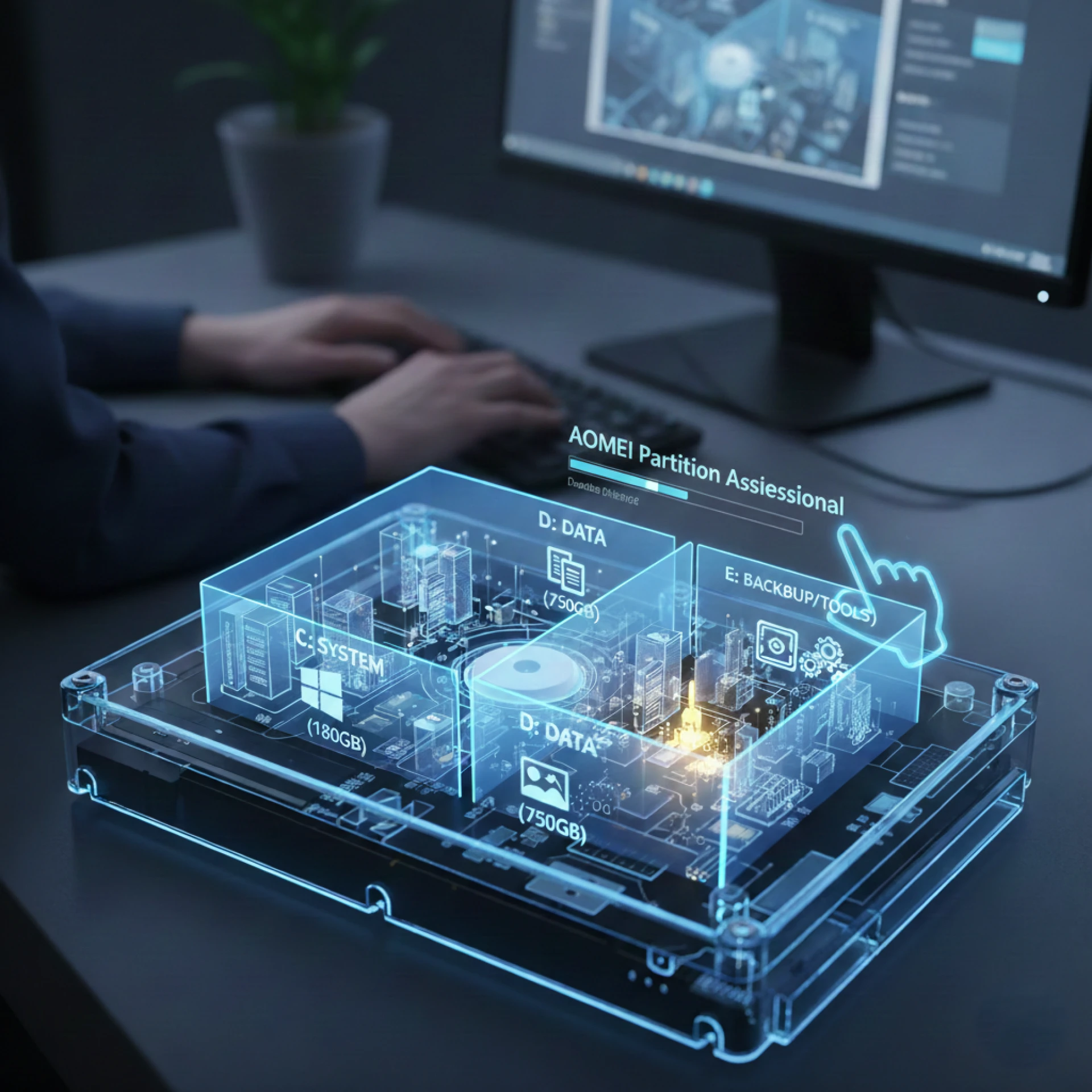

When most people think about storage on their computer, they imagine one big drive where every file, program, and system folder lives together. But as storage needs grow especially with large SSDs and HDDs organizing your drive becomes more important than ever. That’s where learning how to partition a hard drive can make a big difference.
Whether you want better performance, safer file organization, or extra protection against data loss, creating partitions is one of the smartest ways to manage your storage. And thanks to modern tools like Partition Master, the process is easier, safer, and more beginner-friendly than before.
In this complete guide, we’ll walk through what partitions are, why they matter, when you should use them, and how tools designed for disk management can help you do it the right way.
What Does It Mean to Partition a Hard Drive?
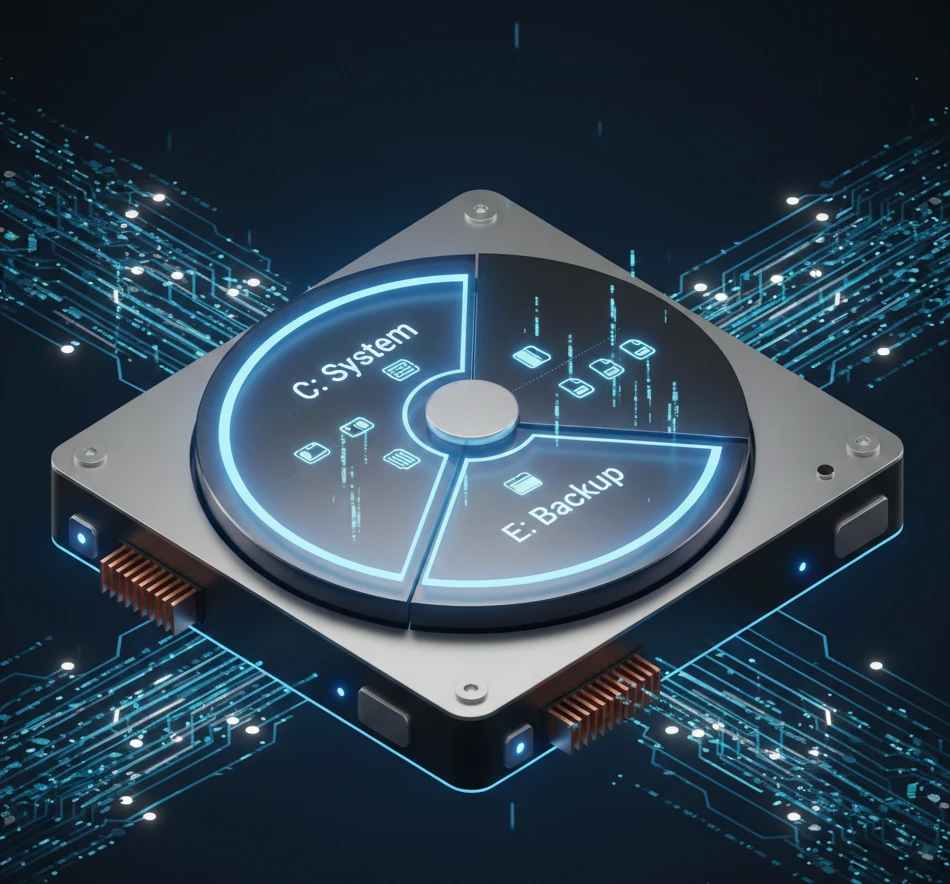
Simply put, when you partition a hard drive, you divide one physical disk into separate virtual sections. Each section behaves like its own mini-drive inside your system.
Think of it like:
- One house (your hard drive)
- Divided into separate rooms (partitions)
- Each room used for a different purpose
Even though everything exists on the same disk, your computer treats each partition as an independent storage location.
Common reasons people partition a drive include:
- Organizing work files separately from personal files
- Installing multiple operating systems
- Improving backup and recovery safety
- Keeping system files isolated from data files
- Reducing risk of losing everything in case of system failure
Instead of one cluttered drive, you get cleaner, safer, and more structured storage.
Benefits of Partitioning a Hard Drive
Partitioning is more than organization it can improve performance, stability, and data protection.
Here are some of the biggest advantages.
Better File Organization
You can assign each partition a purpose, such as:
- System & Windows files
- Programs and software
- Work or business files
- Media library (photos, videos, documents)
- Backup storage
This makes it easier to locate files and prevents accidental deletion of important system data.
Safer Data in Case of System Crash
If Windows fails or becomes corrupted, your files can still be safe on another partition.
For example:
- Partition 1 — Windows + system files
- Partition 2 — Personal data
Even if you reinstall Windows, your personal files remain untouched.
That’s a huge advantage for anyone worried about losing data.
Smoother Backups & Faster Recovery
Backing up one partition is faster than backing up an entire hard drive.
You can:
- Backup only documents and important files
- Keep system recovery separate
- Restore specific areas instead of everything
This is especially useful for large drives.
Installing Multiple Operating Systems
Many users create partitions to install:
- Windows + Linux
- Two different versions of Windows
- Test environments
Each OS runs on its own partition without interfering with the other.
Why Tools Like Partition Master Are So Helpful
Manually trying to partition a hard drive can be risky and confusing especially if you’re not comfortable working with built-in disk utilities. That’s why many users prefer using a professional disk management tool such as Partition Master.
These tools simplify complex disk operations and reduce the risk of losing data.
Key advantages of using Partition Master-style software
- Beginner-friendly interface
- Safer resizing and moving partitions
- Real-time disk previews before changes apply
- Built-in safety checks to prevent data damage
- Ability to convert or merge partitions easily
Instead of dealing with command-line tools, you simply click and apply.
For users managing large SSDs or HDDs, that convenience makes a big difference.
When Should You Partition a Hard Drive?
Not every situation requires partitions but in many cases, they are extremely useful.
Here are some of the best times to create or resize partitions.
When installing Windows on a new PC
Creating separate partitions during installation helps keep:
- System files on one side
- Personal data on another
This makes maintenance and recovery easier later.
When you store large volumes of files
If you work with:
- Photos and video editing
- Design projects
- Business or client files
- Software development
Separate partitions help you stay organized and avoid clutter.
When you want better data protection
Partitioning won’t replace backups but it adds an extra layer of safety.
If your system partition becomes corrupted, other partitions remain unaffected.
When managing multiple storage drives
Users with external HDDs or large SSDs often partition them to:
- Separate work and personal files
- Create portable backup sections
- Share drive space across devices
This is especially helpful for freelancers and professionals.
How Partition Master Makes Partitioning Easier (Step-By-Step Overview)
While exact steps may vary by software version, most Partition Master tools follow a similar workflow.
Here’s a general process:
Step 1 — Launch the software and scan your drive
The tool will display:
- All connected drives
- Existing partitions
- Free and unallocated space
Step 2 — Select the drive you want to modify
You may choose to:
- Create a new partition
- Resize an existing one
- Merge or split partitions
Step 3 — Adjust partition size and space
Using simple drag-and-resize controls, you can allocate space between partitions without deleting data.
This is far safer than manual formatting.
Step 4 — Preview changes before applying
Most partition tools let you:
- Review changes visually
- Confirm disk layout
- Undo mistakes before execution
Step 5 — Apply changes
The software processes:
- Moving data safely
- Relocating sectors
- Updating partition structure
Once complete, your new partitions appear instantly.
Best Practices Before You Partition a Hard Drive
Partitioning is safe when done correctly but preparation matters.
Here are a few smart precautions:
- Always create a backup of important files
- Avoid interrupting power during partitioning
- Close background applications
- Do not force-restart during operations
- Use trusted tools like Partition Master
A few minutes of preparation can prevent accidental data loss.
Common Mistakes to Avoid When Partitioning
Even experienced users sometimes make errors.
Avoid these pitfalls:
Creating too many small partitions
Using partition space inefficiently
Deleting system or boot partitions
Skipping backups
Ignoring storage capacity limits
Remember organization should make storage easier, not complicated.
Final Thoughts: Why Smart Partitioning Improves Your PC Experience
Learning how to partition a hard drive isn’t just a technical task it’s an investment in better stoage management, safety, and productivity. By separating your files, protecting your data, and organizing your system, you reduce risks and make your PC easier to maintain.
And with beginner-friendly tools like Partition Master, anyone can manage partitions confidently without needing advanced technical skills.
Whether you want better organization, smoother backups, or extra protection for your files, partitioning your drive is one of the smartest storage strategies you can adopt.
FAQ: Partitioning a Hard Drive & Using Partition Master
Is partitioning a hard drive safe?
Yes when done correctly and with proper tools, partitioning is generally safe. However, creating a backup before making changes is always recommended.
How many partitions should I create?
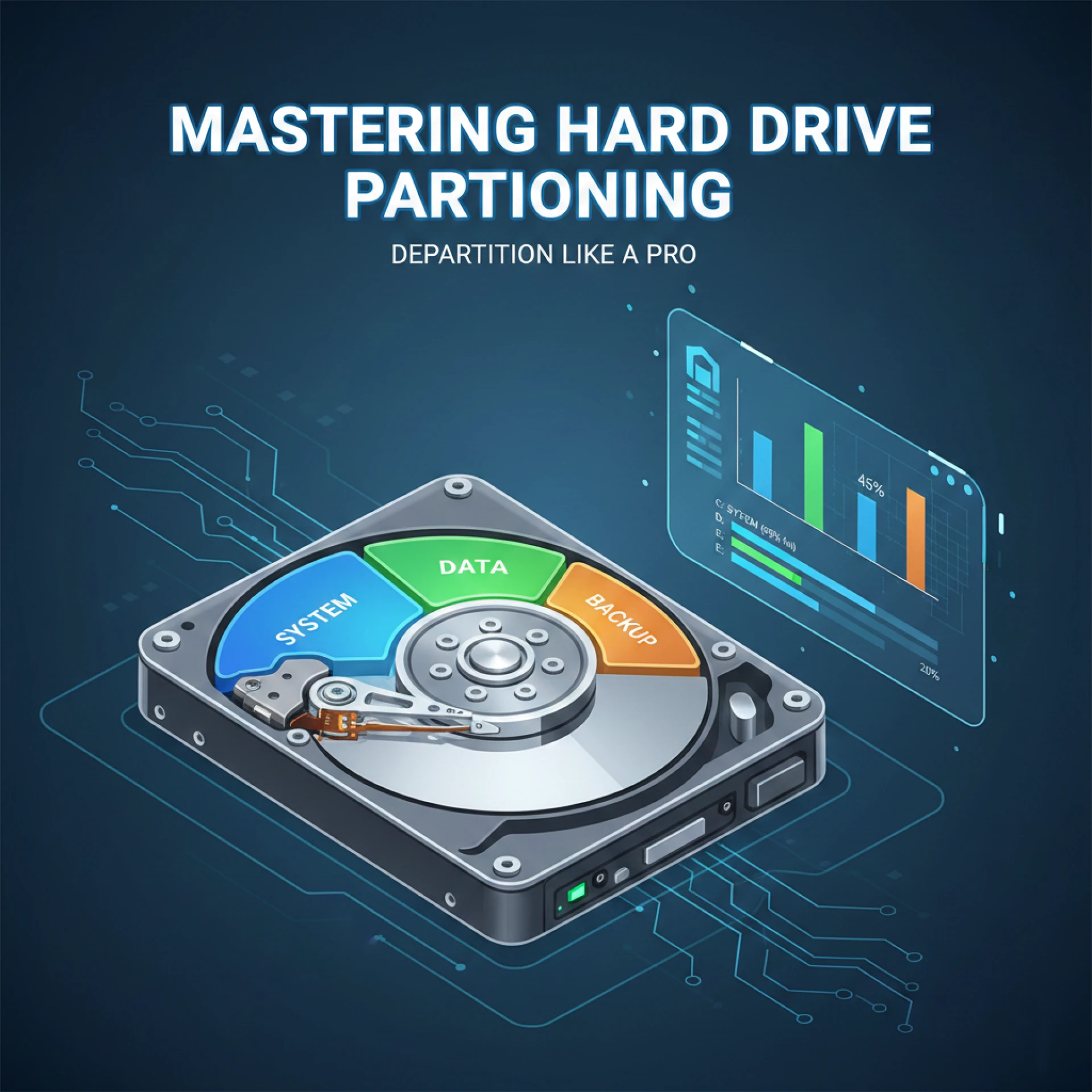
Most users prefer:
- One system partition
- One data partition
- Optional backup or media partition
Too many partitions can become difficult to manage.
Do partitions improve PC performance?
They don’t directly increase speed but they improve organization, reduce clutter, and make backups and recovery faster.
Can I partition a hard drive without formatting?
Yes tools like Partition Master allow you to resize or create partitions without deleting existing data.
Should SSDs be partitioned?
Yes, but moderately. Partitioning an SSD is useful for organization, but creating too many partitions may reduce available storage flexibility.
























Sign in to leave a comment.