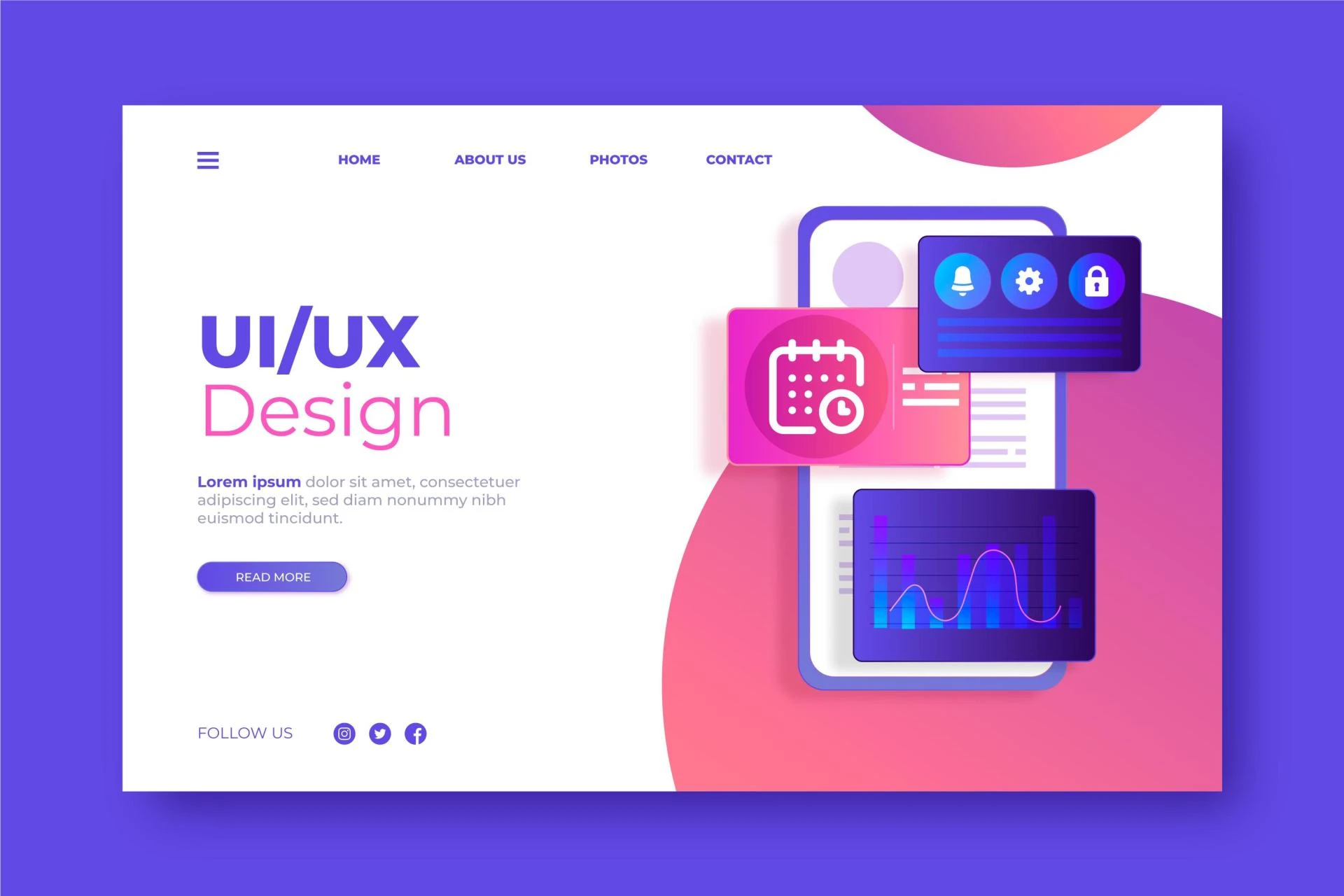

Designing user interfaces (UI) has become faster, more collaborative, and more efficient thanks to tools like Figma. Used by professionals around the world, Figma Designer empowers UI designers to create stunning designs while working seamlessly with teams. However, to get the most out of Figma, it’s important to use it smartly—streamlining workflows, saving time, and enhancing productivity.
we’ll share Figma design tips for faster and smarter UI workflows, helping you improve efficiency, reduce repetitive tasks, and focus on creating better designs. Whether you’re a beginner or an experienced designer, these tips will optimize your process and enhance collaboration.
Why Figma is Essential for UI Workflows
Figma is a cloud-based design tool that allows teams to work together in real time. It offers features like vector editing, prototyping, plugins, and shared libraries, making it a go-to platform for UI/UX projects.
Here’s why it’s essential:
- Collaborative environment allows multiple users to design and review at the same time.
- Design systems and libraries ensure consistency across projects.
- Plugins and integrations automate repetitive tasks.
- Cloud storage keeps files accessible anywhere, anytime.
With the right approach, Figma helps streamline workflows, avoid redundant tasks, and enhance design quality.
Figma Design Tips for Faster UI Workflows
1. Use Components and Variants
Components are reusable elements that help maintain consistency. Variants allow you to group related components together, such as different button states or icons.
How it helps:
- Saves time by reusing elements instead of recreating them.
- Maintains brand consistency across screens.
- Allows quick updates—edit one component, and all instances update automatically.
Tips:
- Create base components for buttons, form fields, and navigation elements.
- Use variants for states like hover, active, disabled, and error messages.
2. Create and Use Design Systems
A design system is a collection of UI elements, styles, and rules that ensure a unified experience across projects.
How it helps:
- Reduces guesswork and rework.
- Keeps designs aligned with brand guidelines.
- Encourages collaboration by sharing assets and styles.
Tips:
- Set up text styles for headings, paragraphs, and captions.
- Define color palettes for primary, secondary, and background colors.
- Create shared libraries to keep teams on the same page.
3. Use Auto Layout for Responsive Designs
Auto Layout is a powerful feature that lets you create designs that adjust automatically as content changes.
How it helps:
- Speeds up design updates when adding or removing elements.
- Ensures spacing and alignment remain consistent.
- Makes designing for different screen sizes easier.
Tips:
- Use Auto Layout for buttons, forms, and navigation menus.
- Combine Auto Layout with constraints to create responsive interfaces.
4. Master Keyboard Shortcuts
Keyboard shortcuts save precious time and make navigating Figma faster and more efficient.
How it helps:
- Reduces mouse clicks and navigation time.
- Allows designers to work smoothly and maintain focus.
5. Use Plugins to Automate Tasks
Figma’s plugin library offers tools that help automate repetitive tasks, manage assets, and streamline design processes.
How it helps:
- Eliminates manual tasks like resizing, aligning, and formatting.
- Helps generate content and icons quickly.
- Integrates with other tools like Slack, Jira, and Trello.
Recommended plugins:
- Content Reel – Quickly add placeholder text and images.
- Icons8 – Access thousands of icons without leaving Figma.
- Remove BG – Remove image backgrounds in a few clicks.
- Stark – Check accessibility and color contrast.
6. Organize Layers and Frames Effectively
A cluttered workspace slows you down and makes collaboration harder.
How it helps:
- Makes navigation faster.
- Helps teams understand the design structure.
- Reduces confusion during reviews.
Tips:
- Use consistent naming conventions like “Button / Primary / Hover.”
- Group related elements under frames.
- Use color tags and annotations to highlight important sections.
7. Use Prototyping Features to Test Workflows
Figma’s prototyping features allow you to create interactive flows and test designs without leaving the platform.
How it helps:
- Speeds up user testing.
- Identifies navigation problems early.
- Enhances communication with developers and stakeholders.
Tips:
- Link buttons to screens for a realistic user flow.
- Add transitions and animations to simulate interactions.
- Use overlays to test dropdowns, modals, and tooltips.
8. Collaborate in Real Time
One of Figma’s strengths is its real-time collaboration feature, where multiple users can work together without version conflicts.
How it helps:
- Reduces back-and-forth communication.
- Encourages immediate feedback and brainstorming.
- Keeps everyone aligned on project goals.
Tips:
- Invite team members to comment directly on frames.
- Use version history to track changes and revert if needed.
- Assign tasks and share links for review meetings.
9. Maintain Consistency with Templates
Templates help speed up the design process by providing pre-built layouts that you can adapt to your project.
How it helps:
- Reduces setup time for new projects.
- Ensures consistent structure and spacing.
Tips:
- Create templates for landing pages, dashboards, and forms.
- Keep templates updated as design standards evolve.
- Share templates across teams to avoid reinventing the wheel.
10. Keep Learning and Improving
Even the best workflows can be optimized. Stay updated with Figma’s new features, attend webinars, and learn from the design community.
How it helps:
- Enhances your skills.
- Keeps you aligned with industry trends.
- Encourages experimentation and creativity.
Tips:
- Follow Figma’s official blog and community forums.
- Join design Slack channels or local meetups.
- Watch tutorials to learn new techniques and shortcuts.
Conclusion :
Figma has revolutionized UI design by making workflows faster, smarter, and more collaborative. By implementing these tips—using components, leveraging Auto Layout, mastering shortcuts, and automating tasks with plugins—you can significantly enhance your design efficiency while maintaining high-quality output.
Faster workflows mean you spend more time being creative and less time on repetitive tasks. Smarter workflows help you collaborate better, avoid errors, and deliver products that users love.

























Sign in to leave a comment.