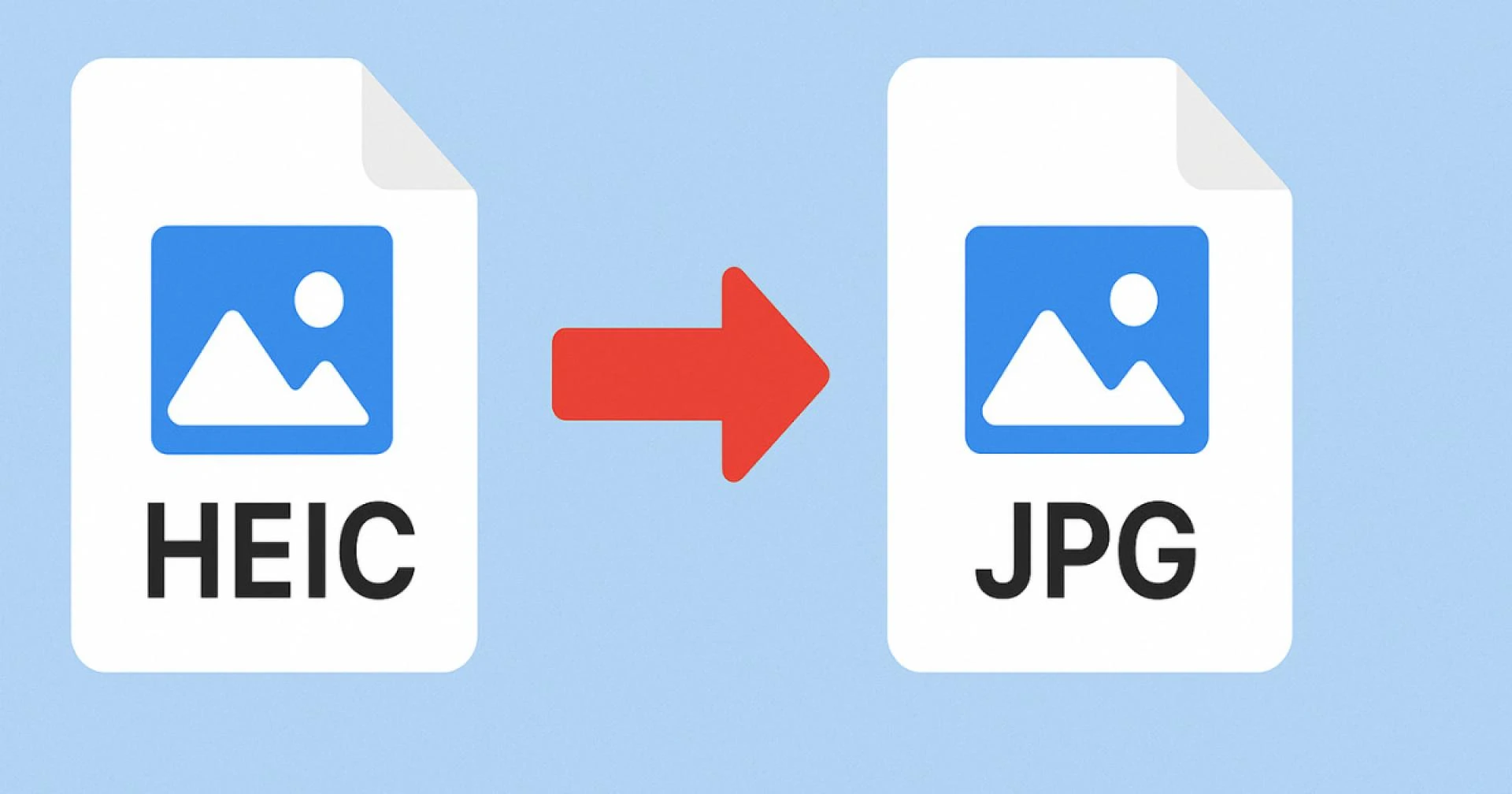

Smartphones have changed the way we capture memories. Apple devices like iPhones and iPads introduced a special format called HEIC (High Efficiency Image Container). This format is designed to save space while keeping photos crystal clear. But there is one major issue—compatibility. Many platforms, apps, and devices do not support HEIC files, which creates problems when you want to share or upload your photos.
That’s why most users prefer to convert their photos from HEIC to JPG. JPG is the most common image format worldwide and is supported by almost every platform. In this guide, you’ll learn what HEIC is, why you should convert it, and how a HEIC to JPG converter can make your life easier.
What is HEIC Format?
HEIC is short for High Efficiency Image Container. Apple introduced it in 2017 with iOS 11. The goal of HEIC is to reduce storage size without affecting image quality.
For example:
- A JPG photo may take 2 MB of space.
- The same photo in HEIC may take only 1 MB while still looking just as sharp.
This is excellent for saving storage on your device. However, the problem is that HEIC files are not widely supported outside Apple’s ecosystem. If you send a HEIC photo to someone using Windows, Android, or try uploading it on a website, chances are it won’t open.
What is JPG Format?
JPG (or JPEG) is the world’s most popular image format. It has been around for decades and is accepted by almost all software, websites, and devices.
JPG is useful for:
- Social media platform sharing (Facebook, Instagram, WhatsApp, Twitter)
- Editing photos with tools like Photoshop, Paint, or Canva
- Uploading images on job portals, websites, and blogs
- Printing photos at home or in studios
Because of this universal support, converting HEIC files into JPG ensures that you can use your photos without limits.
Why Convert HEIC to JPG?
There are several reasons why converting HEIC files is necessary:
- Universal Compatibility – JPG works on Windows, Mac, Android, and all apps.
- Easy Sharing – Messaging and social apps prefer JPG.
- Editing Support – All popular editing tools accept JPG images.
- Printing Photos – Print shops usually ask for JPG format.
- Uploading Online – Most websites and forms only accept JPG.
Simply put, if you want hassle-free usage, convert HEIC photos to JPG.
How to Convert HEIC to JPG
1. Using Online HEIC to JPG Converter
The quickest and easiest option is to use a free online converter.
Steps:
- Open a trusted HEIC to JPG converter.
- Upload your HEIC file.
- Click “Convert.”
- Download your converted JPG photo.
Why this works best:
- No need to install software.
- Works on any device (PC, Mac, iPhone, Android).
- Fast and free.
2. Change iPhone Settings
Don’t want HEIC at all? Just adjust your iPhone settings:
- Open Settings > Camera > Formats.
- Choose Most Compatible instead of High Efficiency.
- From now on, all new photos will save in JPG format automatically.
3. Use Desktop or Mobile Apps
If you have a lot of HEIC files, software and apps are helpful. There are tools for Windows, Mac, and Android that let you convert HEIC to JPG in bulk, saving you time.
Benefits of Using JPG Format
When you convert HEIC to JPG, you unlock many benefits:
- Universal support on all devices and apps.
- Easy photo sharing via email, WhatsApp, and social media.
- Smooth editing with almost every photo editing app.
- Printing ready in all studios.
- Website-friendly for blogs, forms, and online uploads.
That’s why JPG remains the most practical image format.
Features of a Reliable HEIC to JPG Converter
Before choosing a converter, make sure it includes:
- Fast conversion speed
- High-quality results without losing clarity
- Batch file support for multiple photos
- Free usage with no hidden charges
- Safe and secure processing for your files
FAQs About HEIC to JPG Conversion
1. What is the main difference between HEIC and JPG?
HEIC saves space with better compression, but JPG is supported everywhere.
2. Can I convert HEIC to JPG without losing quality?
Yes, most converters keep your photo quality almost the same.
3. Do Windows devices support HEIC?
New versions do, but most apps still prefer JPG.
4. Is it safe to use an online HEIC to JPG converter?
Yes, if you use a trusted converter, it is safe and quick.
5. Can I convert multiple HEIC files at once?
Yes, many tools allow bulk conversion for multiple files.
Conclusion
HEIC is a smart format introduced by Apple to save space and improve quality. But because of its limited compatibility, it creates problems for sharing, uploading, and editing photos. The solution is simple—convert HEIC to JPG.
With a reliable HEIC to JPG converter, you can change your photos in seconds and use them anywhere without stress. JPG ensures your images are universally supported, whether you are sharing them with friends, editing them for a project, or uploading them online.
If you want ease, flexibility, and full access, always keep your important photos in JPG format.

























Sign in to leave a comment.