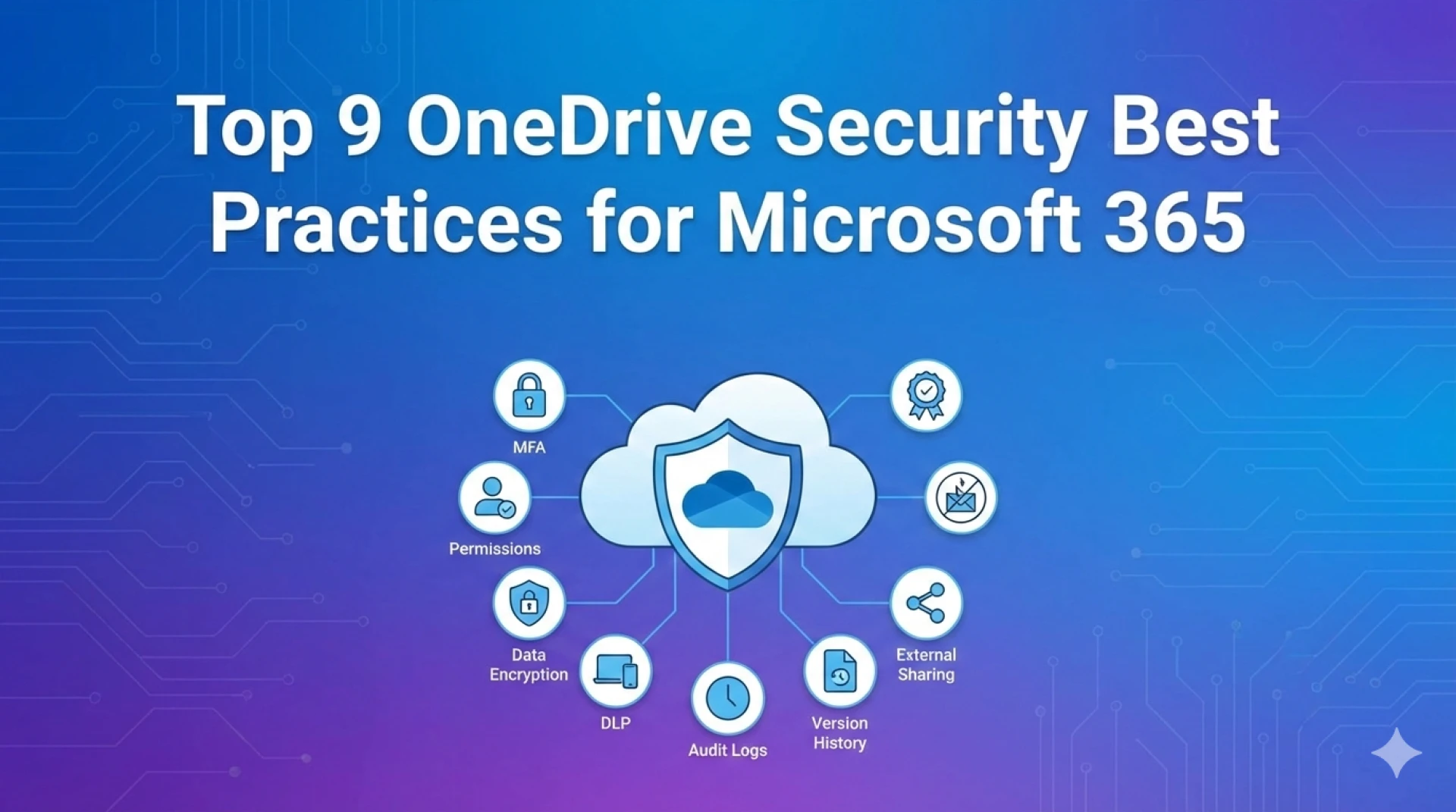

Data is one of the most valuable assets for any business today. With cloud collaboration becoming the standard, organizations rely heavily on Microsoft’s ecosystem to store, share, and manage sensitive information. While Microsoft 365 offers strong built-in protection, security ultimately depends on how you configure and manage your environment.
Following the right OneDrive Security Best Practices helps prevent data breaches, unauthorized access, accidental sharing, and compliance risks. Without proper controls, even a secure platform can expose critical business data.
This guide covers nine proven strategies to strengthen your Microsoft OneDrive environment and protect your organization’s information effectively.
Top 9 OneDrive Security Best Practices for Microsoft 365
Data is one of the most valuable assets for any business today. With cloud collaboration becoming the standard, organizations rely heavily on Microsoft’s ecosystem to store, share, and manage sensitive information. While Microsoft 365 offers strong built-in protection, security ultimately depends on how you configure and manage your environment.
Following the right OneDrive Security Best Practices helps prevent data breaches, unauthorized access, accidental sharing, and compliance risks. Without proper controls, even a secure platform can expose critical business data.
This guide covers nine proven strategies to strengthen your Microsoft OneDrive environment and protect your organization’s information effectively.
Table of Contents
- 1. Enable Multi-Factor Authentication (MFA)
- 2. Implement Strong Access Controls and Permissions
- 3. Use Data Loss Prevention (DLP) Policies
- 4. Configure Secure File Sharing Settings
- 5. Monitor Activity with Audit Logs
- 6. Encrypt Data at Rest and in Transit
- 7. Apply Conditional Access Policies
- 8. Manage Device Security and Sync Controls
- 9. Train Employees on Security Awareness
1. Enable Multi-Factor Authentication (MFA)
Multi-factor authentication is the single most effective way to prevent unauthorized access. Passwords alone are vulnerable to phishing, brute force attacks, and credential leaks.
MFA requires users to verify their identity using additional factors such as:
- One-time passcodes
- Authentication apps
- Biometric verification
- Hardware security keys
Why MFA Matters
Even if an attacker steals login credentials, they cannot access files without the second authentication factor. This significantly reduces account takeover risks.
Best Implementation Practices
- Enforce MFA for all users, especially administrators.
- Require MFA for external access.
- Use authenticator apps instead of SMS where possible.
- Monitor failed authentication attempts.
Organizations that skip MFA are exposing their data unnecessarily. It should be the first security control implemented in any cloud environment.
2. Implement Strong Access Controls and Permissions
Poor permission management is a major cause of data exposure. Users often have more access than they actually need, increasing risk.
Follow the Principle of Least Privilege
Grant users only the permissions required for their roles. This ensures sensitive information remains restricted.
Key Access Control Measures
- Use role-based access control (RBAC).
- Limit admin privileges.
- Regularly review user permissions.
- Remove access immediately when employees leave.
- Restrict access to sensitive folders.
Conduct Regular Permission Audits
Schedule quarterly or monthly audits to identify:
- Unused accounts
- Over-privileged users
- Suspicious access patterns
Strong permission management is a core part of OneDrive Security Best Practices because it minimizes internal and external threats.
3. Use Data Loss Prevention (DLP) Policies
Data Loss Prevention policies help prevent sensitive information from being shared accidentally or intentionally.
What DLP Protects
DLP policies can detect and restrict sharing of:
- Financial records
- Customer data
- Personal identification information
- Confidential documents
- Intellectual property
How DLP Works
DLP scans files automatically and applies rules such as:
- Blocking file sharing
- Restricting external access
- Alerting administrators
- Encrypting sensitive content
Best Practices for DLP
- Define what counts as sensitive data.
- Create policies for different departments.
- Monitor policy alerts.
- Continuously refine rules.
DLP ensures critical data never leaves your organization without authorization.
4. Configure Secure File Sharing Settings
File sharing improves collaboration but introduces major security risks if not configured properly.
Common Sharing Risks
- Public links accessible by anyone
- Unlimited external access
- Permanent sharing permissions
- Lack of expiration controls
Secure Sharing Configuration
- Disable anonymous sharing links.
- Require sign-in for shared files.
- Set link expiration dates.
- Restrict download permissions for sensitive files.
- Limit external sharing to approved domains.
Control External Collaboration
Organizations should define who can share files externally and what type of data can be shared. Without clear policies, sensitive information can spread quickly outside company boundaries.
5. Monitor Activity with Audit Logs
Visibility is critical for security. Without monitoring, you cannot detect suspicious behavior or investigate incidents.
What Audit Logs Track
- File access activity
- File deletions
- Sharing changes
- Login attempts
- Permission modifications
Why Monitoring Matters
Audit logs help identify:
- Unauthorized file downloads
- Unusual login locations
- Mass file deletions
- Suspicious sharing behavior
Monitoring Best Practices
- Enable unified audit logging.
- Set alerts for high-risk activities.
- Review logs regularly.
- Automate threat detection where possible.
Monitoring ensures rapid response to security threats before they escalate.
6. Encrypt Data at Rest and in Transit
Encryption protects data from interception and unauthorized access.
Types of Encryption
- Data at rest: Protects stored files.
- Data in transit: Protects files during transfer.
Why Encryption is Essential
Even if data is intercepted or accessed without permission, encryption prevents attackers from reading the content.
Additional Protection Strategies
- Use strong encryption standards.
- Implement customer-managed encryption keys for sensitive environments.
- Protect backups with encryption.
Encryption acts as a safety net for your organization’s most critical data.
7. Apply Conditional Access Policies
Conditional access controls determine who can access data and under what conditions.
Access Conditions Can Include
- User location
- Device compliance status
- Risk level of login
- Network security
- User role
Practical Use Cases
- Block access from unknown countries.
- Require MFA for high-risk logins.
- Allow access only from managed devices.
- Restrict access from public networks.
Conditional access provides adaptive security that adjusts based on risk levels.
8. Manage Device Security and Sync Controls
OneDrive allows users to sync files across multiple devices. While convenient, this can create security vulnerabilities.
Device Risks
- Lost or stolen devices
- Unmanaged personal computers
- Outdated software
- Malware infections
Device Security Measures
- Allow sync only on managed devices.
- Enable remote wipe capabilities.
- Require device encryption.
- Enforce security updates.
- Monitor device compliance.
Control Offline Access
Restrict offline file access where possible to prevent data exposure on compromised devices.
Strong device management plays a crucial role in implementing OneDrive Security Best Practices effectively.
9. Train Employees on Security Awareness
Technology alone cannot protect your environment. Human error remains the biggest security risk.
Common User Risks
- Phishing attacks
- Accidental file sharing
- Weak passwords
- Unsafe downloads
Build a Security-First Culture
- Provide regular security training.
- Conduct phishing simulations.
- Teach secure file sharing habits.
- Educate users about data sensitivity.
When employees understand risks, they become the first line of defense against security threats.
How These OneDrive Security Best Practices Strengthen Your Organization
Implementing OneDrive Security Best Practices creates multiple layers of protection:
- Identity protection through MFA
- Access control through permissions
- Data protection through encryption
- Risk detection through monitoring
- Threat prevention through policies
- Human risk reduction through training
This layered approach ensures that if one control fails, others continue protecting your data.
Organizations that treat security as an ongoing process—not a one-time setup—achieve stronger resilience against cyber threats.
Implementation Strategy for Businesses
Adopting these security practices requires a structured approach.
Step 1: Assess Current Security Posture
Evaluate your current configuration, permissions, and sharing settings.
Step 2: Prioritize High-Impact Controls
Start with MFA, access controls, and secure sharing.
Step 3: Implement Monitoring and Policies
Deploy audit logging, DLP, and conditional access.
Step 4: Educate Users
Train employees and establish security guidelines.
Step 5: Continuously Improve
Review policies regularly and adapt to new threats.
Security is not static. Continuous improvement is essential.
Common Mistakes Organizations Should Avoid
Even with advanced tools available, many organizations make avoidable mistakes:
- Allowing anonymous file sharing
- Not enforcing MFA
- Ignoring permission reviews
- Failing to monitor activity logs
- Skipping employee training
- Allowing access from unmanaged devices
Avoiding these errors dramatically reduces security risk.
Conclusion
Protecting business data in the cloud needs a proactive approach rather than assumptions. Implementing security best practices through a OneDrive Optimization Service strengthens data protection, improves compliance, and reduces cyber risks.
Organizations that prioritize identity security, access control, monitoring, and user awareness build a resilient digital workplace prepared for modern threats.


























Sign in to leave a comment.