

QuickBooks is a popular accounting solution used by businesses to organize financial information, track expenses, manage invoices, process payroll, monitor transactions, and prepare reports. For many small and growing businesses, reliable accounting software is essential for maintaining accurate records and supporting everyday financial decisions.
However, technical problems can occasionally interrupt normal operations. Users may encounter software crashes, update failures, login difficulties, company file problems, printing issues, connectivity errors, or slow performance. When these problems occur, reacting without understanding the cause can sometimes make troubleshooting more complicated.
A structured approach can help business users identify common problems, protect their financial data, and choose appropriate troubleshooting steps.
Start by Identifying the Problem
The first step in troubleshooting is to determine exactly what is happening.
Instead of simply saying that QuickBooks is not working, identify the specific issue. For example, does the program fail to open? Does it freeze during a particular task? Does an error code appear? Is a company file unavailable? Does the problem occur when connecting to an online service?
Writing down the exact error message can be extremely helpful. Error codes often provide clues about the component that may be causing the issue.
Business users should also consider when the problem started. If the issue appeared after a software update, Windows update, network change, or new installation, that information may help narrow down possible causes.
Check the Internet Connection
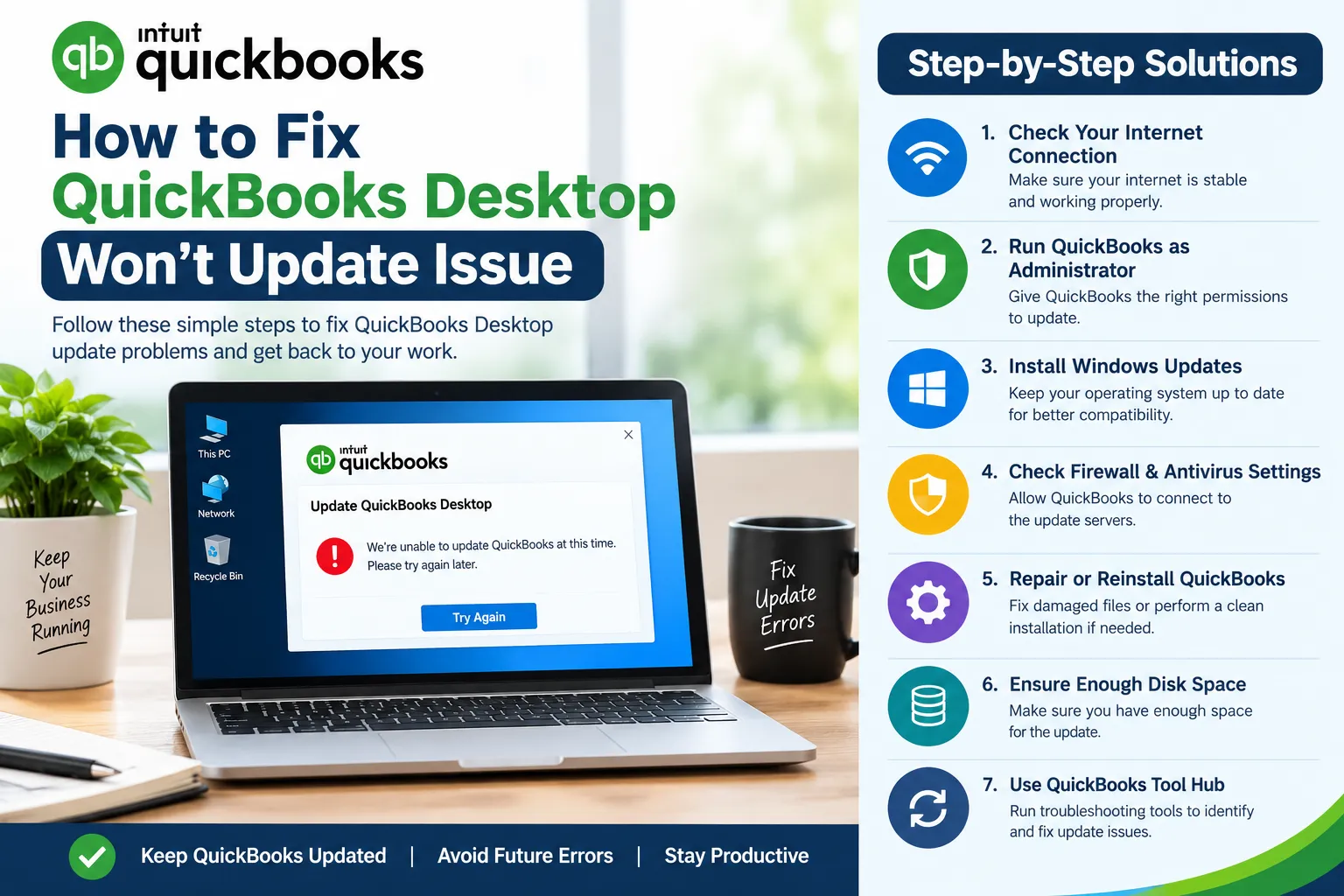
Many QuickBooks features depend on reliable internet connectivity. Updates, online services, account functions, and other connected features may not work correctly when the network connection is unstable.
If an online feature fails, users should test their internet connection by opening several websites. If other websites are also slow or unavailable, the problem may be related to the network.
Restarting the router or reconnecting the computer can sometimes resolve a temporary connection problem.
Businesses using multiple computers should determine whether the problem affects only one workstation or the entire network. If several computers experience the same issue, the network environment may need additional investigation.
Keep QuickBooks Updated
Regular software updates can provide improvements, bug fixes, security enhancements, and compatibility changes.
Running an outdated version can sometimes create compatibility problems with newer operating-system components or connected services.
Business users should check whether their installed QuickBooks version is current and follow the appropriate update procedure.
Before major updates, it is important to verify that recent backups of company files are available. Users should also avoid shutting down the computer while an update is being installed.
Keeping accounting software appropriately maintained can help reduce avoidable technical problems.
Maintain Enough Storage Space
Limited disk space can affect both QuickBooks and the Windows operating system.
Updates and other software operations may require temporary storage for downloaded or installation files. If the computer is almost full, these processes may fail.
Business users should regularly check available storage and remove unnecessary files when appropriate.
However, accounting records and backup files should never be deleted simply to create additional space. Important financial information should be stored securely.
Maintaining sufficient free space can also improve overall computer performance.
Check Windows Settings
QuickBooks operates within the Windows environment, so certain system settings can affect application behavior.
Users should check whether Windows is functioning normally and whether important system components are appropriately updated.
Date, time, and time-zone settings should also be accurate. Incorrect system settings can sometimes interfere with secure online connections.
If several applications are experiencing unusual behavior, the underlying problem may be related to Windows rather than QuickBooks itself.
Determining whether the issue is specific to the accounting application or affects the entire computer can make troubleshooting more efficient.
Review Firewall and Antivirus Settings
Security software is essential for protecting business computers, particularly those used to manage financial information.
However, firewall or antivirus settings can occasionally interfere with legitimate application communication.
If QuickBooks cannot connect to required online services, an authorized administrator should review the security configuration.
Security software should not simply be disabled permanently. Instead, administrators should determine whether QuickBooks has the appropriate permissions while keeping normal security protection active.
This is particularly important for businesses that handle payroll, banking information, customer data, and other sensitive records.
Troubleshoot Company File Problems Carefully
Company files contain valuable financial information, so problems involving them require special attention.
A company file may fail to open, become unusually slow, or display an error. Users should first confirm that they are opening the correct file and that the file location is accessible.
If the company file is stored on a network, check the network connection and user permissions.
Before attempting repair procedures, users should verify that a recent backup exists.
Business users should never delete or overwrite a company file simply because it appears to be causing an error. Preserving the original data is important when troubleshooting financial records.
Restart QuickBooks and the Computer
Restarting the application is one of the simplest troubleshooting steps.
Temporary processes or background conflicts may occasionally prevent QuickBooks from operating normally. Closing the application properly and reopening it can determine whether the issue was temporary.
If the problem remains, restarting the computer can clear temporary processes and provide a fresh system environment.
However, repeated restarts are not a complete solution for persistent problems. If the same error returns, users should investigate the exact error message.
Record Error Codes and Messages
When a problem occurs, users should record the complete error code and message.
This information can help distinguish between different types of problems. An installation issue may require a different solution from a company file problem, while a connectivity issue may require network troubleshooting.
Taking a screenshot of the error can also be useful for future reference.
Business users should record what they were doing immediately before the error appeared. This information can help identify patterns and make troubleshooting more targeted.
Use Reliable Troubleshooting Resources
When basic checks do not resolve an issue, users may need additional technical information.
Reliable online resources can provide explanations of common QuickBooks problems and general troubleshooting approaches.
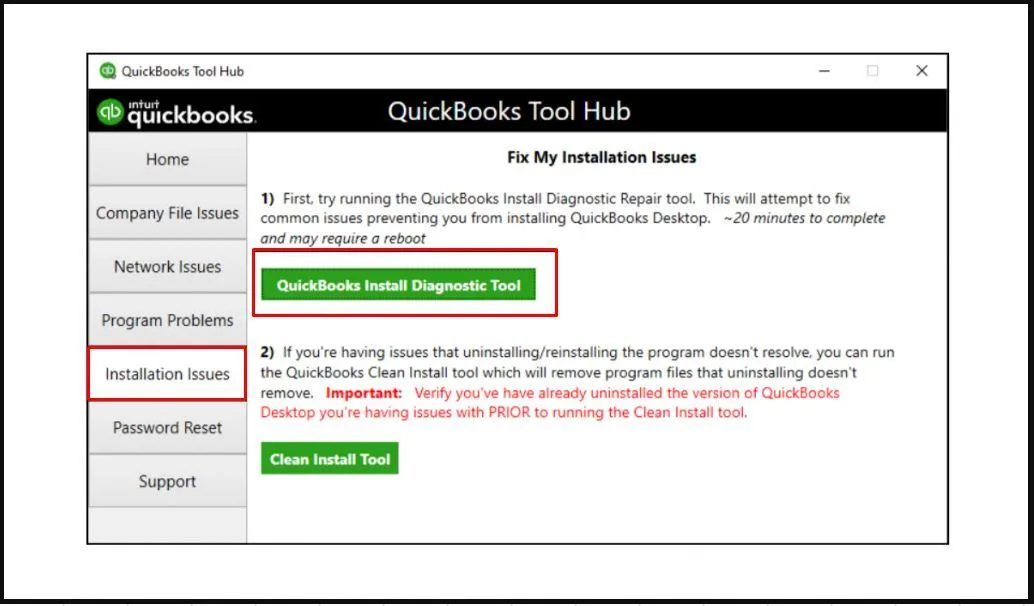
Business users looking for a QuickBooks Support Hub can use relevant online information to better understand common accounting software issues and possible next steps.
This is the only backlink in this article, so the URL should not be repeated anywhere else.
When following an online troubleshooting guide, users should verify that the instructions match their QuickBooks edition and Windows version.
Protect Financial Data Before Making Changes
Data protection should always be a priority.
Before performing repairs, reinstalling software, changing major settings, or troubleshooting company files, businesses should verify that recent backups are available.
Regular backups are more effective than creating a backup only after a problem appears.
Businesses should also store backup copies securely and periodically confirm that they can be accessed when required.
A reliable backup strategy can reduce the potential impact of unexpected software or hardware problems.
Check User Permissions
In a business environment, different employees may have different levels of access.
Some problems can occur when a user does not have the permissions required to perform a particular accounting task.
Administrators should review user permissions when an employee encounters an access-related problem.
Permissions should be changed carefully and according to the company's security policies. Giving unnecessary administrative access can create security risks.
Maintaining appropriate user roles can help balance productivity and data protection.
Avoid Random Troubleshooting Methods
One common mistake is trying multiple unrelated solutions without recording what has already been changed.
This can make it difficult to determine which action affected the problem.
Business users should follow a logical sequence. Start with simple checks such as internet connectivity, available storage, application updates, and system settings. Move to more advanced troubleshooting only when necessary.
If an important company file is involved, extra caution should be taken before making any changes.
Know When to Seek Additional Assistance
Some problems can be resolved through basic troubleshooting, while persistent issues may require additional assistance.
If QuickBooks repeatedly crashes, company files remain inaccessible, updates continuously fail, or several different errors appear, users should avoid making numerous system changes without understanding their effects.
Before requesting assistance, collect the QuickBooks version, Windows version, error code, complete error message, and details about when the problem occurs.
Providing this information can help make further investigation more efficient.
Preventing Future QuickBooks Problems
Prevention is an important part of maintaining a reliable accounting environment.
Businesses should keep QuickBooks and Windows appropriately updated, maintain sufficient storage space, use a stable internet connection, and keep security software correctly configured.
Regular backups should be part of the company's normal accounting routine.
Employees should also be encouraged to report recurring technical problems rather than repeatedly working around them.
Early attention to small issues can help prevent larger disruptions later.
Conclusion
QuickBooks troubleshooting does not always require complicated technical procedures. Many common problems can first be investigated by checking internet connectivity, software updates, storage space, Windows settings, security configurations, permissions, and company-file access.
Recording exact error messages and following a logical troubleshooting process can make it easier to identify the underlying problem.
Businesses should also prioritize data protection by maintaining regular backups before performing major repairs or configuration changes.
By combining preventive maintenance with reliable troubleshooting information, business users can reduce technical interruptions and maintain a more stable accounting workflow.



























Sign in to leave a comment.