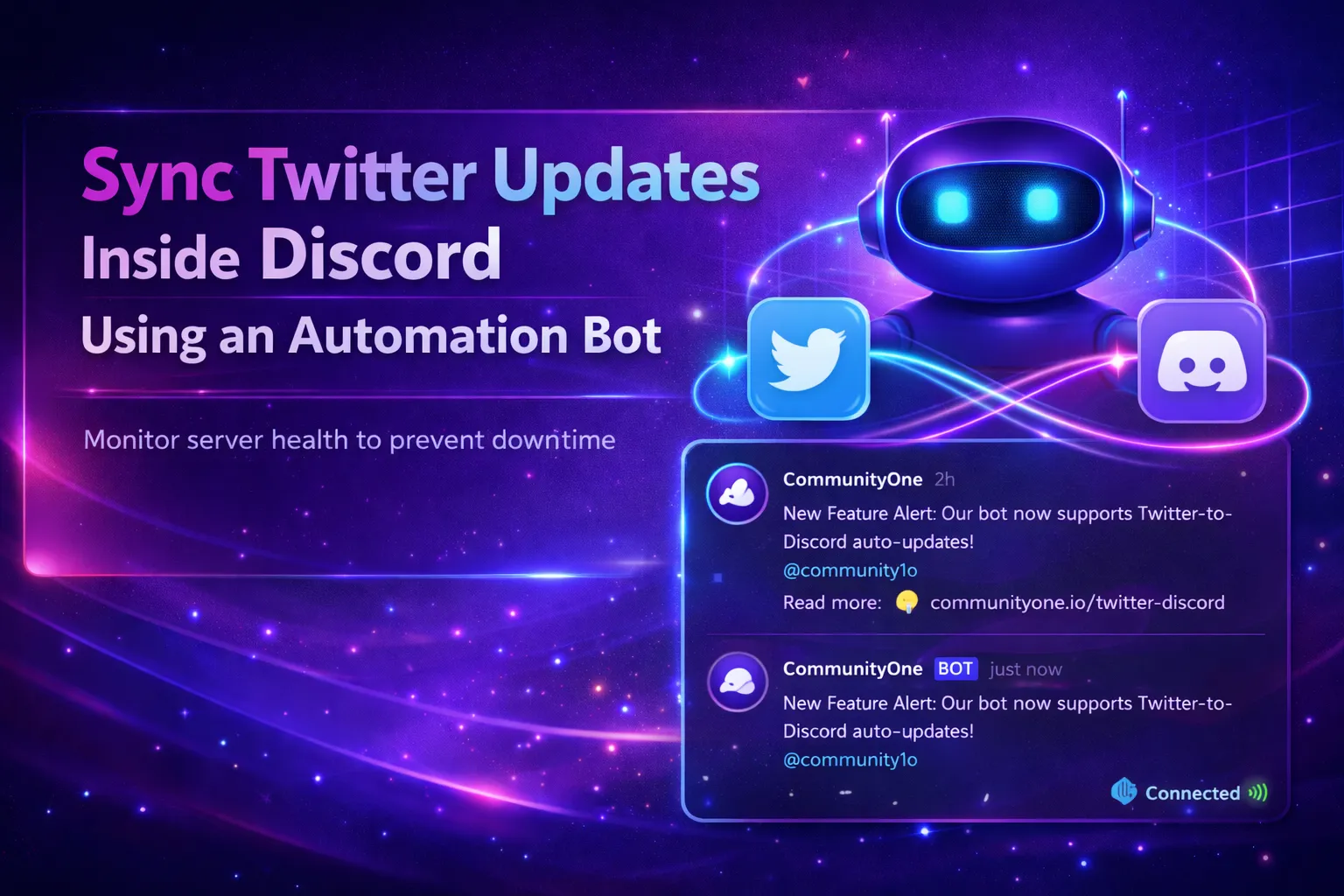

You are posting on Twitter. You are managing a Discord server. You are trying to keep both alive. That is a lot to handle on your own.
Here is the thing, though. You do not have to do it all manually. A Twitter bot Discord setup takes your tweets and drops them straight into your server the moment they go live. No copy-paste. No tab switching. No forgetting to share an update.
Your community stays in the loop. You save time. Everyone wins.
Automation does not replace you. It just handles the boring stuff so you can focus on the real conversations.
So What Does This Bot Actually Do?
Think of it like a bridge. Twitter is on one side. Your Discord server is on the other. The bot sits right in the middle and carries your content across automatically.
Every time you post a tweet, the bot picks it up and shares it inside a Discord channel you choose. Your members see it instantly. They can react, reply, and talk about it without ever leaving the server.
It works for all kinds of communities. Brands, creators, gaming servers, news channels, sports communities. If you are active on Twitter and you have a Discord server, this setup makes total sense.
Why Your Members Will Actually Love This?
Most people do not check Twitter and Discord at the same time. They hang out where they feel comfortable. For a lot of your members, that place is Discord.
When your Twitter content shows up inside the server, they do not have to go anywhere. They see your tweet, they react with Discord emojis, and the conversation starts right there in the channel.
That is powerful. You are not asking members to follow you on another platform. You are bringing the content to them. That kind of convenience keeps people engaged and coming back.
People engage more when they do not have to leave the app they are already in.
Discord Emojis Make Everything More Fun
Here is something a lot of server owners overlook. When a tweet lands in your Discord channel, members can respond using Discord emojis right away. That quick reaction button is a game-changer.
Instead of silence, you get instant feedback. A fire emoji means people love it. A laugh emoji means it landed. Even a simple thumbs up tells you people saw it and cared enough to react.
Discord emojis turn passive viewers into active participants. That is exactly what you want from your community. More reaction, more discussion, more life in the server.
How to Set This Up Without Losing Your Mind?
You do not need to be a developer to make this work. Here is the basic flow:
1. Pick your automation tool: Several tools connect Twitter to Discord. Look for one that lets you choose which Twitter account to follow, which Discord channel to post in, and how often to check for new tweets.
2. Connect your accounts: You will give the tool permission to read from Twitter and post into Discord. This usually takes just a few minutes. Follow the prompts and you are good to go.
3. Choose a dedicated channel: Create a channel just for Twitter updates. Something like #twitter-feed or #latest-tweets works great. Members know exactly where to go when they want to see your newest posts.
4. Test it first: Send a test tweet and make sure it shows up in Discord the way you expect. Check the format. Make sure the channel is correct. Small tests save big headaches later.
5. Announce it to your community: Tell your members the channel is live. Let them know they can now see all your Twitter updates without leaving the server. People appreciate knowing about new features.
What Kind of Tweets Work Best in Discord?
Not every tweet is built for a Discord conversation. Here are the types that tend to perform really well:
1. Announcements
New product drops, event dates, big news. These get members excited and give them something to talk about right away.
2. Questions & Polls
Ask your Twitter audience something interesting. When that question lands in Discord, members want to chime in with their own answers.
3. Behind-the-Scenes Content
People love seeing what goes on behind the curtain. A casual tweet about your process or your day creates a personal connection.
4. Hot Takes & Opinions
Controversial but fair takes spark the best discussions. Members come alive when they have something to agree or disagree with.
Tips to Keep It From Getting Annoying
Too much automation can feel spammy. Here is how to keep things clean:
Do not sync every single tweet. Set filters so only your most relevant content gets shared. Reply tweets and random retweets usually do not need to land in Discord.
Keep the channel organized. Pin a message explaining what the channel is for. Members should know at a glance that this is your Twitter feed, not a general chat.
Check the channel yourself sometimes. Drop a comment on a tweet that landed well. Show your community you are actually there and paying attention.
Automation works best when it feels natural. If your server feels like a spam folder, something needs adjusting.
The Bigger Picture Here
Syncing Twitter into Discord is really about one thing. Making your community feel connected to everything you do.
When members see your tweets, react with Discord emojis, and start discussions inside the server, they feel like insiders. They are not just following you from a distance. They are part of the conversation in real time.
That feeling of being included keeps people around. It turns casual followers into loyal community members. And that is the whole point.
Your Community Deserves to See Everything You Create
Stop making your members hunt across platforms to keep up with you. Bring your Twitter world into Discord and let the conversation happen in one place. Set it up once, let the bot handle the rest, and watch your community start engaging in ways it never did before. You have already done the hard work of building an audience. Now let automation help you keep them close.
Frequently Asked Questions
1. Do I need coding skills to set up a Twitter bot Discord connection?
Not at all. Most automation tools that handle a Twitter bot Discord connection are built for regular users. You connect your accounts, pick your settings, and the tool does the rest. No code required. The whole setup usually takes less than 30 minutes.
2. Can I control which tweets get shared in Discord?
Yes. Most tools let you set filters. You can choose to only share original tweets and skip replies or retweets. You can also filter by keywords or hashtags. This keeps your Discord channel clean and relevant instead of being flooded with every single post.
3. Will my members be able to react using Discord emojis when a tweet is shared?
Absolutely. When a tweet lands in a Discord channel, it shows up like any other message. Members can react with Discord emojis, reply in the thread, or start a discussion right underneath it. It is one of the best parts of this setup because it turns a one-way broadcast into a real conversation.
4. How often does the bot check for new tweets?
It depends on the tool you use. Some check every few minutes. Others check every 15 to 30 minutes. For most communities, a 10 to 15-minute delay is perfectly fine. Your members will still feel like they are getting updates in real time, and you will not run into any rate limit issues.
5. Is this setup useful for small servers or only big communities?
It works great for servers of any size. Small communities actually benefit the most because every bit of activity matters when you are still growing. Bringing Twitter content into Discord gives members something to react to and talk about, which helps build momentum even when the server is just getting started.
























Sign in to leave a comment.