Figma has revolutionized UI/UX design with its collaborative interface and robust design tools. However, to bring these designs to life, developers need to convert Figma designs into fully functional WordPress themes. WordPress is a powerful and flexible content management system (CMS) that enables developers to build dynamic, scalable, and customizable websites.
In this comprehensive guide, we will walk you through the step-by-step process to convert Figma to WordPress and create custom WordPress themes. By the end of this guide, you’ll be able to transform your Figma designs into a live, responsive WordPress website.
Why Convert Figma to WordPress?
Converting Figma designs to WordPress offers several advantages:
- Customization: You have complete control over the design and functionality of your WordPress theme.
- Scalability: WordPress allows you to easily expand your website with plugins and custom features.
- SEO-Friendly: WordPress offers built-in SEO features and supports various SEO plugins.
- Content Management: The WordPress admin panel makes content updates simple for non-technical users.
- Responsive Design: You can create fully responsive websites that work across all devices.
Step-by-Step Guide to Convert Figma to WordPress
Step 1: Preparing Your Figma Design
Before diving into WordPress development, you need to ensure that your Figma design is optimized for conversion.
- Organize Your Layers & Components: Use proper naming conventions and group elements logically.
- Use a Consistent Grid System: Follow a grid-based layout for a structured design.
- Define Typography & Colors: Maintain a style guide for fonts, colors, and spacing.
- Export Assets: Download necessary images, icons, and SVGs for web use.
- Create a Design System: Define reusable components like buttons, headers, and footers.
Step 2: Convert Figma to HTML & CSS
WordPress themes are built with HTML, CSS, JavaScript, and PHP. First, we need to convert Figma into static HTML and CSS.
1. Exporting Assets from Figma
- Select images/icons in Figma and export them in PNG, JPG, or SVG format.
- Use Figma’s Code Panel to inspect CSS styles.
2. Create the HTML Structure
Create an index.html file and add basic HTML markup:
<!DOCTYPE html>
<html lang="en">
<head>
<meta charset="UTF-8">
<meta name="viewport" content="width=device-width, initial-scale=1.0">
<title>Custom WordPress Theme</title>
<link rel="stylesheet" href="styles.css">
</head>
<body>
<header>
<h1>Welcome to My WordPress Theme</h1>
</header>
<main>
<p>Converted from Figma</p>
</main>
</body>
</html>
3. Apply CSS Styling
Create a styles.css file and add styles from Figma:
body {
font-family: Arial, sans-serif;
background-color: #f8f9fa;
margin: 0;
padding: 0;
}
header {
background-color: #0073e6;
color: white;
padding: 20px;
text-align: center;
}
4. Add JavaScript for Interactivity
If your Figma design includes interactive elements, implement JavaScript:
document.addEventListener("DOMContentLoaded", function() {
console.log("Figma to WordPress Conversion Started");
});
Step 3: Convert HTML to WordPress Theme
After creating the HTML version, the next step is to integrate it into a WordPress theme.
1. Install WordPress Locally
2. Create a WordPress Theme Folder
Navigate to /wp-content/themes/ and create a new folder, e.g., my-custom-theme.
3. Add Required WordPress Theme Files
Inside my-custom-theme, create the following essential files:
style.cssindex.phpheader.phpfooter.phpfunctions.phppage.php
4. Define the Theme in style.css
Inside style.css, add theme metadata:
/*
Theme Name: My Custom Theme
Author: Your Name
Description: A custom WordPress theme converted from Figma
Version: 1.0
*/
5. Convert HTML to WordPress Template
Replace the static HTML structure with WordPress functions in index.php:
<?php get_header(); ?>
<main>
<h2><?php the_title(); ?></h2>
<p><?php the_content(); ?></p>
</main>
<?php get_footer(); ?>
6. Add WordPress Header & Footer
In header.php:
<!DOCTYPE html>
<html <?php language_attributes(); ?>>
<head>
<meta charset="<?php bloginfo('charset'); ?>">
<title><?php bloginfo('name'); ?></title>
<?php wp_head(); ?>
</head>
<body <?php body_class(); ?>>
In footer.php:
<footer>
<p>© <?php echo date('Y'); ?> My Custom Theme</p>
<?php wp_footer(); ?>
</footer>
</body>
</html>
7. Register Custom Menus and Widgets in functions.php
function my_theme_setup() {
add_theme_support('menus');
register_nav_menu('primary', __('Primary Menu'));
}
add_action('after_setup_theme', 'my_theme_setup');
Step 4: Test & Deploy the WordPress Theme
- Activate the Theme: Go to Appearance > Themes and activate your custom theme.
- Test Responsiveness: Use Chrome DevTools to test mobile compatibility.
- Optimize Performance: Minify CSS/JS and use caching plugins.
- Deploy to a Live Server: Use FTP or WordPress Hosting to deploy your theme.
Final Thoughts
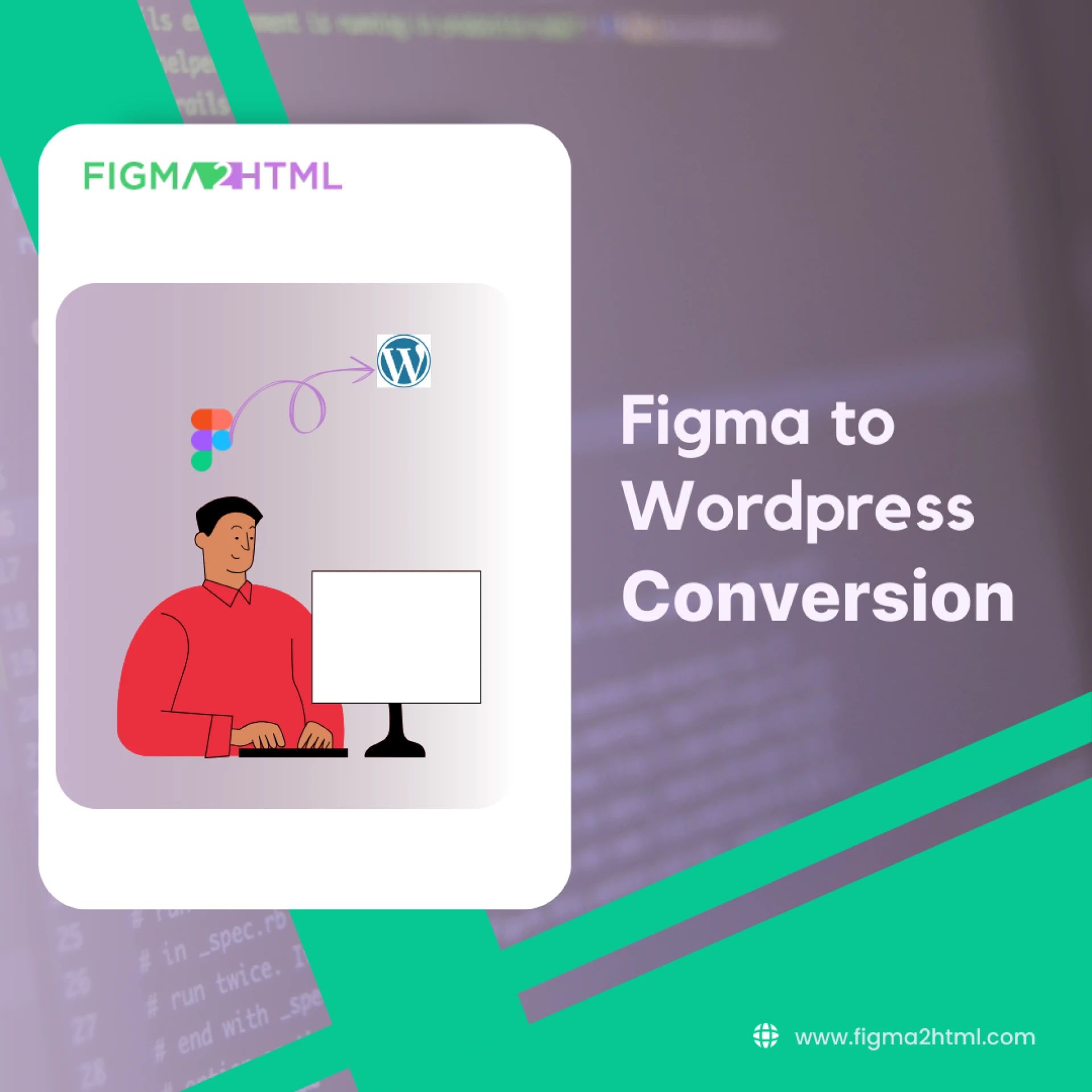
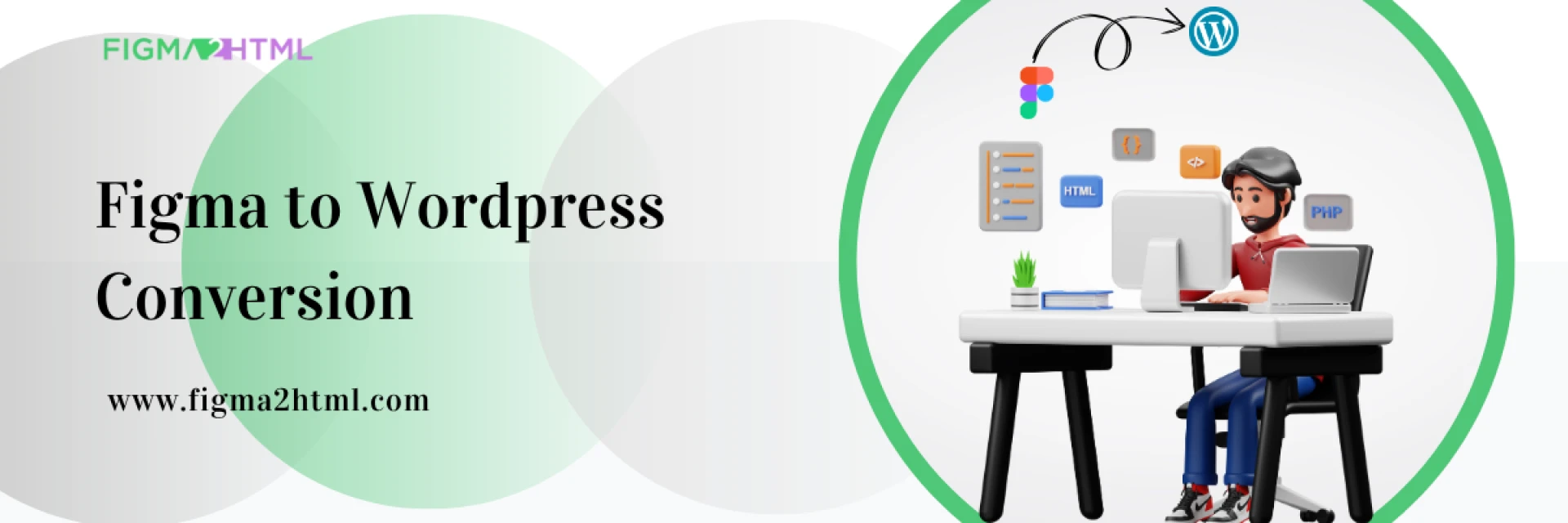
Converting Figma to WordPress is a structured process that involves designing, coding, and integrating WordPress functions. By following this guide, you can create fully functional custom WordPress themes that match your Figma design precisely.





























Sign in to leave a comment.