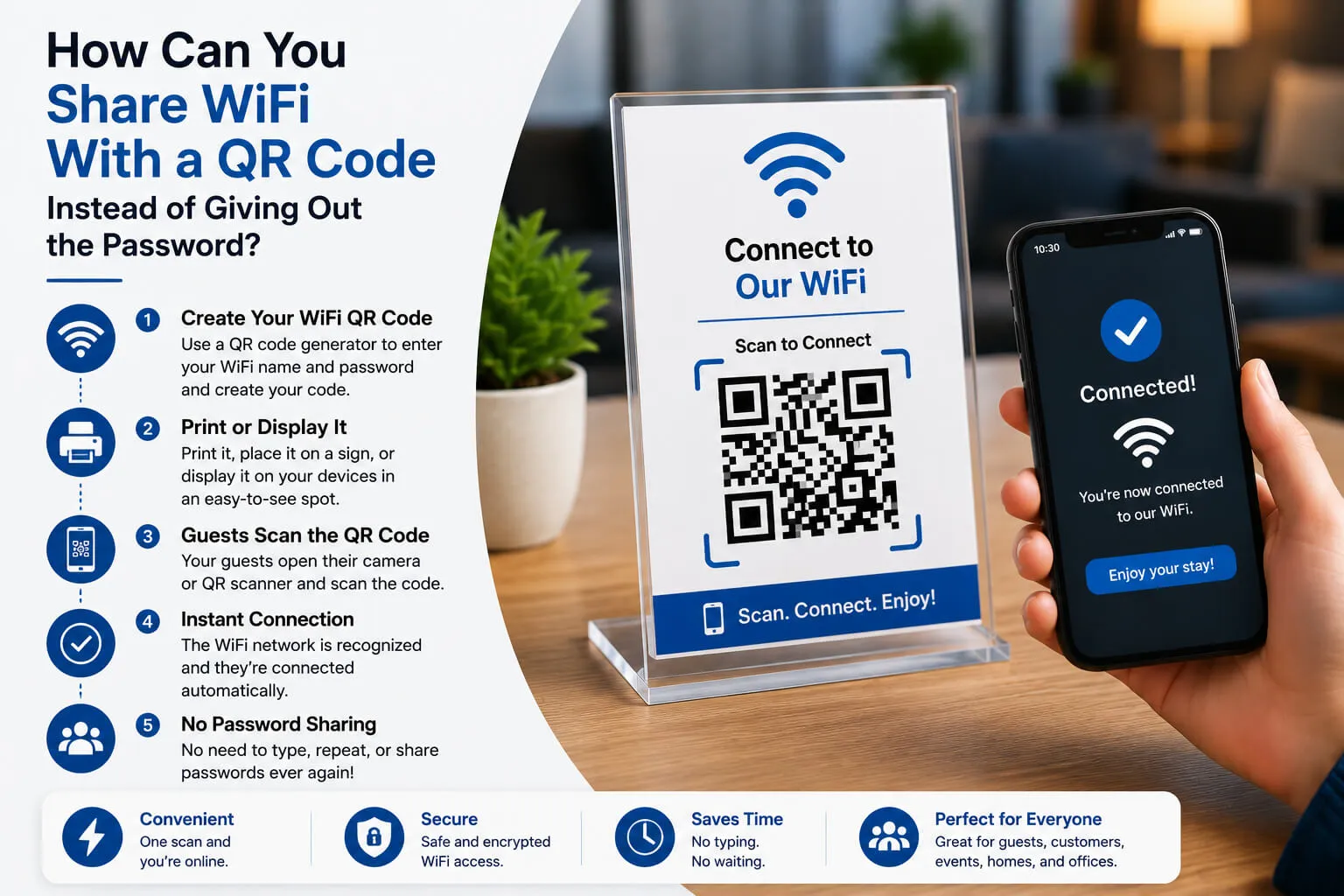

Almost every visitor eventually asks the same question:
“What’s the WiFi password?”
The answer is rarely as simple as it should be.
Someone has to find the password, read it aloud, explain the capital letters, and clarify whether a character is a number or a letter. The guest enters it, gets an error, and tries again.
A WiFi QR code can replace that whole process with a scan.
Instead of manually searching for the network and typing the password, a guest points a compatible phone at the code and confirms the connection.
It is a small improvement, but it can be genuinely useful in homes, cafés, offices, hotels, rentals, and other places where people regularly need internet access.
What Does a WiFi QR Code Do?
A WiFi QR code stores the details required to join a wireless network.
These usually include:
- The network name
- The WiFi password
- The security method
- Whether the network is hidden
When a supported phone scans the code, it recognizes the information as network credentials.
The phone may display the name of the network and ask whether the user wants to connect. Once the user confirms, the device attempts to join using the stored password.
The code does not provide internet access by itself. It simply passes the correct connection details to the device.
Why Is This Easier Than Sharing the Password?
A secure WiFi password is often difficult to type.
It may contain capital letters, numbers, punctuation, and several characters that look similar on a small screen.
Guests may also choose the wrong network when several names appear in their settings.
A WiFi QR code reduces the process to a few steps:
- Open the phone camera.
- Point it at the code.
- Tap the network prompt.
- Confirm the connection.
There is less room for typing errors, and the network owner does not need to repeat the password for every new visitor.
Creating a QR Code for WiFi
Before generating the code, gather the correct network information.
You will need:
- The exact network name or SSID
- The current password
- The security type
- The hidden-network setting
Enter the information exactly as configured. Network names and passwords are normally case-sensitive, so even a small mistake can prevent the code from working.
The general process is:
- Choose a QR generator that supports WiFi credentials.
- Select the WiFi code type.
- Enter the network name.
- Add the password.
- Select the correct security option.
- Indicate whether the network is hidden.
- Generate the code.
- Test it on several devices.
- Print or display the finished version.
A tool such as QRColor can be used to generate a QR code for WiFi sharing and prepare it for digital or printed use.
Do not assume the password printed on the router is still correct. It may have been changed during installation.
Try connecting a device manually with the same credentials before generating the code.
How Do Guests Scan It?
Most current smartphones can recognize QR codes through the standard camera application.
The guest usually needs to:
- Open the camera.
- Hold the phone in front of the QR code.
- Wait for a network notification.
- Tap the notification.
- Approve the connection.
The phone does not normally need to take a photograph.
When the code is not detected, the user can move closer, improve the lighting, hold the camera steady, or try a dedicated QR scanning feature.
Some older phones may not support direct WiFi connections through QR codes. A written network name and password can therefore remain useful as a backup.
Create a Guest Network First
Before sharing a QR code, consider which network it will open.
Using the primary home or business network may expose more access than visitors need.
A separate guest network can help keep visitors away from:
- Personal computers
- Business workstations
- Printers
- File-storage devices
- Security equipment
- Smart-home devices
- Internal applications
- Other connected hardware
The amount of separation depends on the router and its configuration, but guest networks are generally intended for visitor access.
Create a dedicated guest network, give it its own password, and use those credentials in the QR code.
For a business, the customer network should remain separate from payment terminals, staff computers, administration systems, and other operational equipment.
Using a WiFi QR Code at Home
A home WiFi QR code can help friends, relatives, overnight guests, babysitters, and contractors connect without asking for the password.
It could be placed:
- In the guest bedroom
- Near the router
- On a refrigerator notice
- Inside a visitor information folder
- On a small framed card
- In a home office
A simple instruction works well:
Scan to connect to guest WiFi.
Avoid placing the code somewhere that can be seen easily from outside the property.
Although the password is not printed as text, it is still encoded inside the QR pattern.
Using One in a Café or Restaurant
Staff in cafés and restaurants may be asked for the WiFi password repeatedly.
A code can reduce these interruptions and make access easier for customers.
It could appear on:
- Menus
- Table displays
- Receipts
- Counter signs
- Wall notices
- Customer information cards
The code should be clearly labeled so customers know it is for internet access.
For example:
Scan to join customer WiFi.
The customer network should be configured separately from systems used for payments, orders, staff communication, and business administration.
Using One in a Hotel or Guesthouse
Hotel guests often want to connect shortly after arriving.
A QR code can remove the need to type a password from a small information card.
It may be displayed:
- At reception
- On a room information sheet
- In the guest directory
- Beside the television
- On a desk
- In a shared lounge
- Near conference facilities
If the property uses different networks on different floors or in separate buildings, every code should be placed in the correct area.
The code should also be tested from the room or location where guests will use it. Correct credentials are not helpful when the signal is too weak to establish a reliable connection.
Using One in a Vacation Rental
WiFi access is often one of the first things guests look for after entering a short-term rental.
Hosts may currently provide the password in a booking message, check-in email, or printed welcome guide.
Adding a QR code makes the process faster.
The code could appear in:
- Arrival instructions
- A property handbook
- A framed kitchen notice
- A guest folder
- A digital check-in page
- A pre-arrival message
When the network password or name changes, every old copy of the code should be replaced.
Otherwise, new guests may repeatedly scan credentials that no longer work.
Using One in an Office
Offices frequently provide internet access to clients, contractors, interview candidates, consultants, and visiting employees.
A QR code can be placed:
- At reception
- In meeting rooms
- On visitor cards
- Inside conference materials
- At temporary workspaces
- In training rooms
The code should connect visitors to a guest network rather than the main company network.
Depending on the organization’s policies, guest credentials may also need to be changed regularly or limited to certain hours.
Using One at an Event
Events often need to connect many devices within a short period.
QR codes can be included on:
- Attendee badges
- Registration signs
- Event schedules
- Table cards
- Speaker documents
- Venue displays
- Exhibitor materials
Organizers may use separate networks for attendees, staff, speakers, exhibitors, and technical teams.
Each QR code should clearly identify who it is intended for.
The network must also be able to support the expected number of connections. A QR code can make access easier, but it cannot solve limited bandwidth or poor coverage.
Other Useful Locations
WiFi QR codes can also be helpful in:
- Coworking spaces
- Waiting rooms
- Clinics
- Salons
- Libraries
- Repair shops
- Training centers
- Community facilities
The organization should still consider whether guest access needs time limits, speed restrictions, or other controls.
A convenient connection method is not a substitute for sensible network management.
Where Should You Display the Code?
The code should be easy for intended users to find and scan.
A practical location should be:
- Well lit
- Flat
- Free from glare
- Inside the network’s coverage area
- Protected from damage
- Visible to the appropriate users
- Close enough for comfortable scanning
Avoid placing it:
- Behind reflective glass
- On curved or uneven surfaces
- In a dark corner
- At an awkward height
- Near an exterior window
- In an area with poor WiFi reception
- Where unintended visitors can photograph it
The code should appear beside a short instruction so users understand its purpose.
Use a Clear Label
An unexplained QR code may lead to a website, menu, payment page, or form.
Do not make people guess.
Useful labels include:
- Scan to join the WiFi
- Scan for guest internet
- Scan to connect your phone
- Scan to use customer WiFi
- Scan to connect without entering the password
When several networks are available, include the guest network name nearby.
For example:
Network: Harbor Café Guest
Scan below to connect.
Make the Code Easy to Read
Good QR code design is mostly about reliability.
Maintain clear contrast
Dark code elements on a light background generally produce dependable results.
Custom colors can work, but the foreground and background should remain easy to distinguish.
Leave space around the pattern
QR codes need a clear border.
Do not place text, images, or decorative elements directly against the code.
Choose a suitable size
A code on a table card can be relatively compact because users scan it from nearby.
A code on a wall sign should be larger.
Keep the shape intact
Do not crop, stretch, compress, or distort the code.
Resize it proportionally.
Test the printed version
A code that scans from a computer screen may become blurry or too small when printed.
Always test the final copy.
Test the Full Connection Process
A successful scan does not always mean the setup works.
The phone may recognize the code but fail to join because the password, security type, or network name is incorrect.
Check that:
- The camera detects the code
- The correct network appears
- The connection prompt opens
- The password is accepted
- The device can access the internet
- The guest network is being used
- The WiFi signal is strong near the code
- The printed version remains readable
Test with several devices when possible.
It is particularly useful to use a phone that has never connected to the network before. A device with saved credentials may connect successfully even if there is a problem with the QR code.
What Happens After the Password Changes?
A standard WiFi QR code stores the credentials that were entered when it was generated.
The code does not update itself when the network changes.
You will usually need a new code after changing:
- The password
- The network name
- The security type
- The hidden-network setting
- The router
- The guest network configuration
Remove or replace every outdated copy.
Businesses and rental hosts may find it useful to place the code inside a reusable holder that can be updated without reprinting an entire sign or welcome booklet.
Are WiFi QR Codes Static?
Most WiFi QR codes designed for direct connection are static.
The credentials are stored directly in the code.
This is why a compatible device can read them without first opening a webpage.
It also means the stored details cannot be edited after the code is printed.
A dynamic QR code could open a page containing current connection instructions. However, a visitor may need mobile data to view that page before joining the local network, and they may still need to enter the password manually.
For direct access, generating a replacement code after the credentials change is usually the most practical approach.
Does the Code Protect the Password?
A WiFi QR code makes the password less obvious to someone looking at the sign, but it does not make it confidential.
The credentials are encoded rather than securely hidden.
Someone with an appropriate scanner may be able to display the information stored inside the code.
Treat the QR code as another way of printing the password.
This is why it should normally connect to a guest network rather than a sensitive primary network.
Is It Safe?
Sharing WiFi through a QR code can be appropriate when the underlying network is configured securely.
The code itself does not protect the router or connected devices.
Security still depends on:
- The network encryption
- Password strength
- Guest isolation
- Router configuration
- Software updates
- Administration credentials
- Access restrictions
- Where the code is displayed
A QR code is only a delivery method for the connection details.
Organizations managing confidential information or important business systems should have their guest access configured by someone with appropriate networking knowledge.
Why Might the Code Fail?
Common problems include:
- A typing error in the network name
- An incorrect password
- The wrong security type
- An incorrect hidden-network setting
- Poor print quality
- A code that is too small
- Weak WiFi signal
- Outdated credentials
- A device without direct WiFi QR support
Most failures can be found before guests encounter them by testing the finished setup carefully.
Should You Display the Password as Well?
Printing the password beside the QR code provides a backup for older devices.
It also makes the credentials immediately visible.
Whether that is suitable depends on the location.
A hotel room, café, or rental property may choose to display both.
A private office may show the code only to approved visitors and provide the written password when needed.
Remember that the code itself still contains the password even when the text is not displayed.
Final Thoughts
WiFi QR codes are useful because they remove a familiar piece of friction.
Guests do not need to type a complicated password.
Staff do not need to repeat the same credentials throughout the day.
Hosts do not need to explain which characters are uppercase.
The best approach is to create a dedicated guest network, confirm the connection details, generate and clearly label the code, and test it on several devices.
Replace the code whenever the credentials change, and keep a manual option available for people whose devices cannot scan it.
The result is not dramatic technology.
It is simply a faster answer to a very common question.
Instead of spelling out the WiFi password, you can point to the code and say:
“Scan here.”


























Sign in to leave a comment.