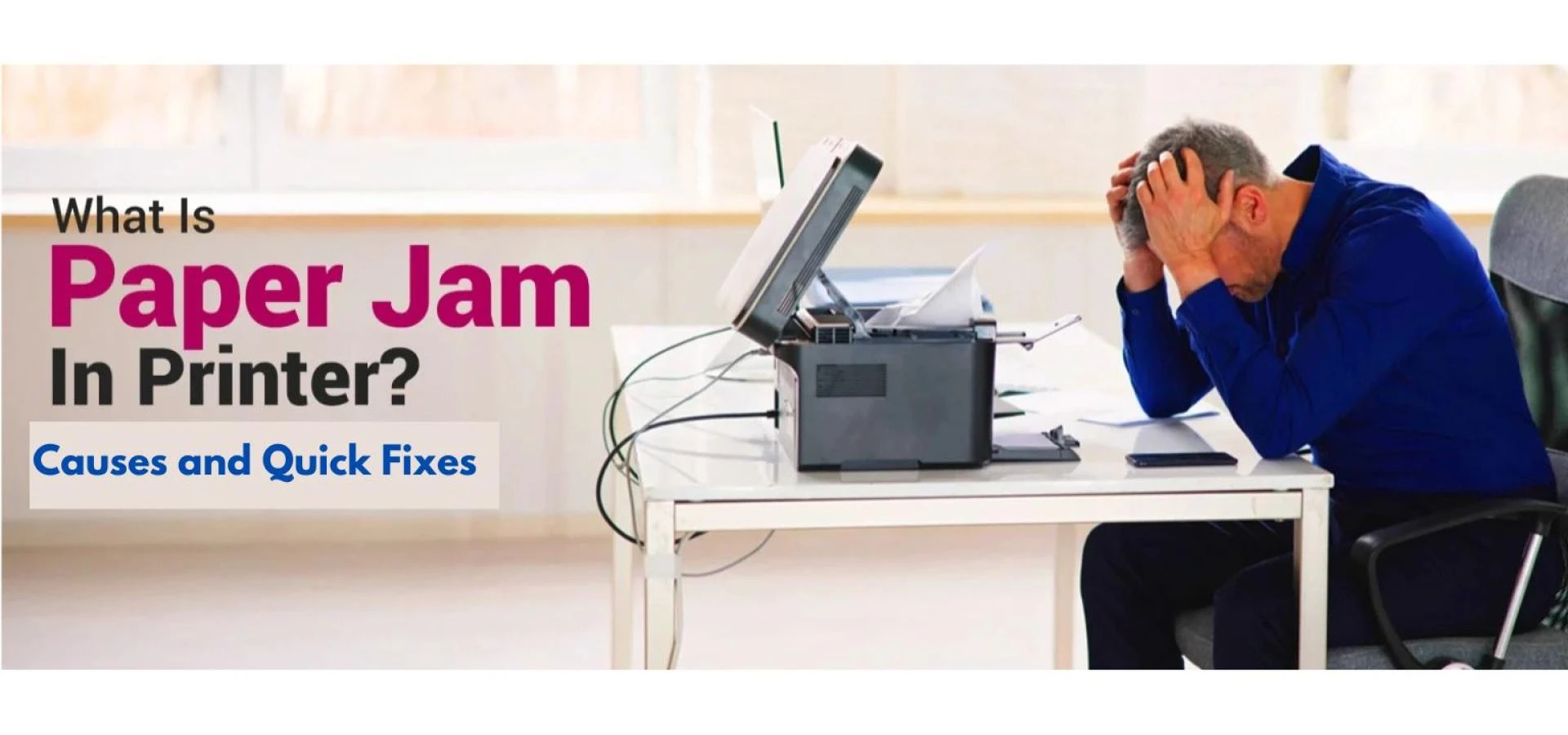

Paper jams are one of the most common issues that printer users face. Whether you're at home or in an office setting, this frustrating problem can halt your productivity in an instant. What is a paper jam in a printer? Simply put, it’s when a piece of paper becomes stuck in the printer’s mechanism, blocking the flow of paper and preventing the device from completing its printing job. Paper jams can occur for several reasons, and understanding the causes can help you avoid or fix this problem quickly. In this blog, we'll explore the primary causes of paper jams and offer simple, quick fixes to get your printer up and running again.
What Causes a Paper Jam in a Printer?
Understanding the causes of a paper jam is essential to effectively solving the problem. Various factors contribute to a paper jam, ranging from hardware issues to user errors. Here are the most common causes of paper jams in printers:
1. Incorrect Paper Loading
One of the most frequent causes of paper jams is improper paper loading. If the paper isn’t aligned correctly in the paper tray, it can cause the sheets to stick together or misfeed during the printing process. Always make sure the paper is neatly stacked, aligned, and not overfilled.
2. Outdated or Worn Out Rollers
Printers use rollers to feed the paper through the device. If these rollers are worn out or dirty, they may fail to pull the paper correctly, causing a jam. Regular cleaning of rollers and replacing them when necessary can help prevent this issue.
3. Paper Quality
Low-quality paper can cause jams. Thin or flimsy paper is more likely to tear during printing, while overly thick paper may not be compatible with your printer's mechanisms. Always use the recommended paper type for your printer to avoid issues.
4. Paper Size and Type Mismatch
Using the wrong paper size or type can cause a jam. If the printer settings are not matched to the paper you’re using, or if the paper is the wrong size, it can easily get stuck in the paper path. Always double-check that your paper size and type are set correctly in the printer settings.
5. Obstructions in the Paper Path
Sometimes, small pieces of paper or dust can get lodged in the printer’s paper path. These obstructions can disrupt the flow of paper, leading to a jam. Regular maintenance, such as cleaning the paper path and removing any debris, can help prevent this issue.
6. Printer Settings and Configuration Errors
Printer configuration errors, such as incorrect paper size settings or paper type settings, can also cause paper jams. Make sure to configure the printer settings according to the type and size of paper you're using for optimal performance.
How to Fix a Paper Jam in a Printer
Now that you understand what is a paper jam in a printer and its common causes, let’s look at how to fix it. Resolving a paper jam is usually a straightforward process, and with the right approach, you can fix most issues on your own.
Step-by-Step Process to Fix a Paper Jam
Follow these simple steps to clear a paper jam in your printer:
Turn Off the Printer
- Before attempting any fixes, turn off the printer and unplug it from the power source. This ensures safety and prevents any electrical issues during the repair process.
Open the Printer’s Paper Tray
- Open the paper tray and any other compartments in the printer where paper feeds through. This gives you full access to the jammed paper.
Gently Remove the Jammed Paper
- Carefully pull out any paper that is stuck in the printer. Be sure to pull the paper in the direction of the paper feed path to avoid damaging the rollers. If the paper is torn, check for any small pieces left inside the printer.
Check for Obstructions
- Inspect the paper path for any small pieces of paper, dust, or debris that may be causing the jam. Clean the rollers with a lint-free cloth to remove any dirt or buildup.
Reload Paper Correctly
- Once the jam is cleared, reload the paper into the tray properly. Make sure the paper is aligned correctly, not overfilled, and that the paper type matches the printer’s settings.
Test the Printer
- After reassembling everything, plug the printer back in, turn it on, and perform a test print to ensure that the issue has been resolved.
Preventing Future Paper Jams
Preventing paper jams is far better than dealing with the hassle of clearing them up. Here are some helpful tips to keep your printer running smoothly:
- Use High-Quality Paper: Invest in good-quality paper that is compatible with your printer. Cheap or thin paper is prone to tearing and jamming.
- Regularly Clean the Printer: Regular cleaning of the printer’s rollers and paper path will help avoid debris buildup and reduce the chances of paper jams.
- Keep the Printer Dry: Excessive humidity or moisture in the environment can cause paper to curl or stick together, leading to jams. Keep your printer in a dry and well-ventilated area.
- Don’t Overload the Paper Tray: Overloading the paper tray can cause multiple sheets to feed through at once, resulting in a paper jam. Stick to the recommended paper capacity for your printer.
- Check Printer Settings: Always ensure that the printer settings (paper size and type) match the paper you’re using. Incorrect settings can increase the likelihood of paper jams.
Conclusion
Understanding what is a paper jam in a printer and its causes is the first step to resolving this common problem. Whether it’s due to incorrect paper loading, worn-out rollers, or using the wrong paper type, most paper jams can be fixed quickly with a few simple steps. By following the tips outlined in this blog, you can not only clear a paper jam but also prevent future occurrences, ensuring that your printer runs smoothly and efficiently.
Taking care of your printer with regular maintenance and using the right paper for your printer type are essential in minimising the chances of encountering a paper jam. So, the next time your printer grinds to a halt, you’ll know exactly how to troubleshoot and fix the issue.


























Sign in to leave a comment.