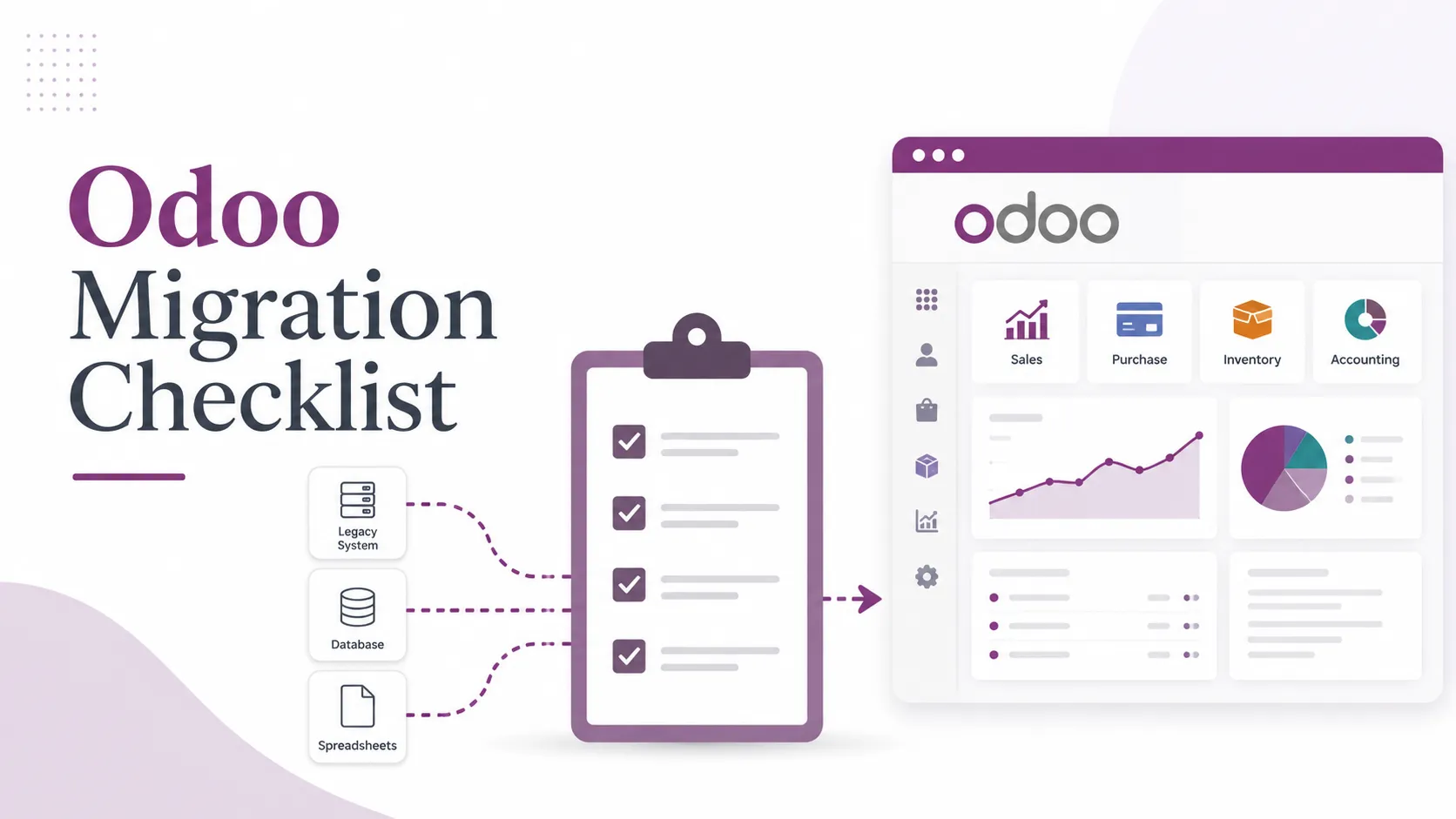

An Odoo migration fails in one of two ways. The dramatic way — the upgrade won't run — is rare and usually fixable in an afternoon. The quiet way is worse: the new version boots, everyone logs in, and three weeks later someone notices the inventory valuation is off, a year of tax history rounds differently, or a custom approval step silently stopped firing. This Odoo migration checklist is built to prevent the quiet failure. It's the order disciplined teams work in to move across versions in 2026 without losing or corrupting data.
Why a version move is on your 2026 calendar
Odoo maintains only its three most recent major versions with standard support — bug fixes, security patches, and helpdesk. In mid-2026 that means versions 17, 18, and 19. When Odoo 20 ships on the usual annual cadence toward the end of the year, version 17 drops out of standard support, and older releases already carry a surcharge on subscriptions (Odoo publishes the policy here). If you're on 15 or 16 — or on a legacy system you've outgrown — this is the year "someday" becomes a budgeted project. The checklist below assumes that's where you are.
Phase 1 — Freeze scope and get a backup you've actually tested
Most migration disasters trace back to a missing or unusable backup. Before anything else:
- Take a full backup of both the database and the filestore, then restore it somewhere and confirm it opens. An untested backup is a guess, not a safety net.
- Document your current version, edition (Community or Enterprise), and hosting (Odoo Online, Odoo.sh, or on-premise). The upgrade path differs for each.
- Read the Odoo 19 release notes for your target version so you know what changed before it surprises you.
- Set one rule for the whole project: no new customizations until the migration is done. A moving target can't be tested.
Phase 2 — Audit your data and customizations
A migration copies whatever you give it. Give it clean data.
- De-duplicate and reconcile first. Merge duplicate contacts, settle or close stale open orders, reconcile bank statements, and fix negative stock. Migrating garbage only relocates the garbage.
- Inventory every custom module and Studio change, with an owner for each. Standard Odoo apps are handled by the upgrade platform; your custom code and studio tweaks are where things break, because they have to be re-tested or rebuilt against the new version's API.
- List every integration — payments, shipping, e-commerce, bank feeds, custom APIs — and note who maintains it. Each one needs its own post-migration test.
- Flag any fields you added, renamed, or removed. Non-standard fields are the most common place data silently drops during a version jump.
Phase 3 — Run a test migration, the Odoo migration step people skip
This is the phase that separates clean moves from incidents. Odoo's official upgrade platform is built for exactly this: your first request is automatically set to Test, and it returns an upgraded copy of your database for you to examine before anything touches production. Odoo's own guidance is blunt — it is strongly recommended to request a test database first and spend real time in it (documented here).
- Run the dry run on a copy of real production data, never a demo database. Demo data hides your specific problems.
- Put actual users in front of it to run their real workflows — not a scripted click-through.
- Budget genuine time for this. The test database exists to be tested, not signed off in ten minutes.
This is also the stage where many teams bring in help for Odoo migration services, because a thorough dry run — upgrade a production copy, then stress it with the same edge cases that occur on a busy day — surfaces the issues no checklist can predict in advance. Whether you do it in-house or with a partner, the discipline is the same: prove it on a copy before you trust it live.
Phase 4 — Validate: the data checks that actually matter
Don't declare success because the system loads. Reconcile the old and new databases side by side:
- Record counts per key model: customers, products, open invoices, journal entries.
- Financial totals for a closed period: trial balance, AR and AP aging, and tax reports should match to the cent.
- Inventory: on-hand quantities and stock valuation.
- Open transactions: sales, purchase, and manufacturing orders carry the correct states, not just the correct totals.
- Reports and dashboards render the same numbers they did before.
- Custom automations and access rights: test each approval, scheduled action, and integration end to end, and confirm user permissions map correctly.
If a number doesn't reconcile, you've found your migration's real work. Fix it in the test environment and re-run — never in production.
Phase 5 — Cutover and rollback
- Schedule the production move for a low-volume window and freeze data entry while it runs.
- Keep a written rollback plan and your tested backup within reach. If validation fails in production, you revert to a known-good state — you don't improvise under pressure.
- Tell users the freeze and go-live times in advance so no one is entering orders mid-cutover.
- Keep the old instance available in read-only mode for a defined period as a reference.
Phase 6 — After go-live
- Watch closely for one to two weeks. Users surface the edge cases automated checks miss — an unusual discount rule, a rarely used report.
- Reconcile the first month-end close with extra care; it's the real audit of your migration.
- Decommission the old system only after a clean close and written sign-off.
- Document what you did. With the three-version support window, this move recurs. The team that writes it down makes the next migration cheaper and faster.
FAQ
How long does an Odoo migration take?
Anywhere from a few days for a small, clean, near-standard instance to several weeks or months for a heavily customized, multi-entity setup. The variable is almost never the upgrade itself — it's the volume of customization and the state of your data.
Can I skip versions, like 15 straight to 19?
Yes. Odoo's upgrade platform handles multi-version jumps in one pass, but the more versions and custom modules involved, the more testing each pass deserves.
Will my custom modules survive the move?
Standard apps upgrade automatically. Custom code and Studio customizations do not get a free pass — plan to re-test or rebuild them against the new version's API.
Is the process different for Community vs. Enterprise?
The principles are identical. Enterprise includes Odoo's upgrade service; on Community or self-hosted setups you run the upgrade script yourself, which puts more of the testing burden on your team.
One honest caveat
A checklist lowers risk; it doesn't erase it. The two things it can't manufacture for you are clean source data and enough time to test properly — and those are precisely the two things that decide whether a migration is boring or memorable. If you're short on either, shrink the scope before you shrink the testing.
Start this quarter, while you're still on a supported version: take the tested backup, build the customization inventory, then request the test upgrade and put real users in front of it. Only schedule the production cutover once the numbers reconcile. Done in that order, a version move stops being the incident everyone remembers and becomes routine maintenance — which is exactly what it should be.




























Sign in to leave a comment.