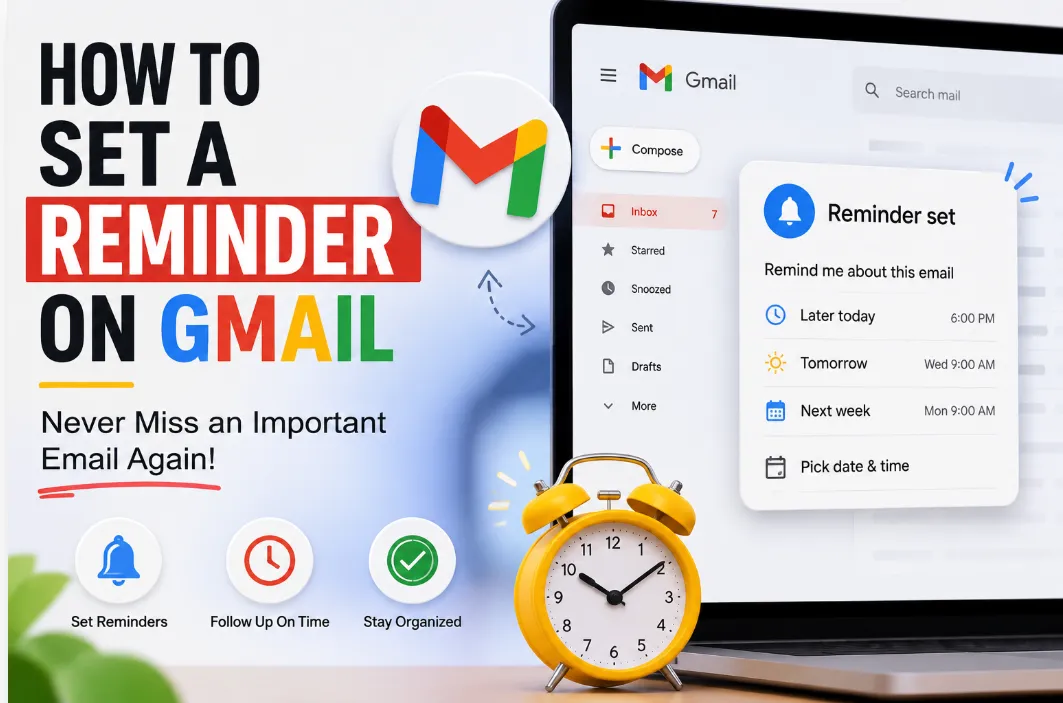

Important emails are easy to miss in a busy Gmail inbox. A client follow-up gets buried. An interview reply disappears between promotions and notifications. Before you realize it, one forgotten email creates unnecessary stress.
That is why many people search for how to set a reminder on Gmail. Not because Gmail is difficult to use, but because modern inboxes move faster than most people can manage.
Quick Answer
You can set reminders on Gmail using Gmail Nudges, Snooze, and Google Tasks. Snooze temporarily hides emails and brings them back later, while Nudges automatically remind users about unanswered conversations and follow-ups.
[Add Image Here: Busy Gmail inbox with important email buried lower]
Use Gmail Nudges
Gmail Nudges work like sticky notes placed on forgotten emails. Gmail automatically brings important conversations back into view when replies are overdue.
To enable Nudges:
- Open Gmail Settings
- Click “See All Settings”
- Open the General tab
- Scroll to “Nudges”
- Turn both reminder options ON
This works well for:
- client communication,
- interview emails,
- project approvals,
- and business follow-ups.
Snooze Emails Until Later
Snooze is one of the easiest ways to set up a reminder on Gmail.
Think of it like placing tomorrow’s paperwork into a separate tray before leaving the office. The task is not gone. It simply returns at the right time.
To Snooze an email:
- Hover over the email
- Click the clock icon
- Select a reminder time
The email disappears temporarily and returns later automatically.
This feature works on:
- desktop,
- iPhone,
- and Android.
Turn Emails Into Tasks
Some emails need more than reminders. They need action.
Google Tasks helps users convert emails into reminder-based tasks with due dates and notifications.
It works like attaching a checklist to an important file folder.
This is useful for:
- invoices,
- deadlines,
- healthcare emails,
- and legal communication.
Why Gmail Reminders Still Fail
This is something most users realize too late.
Reminders help users remember emails. They do not protect the emails themselves.
Important conversations can still disappear because of:
- accidental deletion,
- sync issues,
- inbox cleanup mistakes,
- or account access problems.
That is why many professionals now rely on Gmail Backup Wizard to keep secure copies of important communication and avoid losing critical email conversations later.
Think of reminders like a car dashboard alert.
Now think of backup like the seatbelt.
One helps you notice the problem.
The other helps protect you when something goes wrong.
Final Thoughts
Learning how to set a reminder on Gmail is really about staying organized in a world filled with constant notifications.
Gmail Nudges, Snooze, and Google Tasks can help users avoid missed replies and forgotten follow-ups. But for important conversations, reminders alone are not always enough.
The smartest approach combines:
- reminders for visibility,
- organization for clarity,
- and backup for long-term protection.
Because sometimes the most stressful email is not the one you forgot.
It is the one you can no longer recover.

























Sign in to leave a comment.