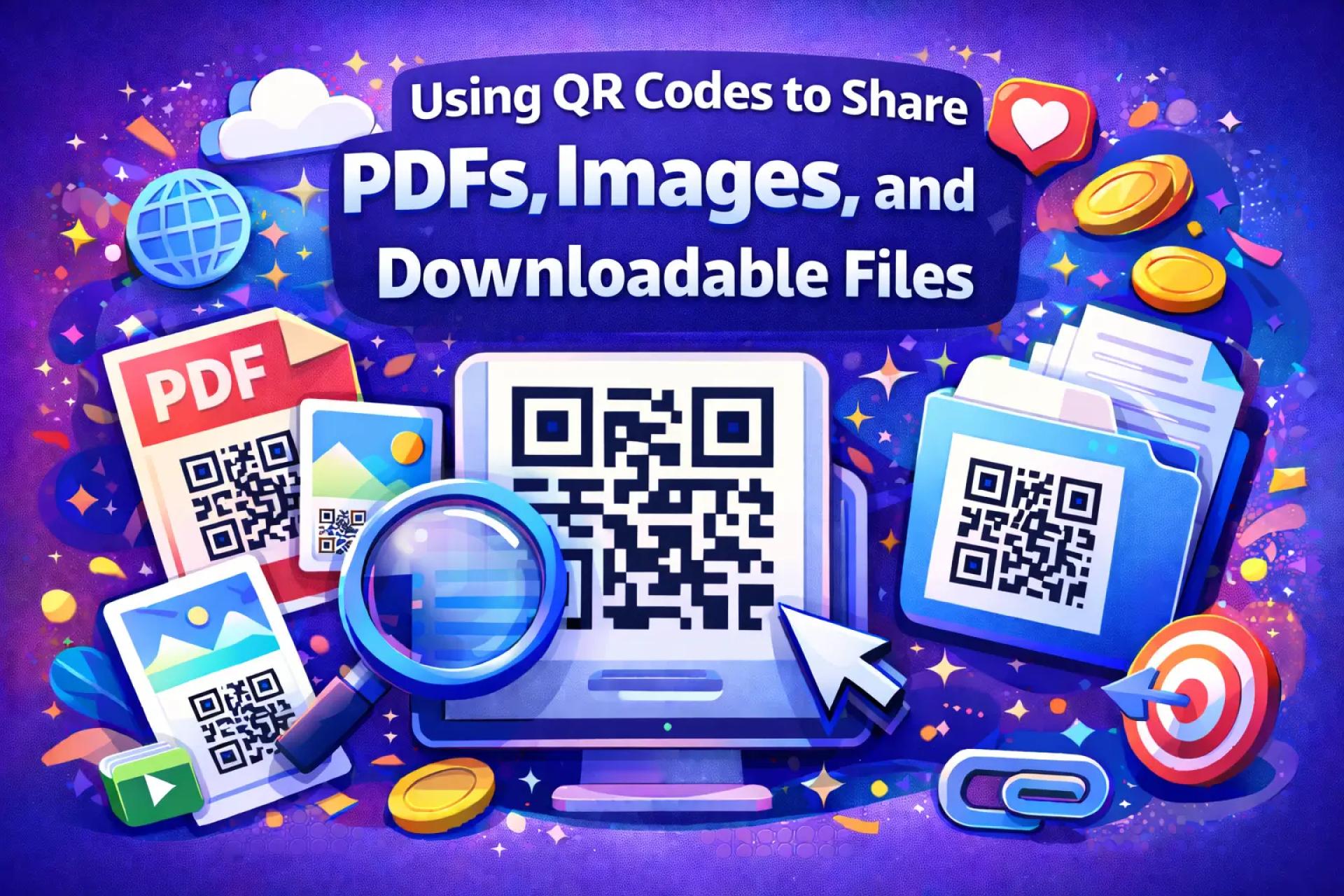

QR codes are often associated with websites, but they’re just as useful for sharing files. A single scan can open a PDF, display an image, or download a document instantly — no typing, no searching, no confusion.
This makes QR codes especially effective for menus, brochures, guides, presentations, and any content people might want to access on the spot.
Here’s how to create a QR code for PDFs, images, or files in a way that’s reliable and user-friendly.
Understand What a QR Code Actually Does
A QR code doesn’t store the file itself.
Instead, it links to a URL where the file is hosted.
That means the quality of the experience depends entirely on the link behind the code.
Before creating a QR code, make sure:
- The file is hosted online
- Access is public (no login required)
- The link works correctly on mobile devices
If the file can’t be opened easily, the QR code won’t be effective.
Choose Between Static and Dynamic QR Codes
The type of QR code you use affects how flexible it will be over time.
Static QR codes
- Link directly to a specific file URL
- Cannot be edited after creation
- Best for files that will never change
Dynamic QR codes
- Allow you to update the file link later
- Useful if documents may be revised or replaced
- Often include basic scan insights
For anything printed or reused long-term, dynamic QR codes help prevent broken links.
Prepare the File for Mobile Access
Most people will scan your QR code using a smartphone.
Before generating the code:
- Open the file on your phone
- Check readability without zooming
- Confirm images and formatting display correctly
- Make sure loading time is reasonable
If the file feels awkward on mobile, consider linking to a simple landing page instead of the file directly.
Generate the QR Code
Once the file link is ready, you can use a QR code generator such as
👉 https://qrcolor.com
to create a QR code that points to your PDF, image, or downloadable file.
Paste the file URL (or a page that hosts the file), choose the appropriate QR code type, and generate the code.
Keep the Design Easy to Scan
When it comes to QR codes, readability matters more than style.
Good practices include:
- High contrast between the code and background
- Clean placement with enough empty space
- Adequate size for the expected scanning distance
Avoid placing QR codes on busy backgrounds or using low-contrast color combinations.
Test the Entire Experience
Always test the QR code before publishing or printing it.
Scan the code and confirm:
- The correct file opens
- The download or display works smoothly
- The content looks good on mobile
Testing prevents broken experiences and missed opportunities.
Add Context Near the QR Code
People are more likely to scan when they know what they’ll receive.
Simple labels like:
- “Scan to download the PDF”
- “Scan to view the full document”
- “Scan to access the image gallery”
…set clear expectations and improve engagement.
Final Thoughts
Creating a QR code for PDFs, images, or files is straightforward, but effectiveness depends on preparation. Public access, mobile optimization, and proper testing make the difference between a smooth scan and a frustrating one.
When done correctly, file-based QR codes provide a fast and practical way to share information exactly when it’s needed.




























Sign in to leave a comment.