Bookmarks (Save)
Save writeups, short posts, blog posts, blogs and series to read later, and find them all on your Bookmarks page.
Click the bookmark icon on anything you want to read later. Everything you save is on your Bookmarks page.
Save something
- A writeup: click the bookmark icon in the bar on the writeup page, or open the ⋯ (Options) menu and choose Bookmark. Cards in the feed and on topic pages have a bookmark icon too.
- A short post, blog post or blog: click its bookmark icon.
- A series, book or course: click the bookmark icon (Save) on its page.
The icon fills in when the item is saved. Click it again to remove it. You need to be logged in.
Find what you saved
Go to writeupcafe.com/bookmarks. On a phone you can also open the menu and tap Saved.
Use the tabs to filter: All, Writeups, Shorts, Blog Posts, Blogs or Series.
Sort by Newest or Oldest.
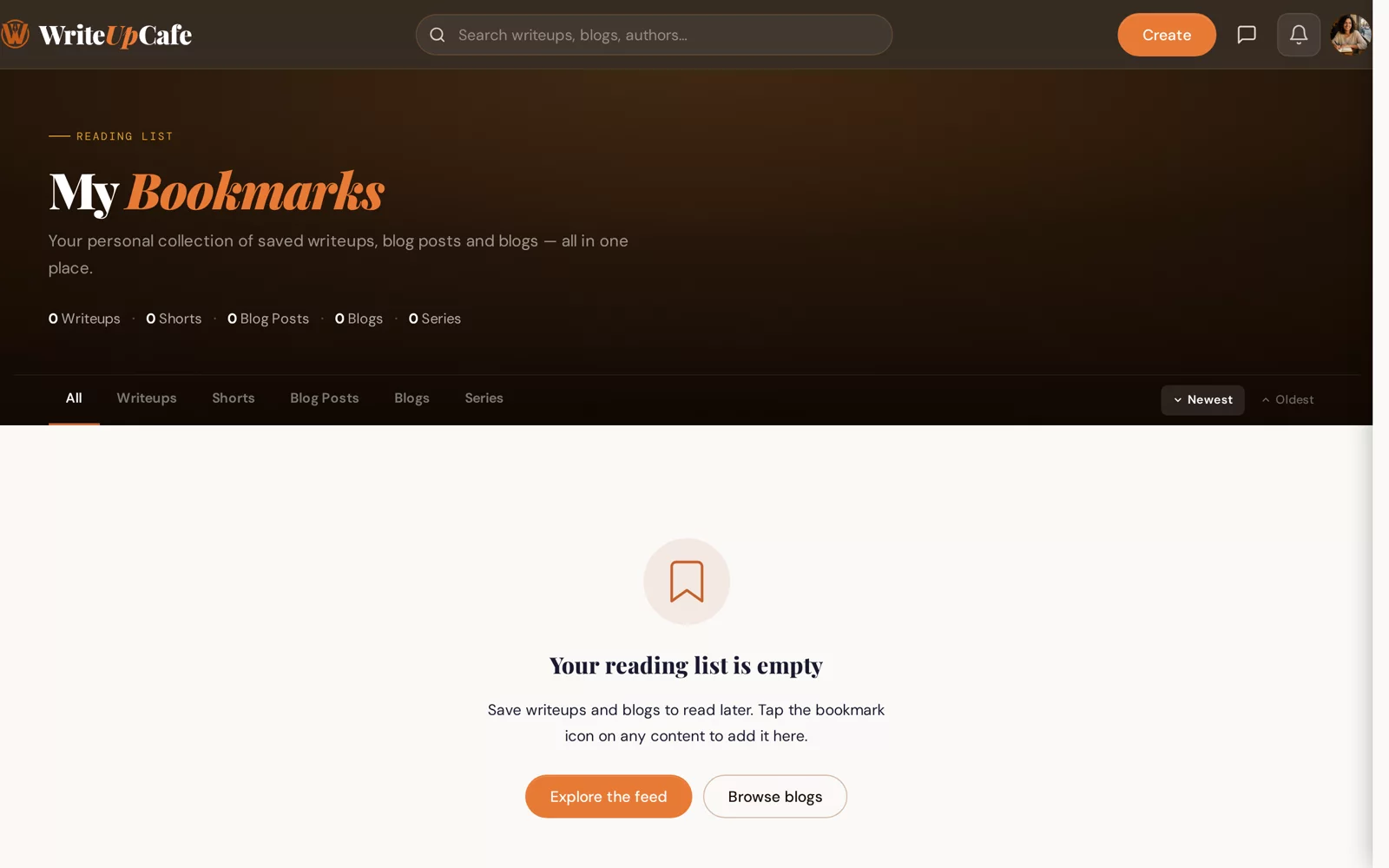
The Bookmarks page. Empty until you save something.
Remove a bookmark
On the Bookmarks page, click the bookmark icon on the card. You see "Removed from bookmarks". You can also click the filled icon on the item itself.
Who can see your bookmarks
Your Bookmarks page is only for you. Other members can't open it.
Writers on Pro can see a list of recent responses on a writeup's stats page, and it includes who bookmarked it. So the writer may see that you saved their writeup.
Does saving a writeup help the writer?
It shows the writer that readers want to come back to their work: bookmarks appear in the writer's stats. You may also earn points for it. See How points work.
A saved writeup disappeared from my list.
If the writer deleted or unpublished it, it is no longer on WriteUpCafe and can't be shown.