Schedule a writeup (Pro)
Pro members can pick a date and time for a writeup to go live by itself. How to schedule, change the time and cancel.
With Pro, you can choose a date and time and your writeup goes live by itself. Scheduling is in the When section of step 2.
Schedule a writeup
Write your writeup and click Next: publish settings.
Add your cover image and check your topics, as you would to publish.
Scroll to When → Schedule. Pick the Date & Time.
Check Your Timezone. It starts with the time zone in your settings (or your device's).
Click Schedule at the bottom of the page.
The writeup waits in your Drafts tab with a Scheduled label and the time it Goes live. It's published within about a minute of that time.
The same checks as publishing apply when you schedule: you need a cover image and at least one topic, and the time must be in the future.
Change the time or cancel
- Change the time: open the writeup from your Drafts tab (Continue), go to step 2, pick a new date and time and click Schedule again.
- Cancel: in step 2 you'll see Currently scheduled for with the date. Click Cancel schedule. The writeup goes back to being a normal draft.
- Publish now instead: click Publish.
On the Free plan
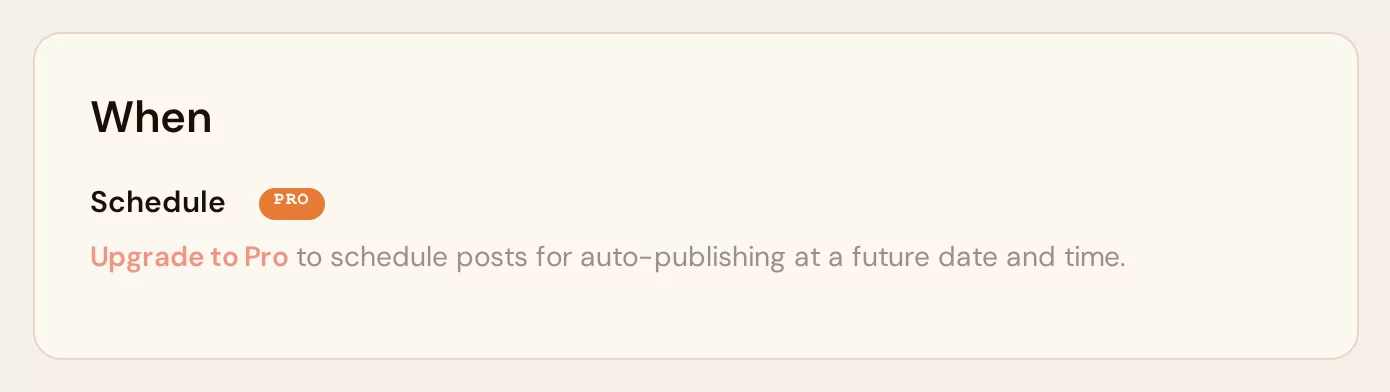
Free members see Upgrade to Pro in the Schedule card. Clicking the Schedule button opens Scheduling is a Pro feature. You can still save a draft and publish it yourself later.
Pro is $5 a month or $30 a year (in India ₹399 a month or ₹2,499 a year) and also removes the monthly writeup limit. See Pro plans.
Where do I set my time zone?
In Settings → Preferences under Time zone.