Series, books, courses, collections and playbooks
Group your writeups under one page: pick one of five types, create it, add entries and manage it from My series.
A series puts several of your writeups together on one public page, in order. There are five types. You choose the type when you create it, and the type decides the layout of the page and what the entries are called.
The five types
| Type | Entries are called | Good for | What readers get |
|---|---|---|---|
| Series | Parts | Ongoing multi-part topic coverage | Parts numbered in order; the newest part is featured at the top |
| Book | Chapters | Long-form narrative with chapters | A table of contents; readers see their reading progress |
| Course | Lessons | Structured lessons, self-paced | Lessons taken in order; readers enrol and track their progress |
| Collection | Pieces | Curated essays, poems, or pieces | A grid in no fixed order; guest pieces are marked |
| Playbook | Steps | Step-by-step process or framework | Steps on a numbered rail, with a plan strip |
The type can't be changed once it is created. If you picked the wrong one, create a new one with the right type, remove your writeups from the old one and add them to the new one.
Create one
Open My series (in your profile menu) and click New series. You can also click Start something new on your profile.
Under What are you creating? pick a type and click the button below it, for example Continue with Book.
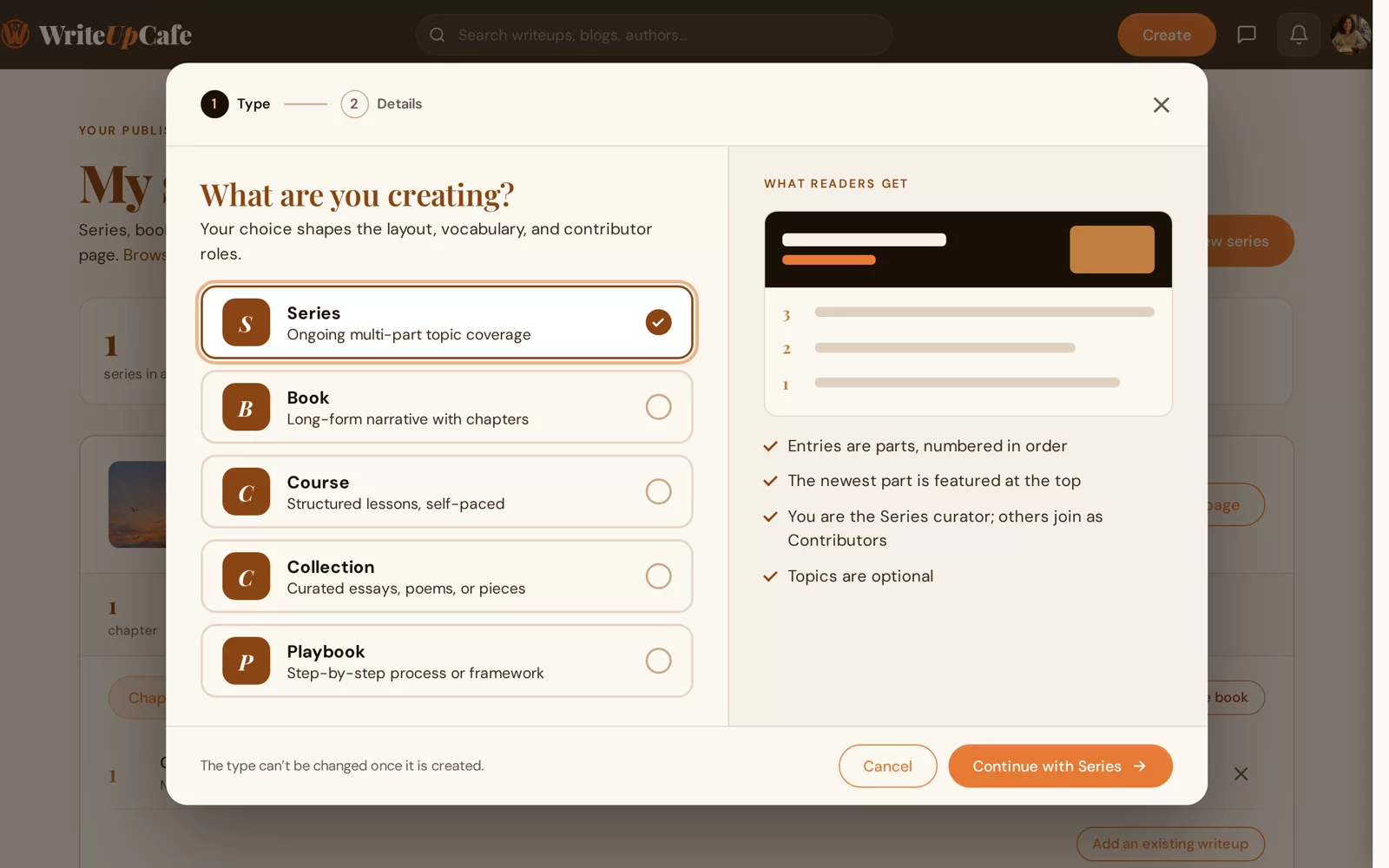
Pick a type. The right side shows what readers get. Add the details: a Title (required), a Description (optional, up to 500 characters) and a Cover (optional; JPG, PNG or WebP, up to 5 MB).
Pick topics: one primary topic and up to 2 more. A book needs a genre and a course needs a subject; for the other types topics are optional.
Click the create button, for example Create book. You can add entries right after.
The page address is made from the title, for example writeupcafe.com/series/my-title. It stays the same if you change the title later.
Add entries
- On My series, click Write the first chapter (or Write the next part, and so on) on its card. The editor opens with the series already picked.
- When you publish any writeup, use the Part of card in step 2 of the editor. It tells you which number the writeup will get, for example "This will be Chapter 3 of …".
- Click Manage on a card, then Add an existing writeup. The list shows your writeups that are not in a series yet, drafts included.
A writeup can be in one series at a time. New entries go to the end, and the numbers are added for you.
Manage a series
Click Manage on a card to see its reads, followers and saves, and three tabs: the entries, Contributors and Applications.
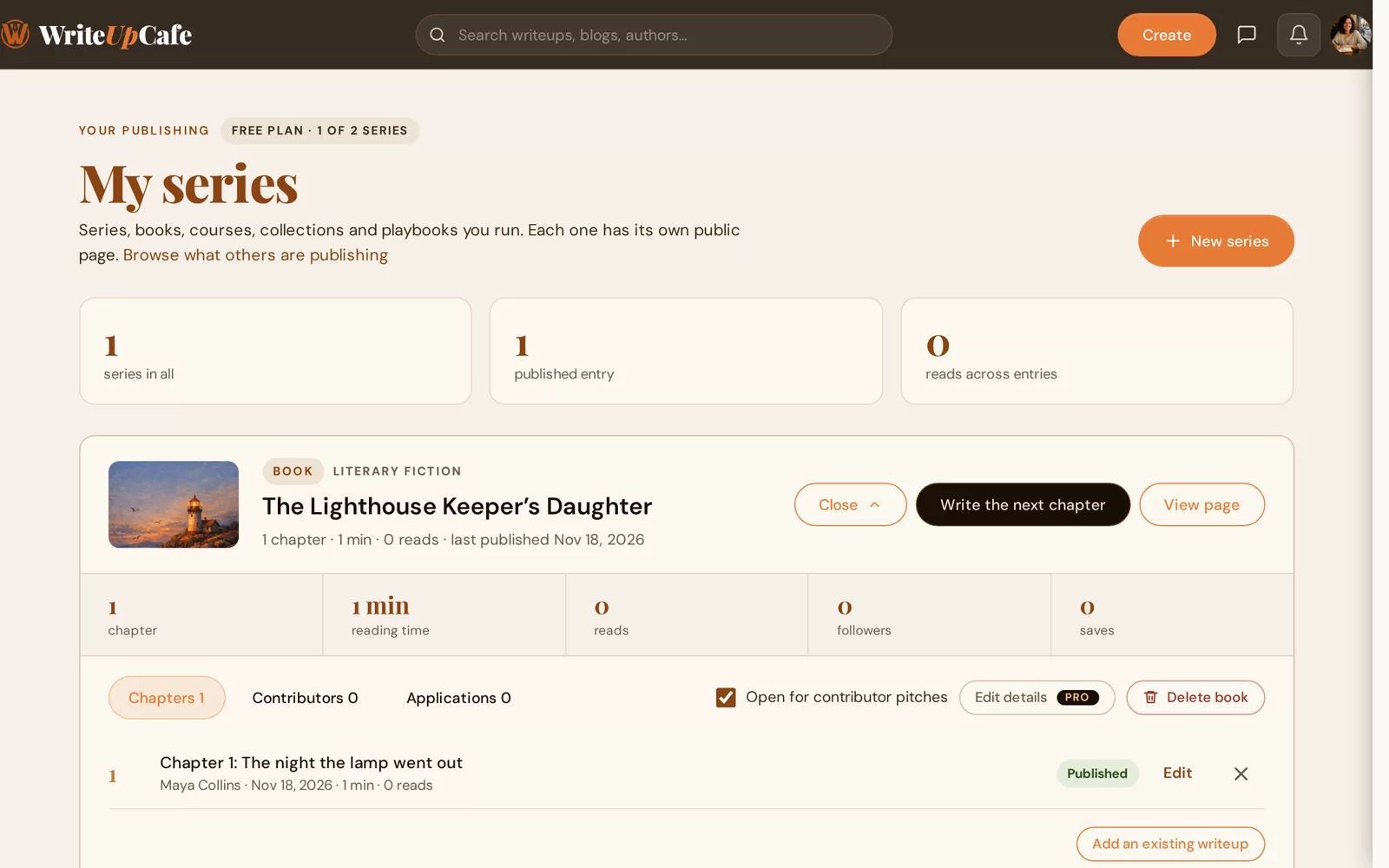
- Edit next to an entry opens it in the editor.
- The × next to an entry removes it from the series. The writeup keeps its own page.
- View page opens the public page.
Changing the order of entries and Edit details (title, description, cover, topics) are part of Pro.
Delete a series
Click Manage, then Delete book (the button names the type), then Delete. The series and its public page are removed. The writeups inside it are not deleted: they stay published, just no longer part of the series.
What readers see
Each series has its own page with the cover, a list of entries, and buttons to follow it, save it, share it and join the Discussion. Following sends each new entry to the reader's notifications. People can browse everyone's work at /series, /books, /courses, /collections and /playbooks.