The editor: toolbar, "/" menu and shortcuts
How to format your writeup: the toolbar, the "/" insert menu, typing shortcuts, images, links, outline, focus mode and preview.
The editor saves as you type. Use the toolbar at the top, or type / on an empty line to insert headings, images, lists and more.
The toolbar

- Paragraph menu: turn a line into a Subheading, Smaller subheading or Minor heading. Your title is the main heading, so the text uses these smaller levels.
- Text: bold, italic, underline, strikethrough, highlight, link and inline code.
- Lists: bulleted, numbered and checklist.
- Blocks: quote, Callout box (Tip box, Note box, Warning box), code block and divider line.
- Media: upload an image, embed a YouTube or Vimeo video, insert a table.
- Tools: find and replace, special characters, remove formatting, undo and redo.
On a small screen, some buttons move into the ⋮ menu at the end of the toolbar.
The "/" menu
Start a new, empty line and type /.
Pick an item, or keep typing to filter (for example /table). Use the arrow keys and Enter, or click. Esc closes the menu.
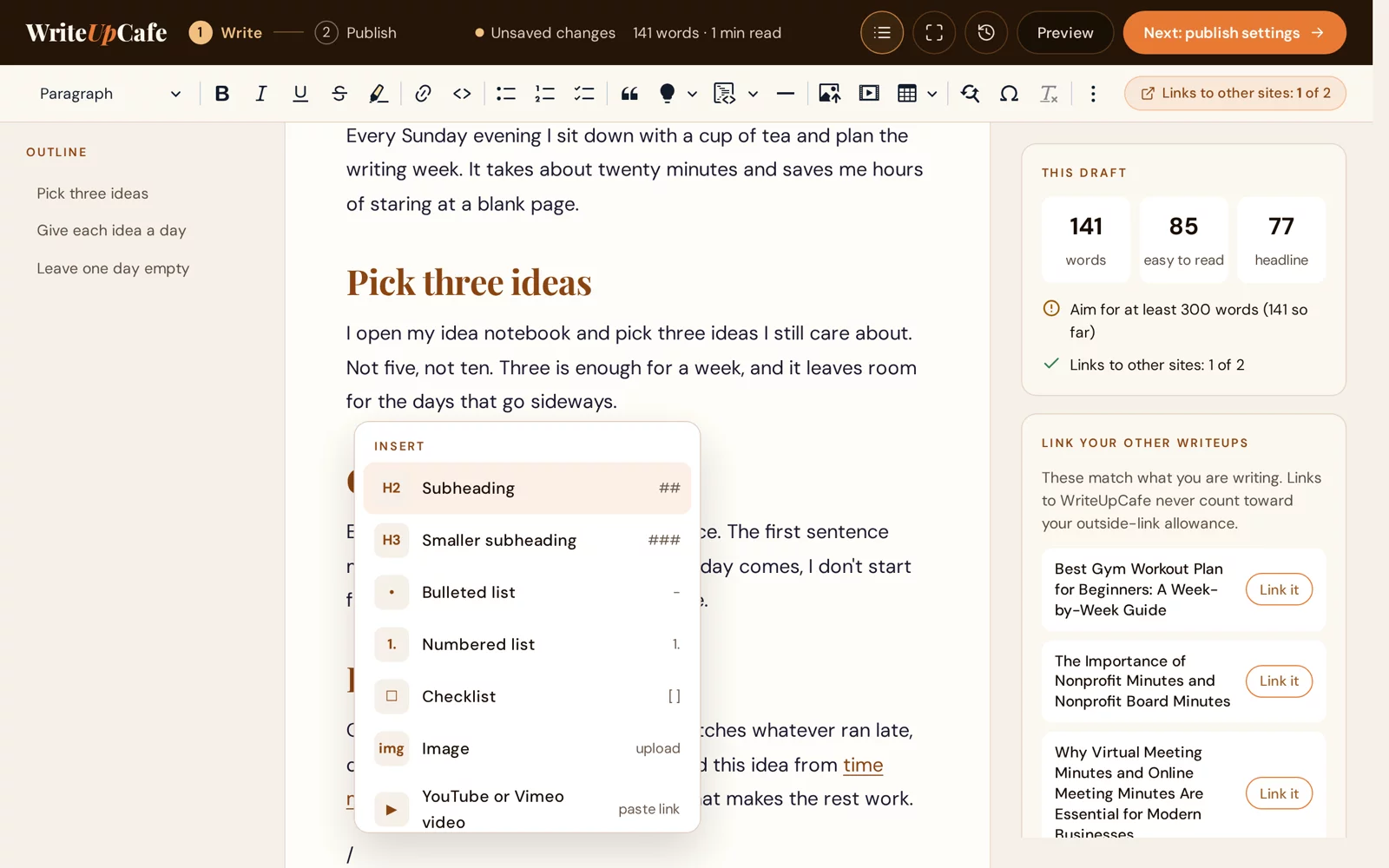
The Insert menu.
The menu has: Subheading, Smaller subheading, Bulleted list, Numbered list, Checklist, Image, YouTube or Vimeo video (paste the link), Tip box, Note box, Warning box, Quote, Code block, Table and Divider.
Typing shortcuts
| Type this at the start of a line | You get |
|---|---|
| ## and a space | Subheading |
| ### and a space | Smaller subheading |
| - and a space | Bulleted list |
| 1. and a space | Numbered list |
| [ ] and a space | Checklist |
| > and a space | Quote |
| ``` | Code block |
| --- | Divider |
Common keyboard shortcuts work too: Ctrl+B bold, Ctrl+I italic, Ctrl+U underline, Ctrl+K link, Ctrl+Z undo. On a Mac, use Cmd instead of Ctrl.
Images, links and pasted text
- Images: upload JPEG, PNG, GIF or WebP. After an upload, a box opens so you can describe the image for readers who can't see it. Click an image to make it normal size, beside the text or full width, or to add a caption.
- Links: select text and click the link button. Start typing a title in the link box to find writeups on WriteUpCafe. On the Free plan you can link to 2 other sites per writeup. See Links to other sites.
- Pasting from Word or Google Docs keeps headings, lists and links, and cleans up fonts and colours. A message tells you what was kept, with an Undo button.
Around the page
- Outline (left): your subheadings. Click one to jump to it.
- This draft (right): word count, how easy it is to read, a headline score, and checks such as "Aim for at least 300 words".
- Top bar: show or hide the outline, focus mode (hides everything but the page), version history (clock icon), Preview (opens in a new tab) and Next: publish settings.
- On a phone, the outline and checks open from the Outline and Checks buttons at the bottom.
Select a sentence or more and an Improve bar appears. See AI writing help.
Do I need to save?
No. The top bar shows All changes saved once your work is stored. If the editor finds a newer copy on your device than on our servers, it offers Restore it or Keep the saved one.
The editor didn't load.
Reload the page. If it still fails, you'll see a plain text box you can type in. Try another browser, and contact us (Website Issue) if it keeps happening.