Write a book, chapter by chapter
Create a book, publish its chapters one at a time and give readers a table of contents with their reading progress.
A book on WriteUpCafe is a page that holds your chapters in order. Each chapter is a writeup you publish as usual. Readers get a table of contents and can see how far they have read.
Create the book
Open My series from your profile menu and click New series.
Pick Book and click Continue with Book.
Give it a Title and, if you like, a short Description.
Add a cover, or skip it. Book covers are shown upright (2:3). Without a cover image, readers see a title cover in the Cover colour you choose. If your image doesn't already have the title on it, you can turn on Show the title and author over my cover image.
Pick a genre. A book needs one primary genre; you can add up to 2 more topics.
Click Create book.
Publish a chapter
On the book's card in My series, click Write the first chapter. Later this button says Write the next chapter.
Write the chapter in the editor like any writeup, then click Next: publish settings.
The Part of card already shows your book, with a line such as "This will be Chapter 1 of …".
For the cover image, choose Title cover (made for you from the chapter number, the title and the book's cover colour) or Upload an image.
Check the rest of the page and click Publish. The chapter goes to the end of the book.
You don't need to put "Chapter 1:" in your titles. Chapters are numbered for you, and a label like "Chapter 1:" at the start of a title is left out of the table of contents, because the page prints the number itself.
Already wrote a chapter? Click Manage on the book's card, then Add an existing writeup. You can also pick the book in the Part of card when you edit the writeup.
What readers see
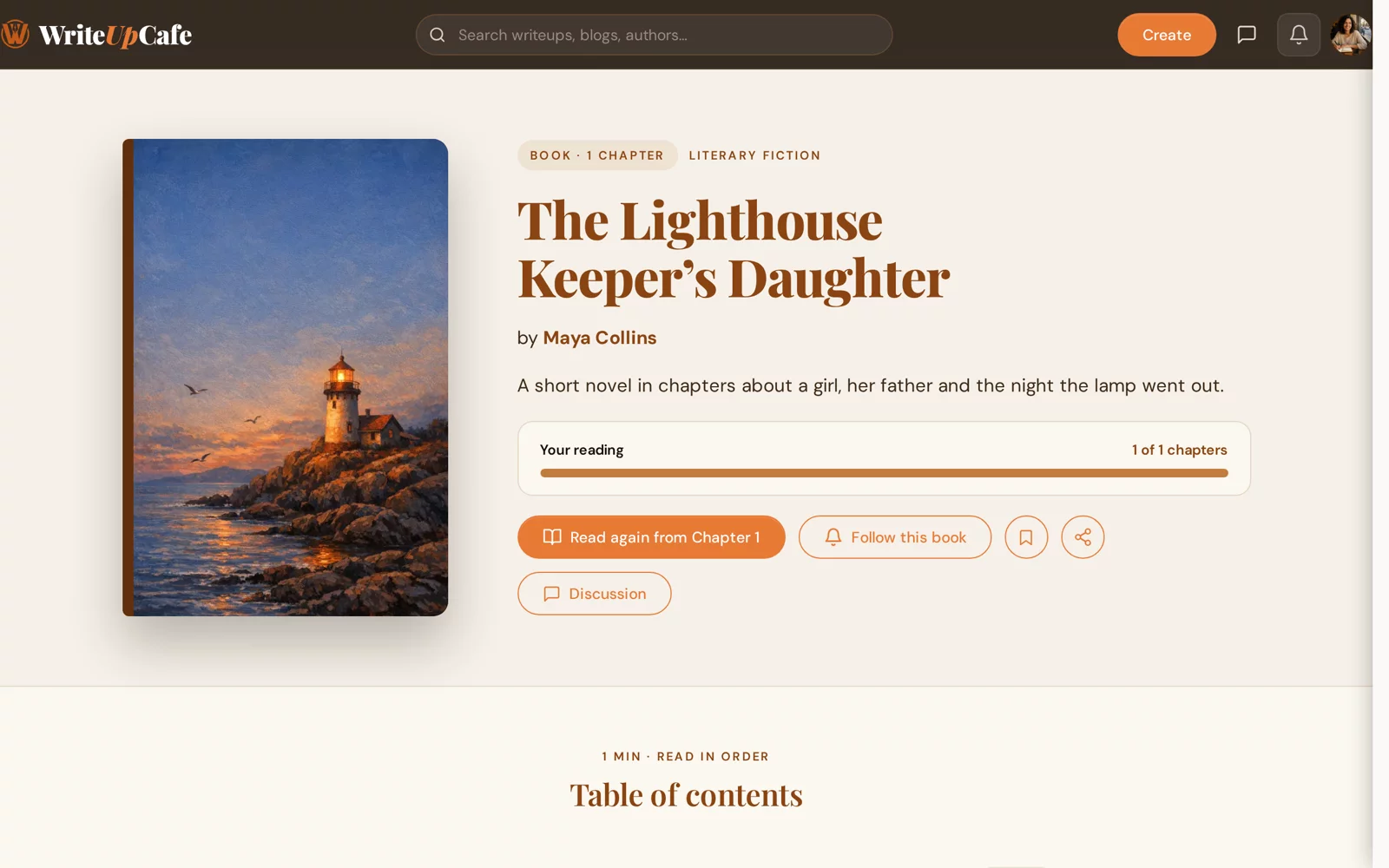
- A button to start: Start reading, then Continue Chapter 2 and so on, or Read again from Chapter 1 once they've read it all.
- Your reading: how many chapters they've read, for logged-in readers.
- Follow this book: they are notified when a new chapter is published.
- Save, share and Discussion, and the Table of contents below.
Good to know
- A book stays a book. The type can't be changed after it is created.
- Readers can pitch a chapter to you if Open for co-author pitches is on. See Co-authors, contributors and pitches.
- Deleting a book doesn't delete its chapters. They stay published as standalone writeups.
On Pro you can change the order of chapters and edit the book's details after you create it. On Free you can own 2 series of any type, books included. See Series on the Free plan.
Can a chapter be in two books?
No. A writeup belongs to one series, book, course, collection or playbook at a time.
How do I take a chapter out of the book?
On My series, click Manage on the book and click the × next to the chapter. The writeup keeps its own page.