Publish your first writeup
Write in step 1, add a cover image and check your topics in step 2, then press Publish. A one-minute video and the steps.
A writeup is an article you write and publish on WriteUpCafe. Publishing takes two steps: 1 Write, then 2 Publish. The only thing you must add in step 2 is a cover image.
Before you start
You need a verified email and a profile with a photo, a display name and a city. See Verify your email and Finish your profile.
Step 1: Write
Click Create at the top of any page.
Type your Title. Below it you can add a one-line summary (optional).
Write your text in the big box. Type / on an empty line to add subheadings, images, lists and more. See The editor.

Step 1. Your draft saves by itself; the top bar shows "All changes saved". When you're done, click Next: publish settings at the top right.
Your draft is saved from the first thing you type, so you can close the page and come back. Find it under your profile menu → Drafts.
Step 2: Get it ready to publish
Under Cover image, click Choose image and upload a picture, or pick one of the images from your writeup. A cover is required. See Cover images.
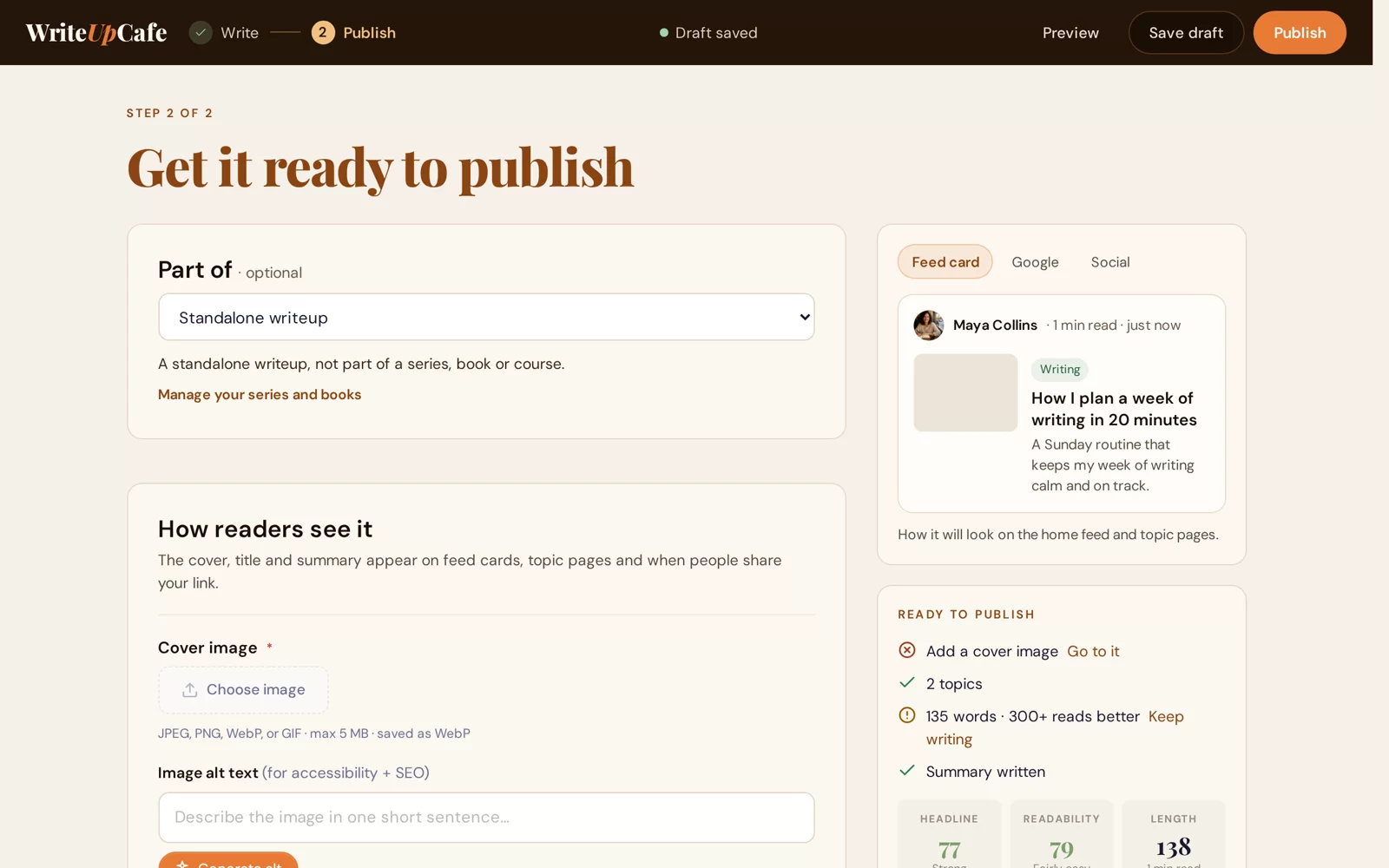
Step 2. The "Ready to publish" list on the right shows what's still missing. Check your title and summary. If you leave the summary empty, we write one from your text.
Look at Topics. We pick them from what your writeup is about; remove any that don't fit. See Topics and language.
Click Publish.
If something is missing, an Almost there window tells you what to fix. See Why can't I publish?
You may also see Before you publish with tips, for example that your writeup is short. These are only suggestions: click Let me tweak to go back, or Publish anyway.
After you publish
You go to your writeup's page and see Your writeup is live. From there you can Copy link, share to X, LinkedIn, Facebook or WhatsApp, or click Write another.
Your writeup is visible on WriteUpCafe right away. It shows up in Google search only after it passes our quality review, usually within a few minutes. See Why isn't my writeup on Google yet?
How many writeups can I publish?
5 a month on the Free plan; unlimited on Pro. See The monthly writeup limit.
Can I change it after publishing?
Yes. Open the writeup, click ⋯ and choose Edit. See Edit a live writeup.